


Social Media Marketing: Setting Up Suggested Social Posts
In this article
- Reviewing your suggested social posts
- Managing your suggested social posts
- Customizing your suggested posts planner
Suggested social posts in your Social Media Marketing dashboard help you keep a steady stream of content going without having to start from scratch every time. The planner analyzes your site and connected social accounts to suggest posts, then lets you customize the text, timing, channels, and images so every post still feels like your brand.
Reviewing your suggested social posts
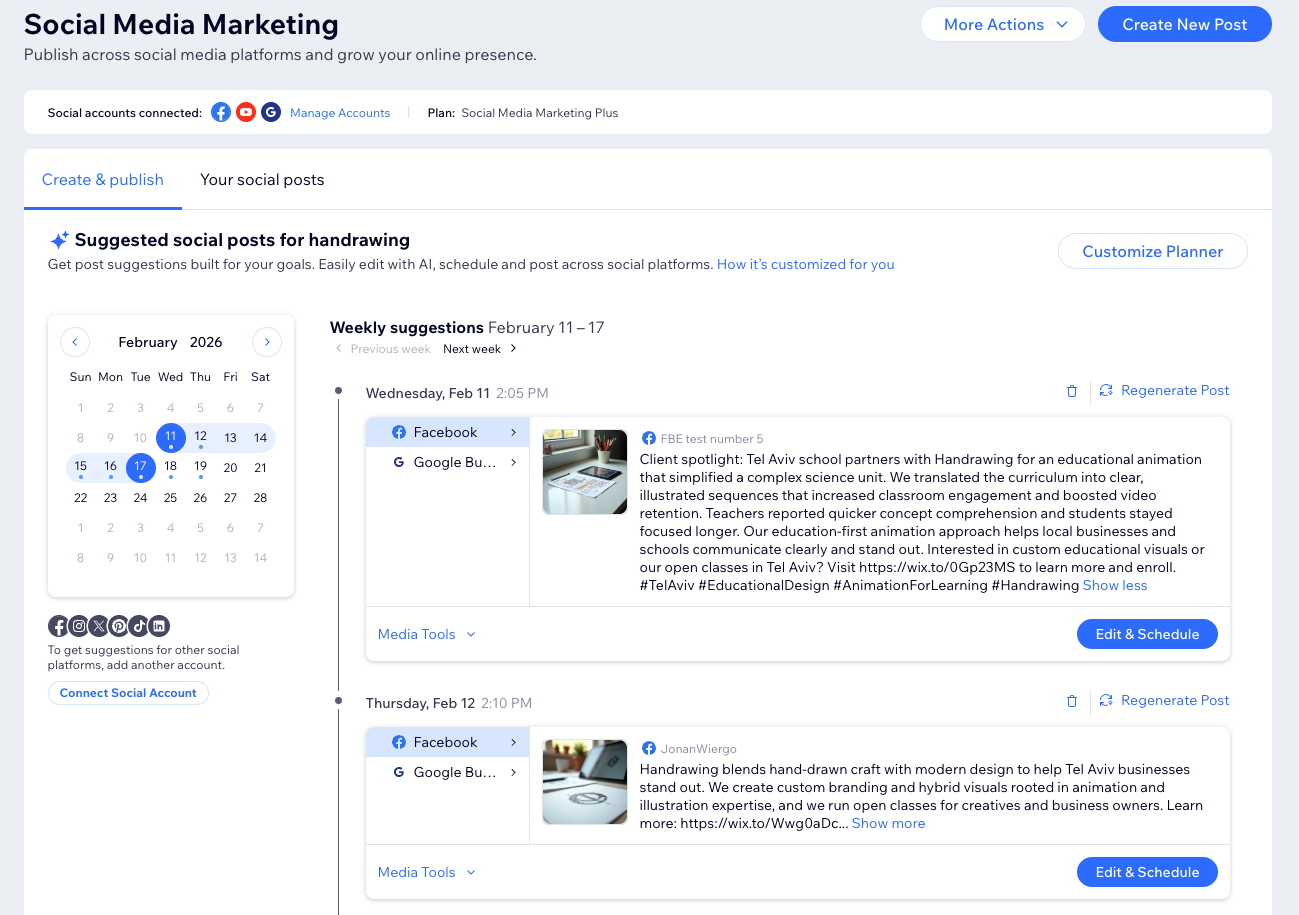
Your suggested social posts section shows a calendar and a weekly list of recommended posts for each connected social channel. From here, you can quickly scan your upcoming content, open individual suggestions, and decide what to keep, edit, or schedule.
To review your suggested social posts:
- Go to Social Media Marketing in your site's dashboard.
- Make sure the Create & publish tab is selected.
- (If needed) Click Generate AI Planner.
- Scroll to the relevant day in the timeline.
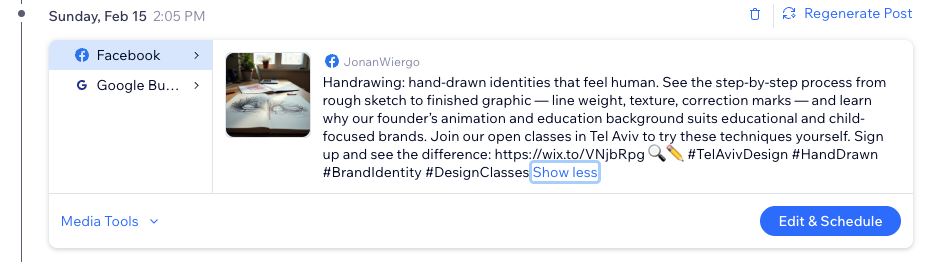
- Click the relevant social platform(s), then click Show more to review the suggested content.
- Click Edit & Schedule to publish your post(s).
Don't need a suggested post?
Click the
Trash icon
 to delete the post, then click
Remove Suggestion.
to delete the post, then click
Remove Suggestion.
to delete the post, then click
Remove Suggestion.
Managing your suggested social posts
Once you have found a suggestion you want to work with, you can manage the content in more detail. Adjust the text, update the image, regenerate the whole suggestion, or fine-tune the image with AI before scheduling.
To manage your suggested social posts:
- Go to Social Media Marketing in your site's dashboard.
- Make sure the Create & publish tab is selected.
- (If needed) Click Generate AI Planner.
- Scroll to the relevant day in the timeline.
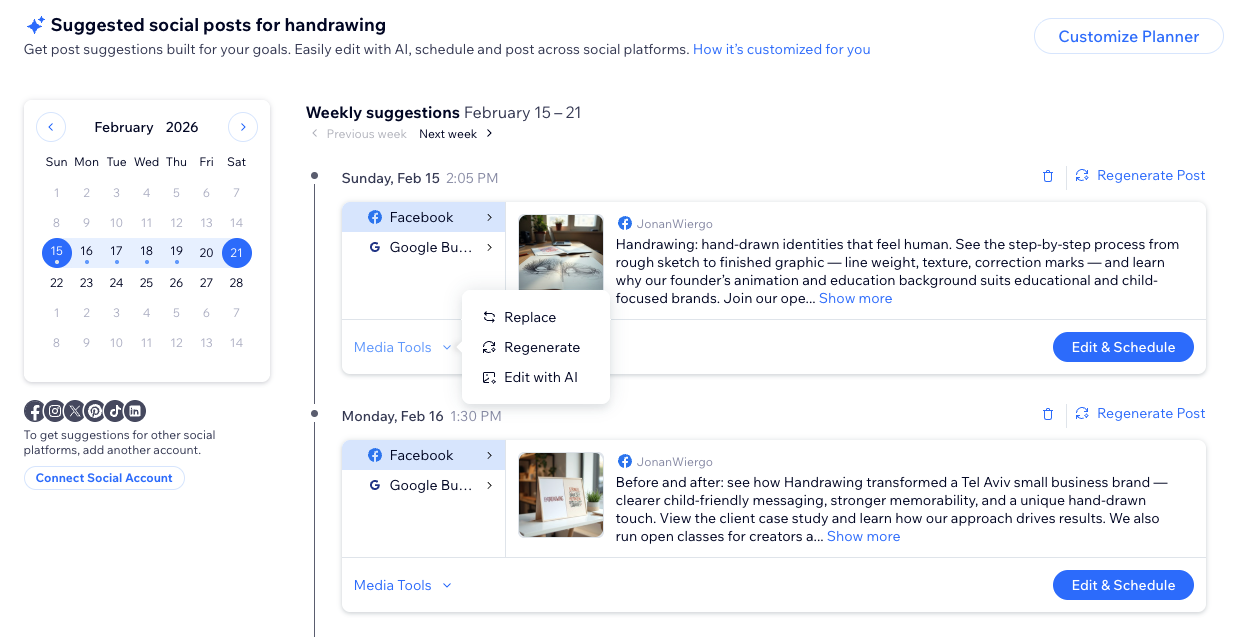
- Click the Media Tools drop-down and select the relevant option:
- Replace: Choose a different image for the post from your media or upload a new one.
- Regenerate: Generate a new version of the suggested post, including updated text and image.
- Edit with AI: Open the AI image editor to describe the changes you want to see.
Customizing your suggested posts planner
You can customize your suggested posts planner so the ideas you get match your goals, audience, and brand. Use the planner settings to control what AI focuses on, how it sounds, and how often you receive new suggestions.
To customize your planner:
- Go to Social Media Marketing in your site's dashboard.
- Make sure the Create & publish tab is selected.
- (If needed) Click Generate AI Planner.
- Click Customize Planner.
- Choose the relevant AI marketing settings:
General
Content focus
Brand voice
Plan preferences
