


Providing Sales Tax/VAT Exemptions
In this article
- Providing individual customers with tax-exempt status
- Setting up tax exemptions for groups
- What does my customer see at checkout?
- FAQs
Some of your customers may not be required to pay tax on their purchases. This may include:
- B2B customers
- Non-profit or charitable institutions
- Religious institutions
- Individuals with disabilities
- Veterans
Important:
Available tax exemptions vary by location. Consult a local tax authority to learn which of your customers qualify for a tax exemption.
Providing individual customers with tax-exempt status
You can manually grant tax-exempt status to any person in your site's contact list. Make sure the contact has an email address, as that address is what allows them to avoid paying tax at checkout.
Important:
To automatically receive tax-exempt status while checking out, the customer must enter the same email address.
To provide a tax exemption:
- If not already added, add the customer as a site contact.
Note: Make sure to add the contact's email address. - Go to Tax in your site's dashboard.
- Scroll down and click Manage Exemptions.

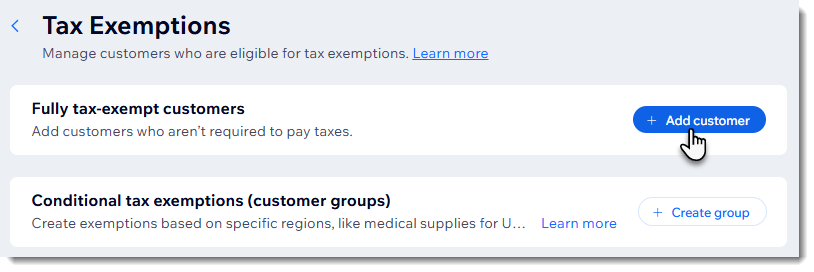
- Click Add customer.
- Select the relevant customer.
- Click Save.
Setting up tax exemptions for groups
Instead of assigning tax exemptions to customers one by one, you can set up a tax exemption for an entire group and choose which tax types it applies to.
Before you begin:
- Make sure to add the individuals that make up the group as site contacts.
- If you want to set up a tax exemption for a specific group of products, create that product group.
To set up a tax exemption for a group:
- Go to Tax in your site's dashboard.
- Scroll down and click Manage Exemptions.
- Click Create group.
- Enter a name and click Next.
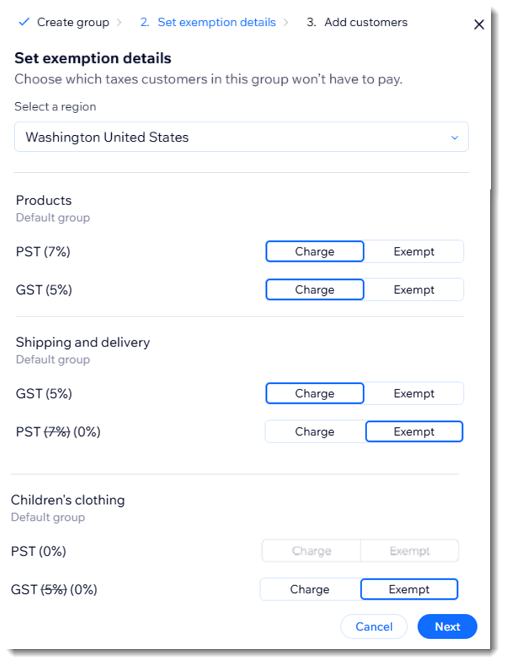
Note: This name is for internal use. - Select a region from the Select a region drop-down.
- Click Exempt next to the relevant tax type(s) and click Next.
- Select the customers you want to add to this exemption group.
- Click Save.
What does my customer see at checkout?
The tax exemption display varies depending on whether you
include tax in product prices or add it at checkout.
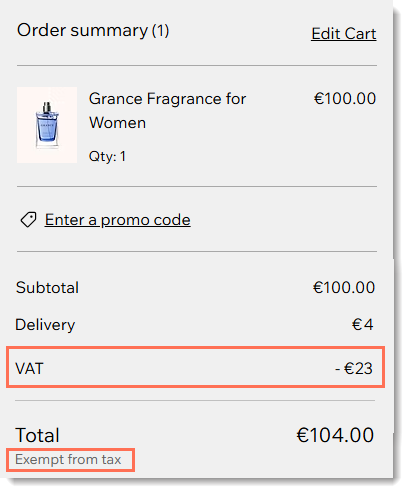
When you include tax in product prices, customers see the amount that was subtracted.
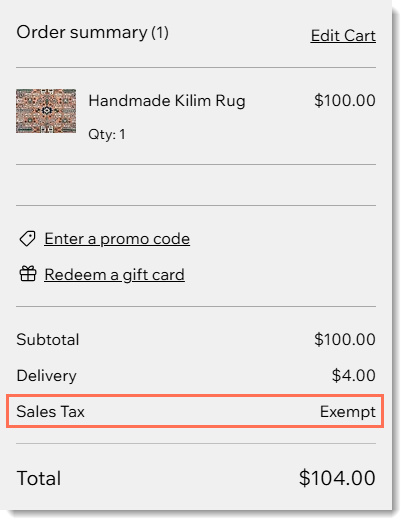
If tax is not included in the price, a notification appears stating that the customer is exempt from tax.
FAQs
Click below for answers to common questions about providing tax exemptions.
How can various employees of the same company receive tax-exempt status?
Can my customer add their VAT ID at checkout?
Can I provide a customer with a partial tax exemption?
Are there any cases where the tax exemption cannot be applied?
What happens if my customer's phone details don't match those in Wix Contacts?
Can a tax exemption be applied at a point of sale?