


CMS: Creating Page Variants for Dynamic Pages
In this article
- Adding a page variant
- Editing variant rules
- Understanding how items route to variants
- Managing variant dataset settings
- Duplicating a page variant
- Deleting a page variant
- FAQs
Page variants let you display different layouts for different subsets of items on the same dynamic item page in Wix Studio. Instead of showing every item with the same design, you can create variant layouts that serve specific groups of items based on filters you define. For example, if you have a portfolio collection, you could create one layout for 'Marketing' projects and a different layout for 'Design' projects, while keeping all items under the same dynamic page URL structure.
Page variants are available only for dynamic item pages that use a dynamic variable in the URL. All variants share the original page's dataset, URL pattern, permissions, and SEO settings. This means sort order, base filters, and page access are managed on the original dynamic page, not separately for each variant.
Before your begin:
- Page variants are currently available in Wix Studio only.
- You can only create variants for dynamic item pages that use a dynamic variable in the URL. Dynamic list pages do not support variants.
Adding a page variant
You can add a page variant to any dynamic item page. When creating a variant, choose whether to start with a copy of the original page's design or build from a blank canvas.
To add a page variant:
- Go to your editor.
- Click Pages on the left side of the editor.
- Click the More Actions icon
 next to the relevant dynamic item page.
 - Click Add page variant.
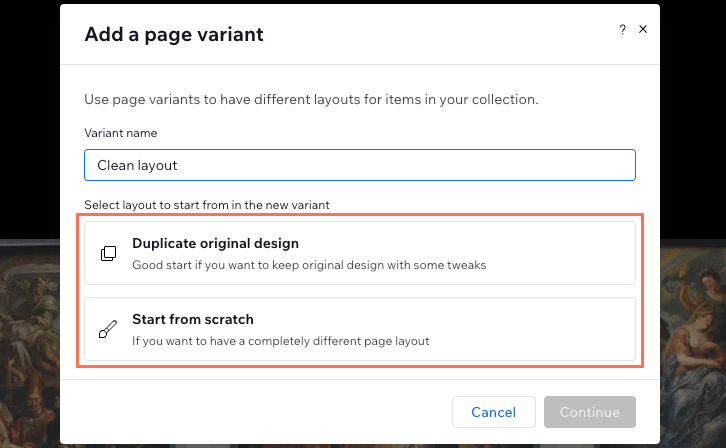
- Enter the Variant name.
- Select how you want to start:
- Duplicate original design: Create a copy of the original page's layout.
- Start from scratch: Create a blank page connected to the same dataset.
- Click Continue.
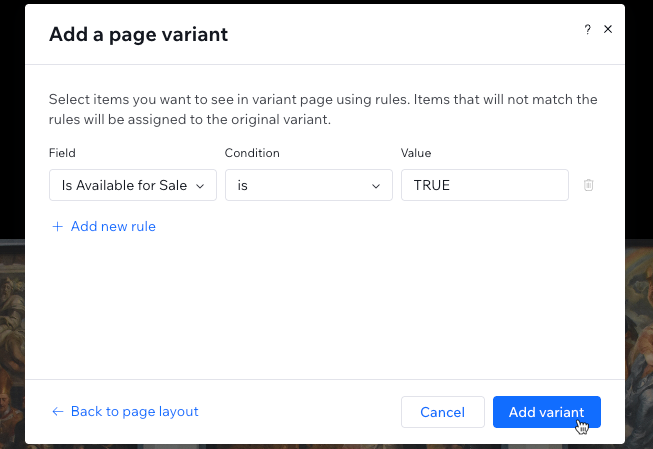
- Set up the page variant rules:
- Click the Field dropdown and select the field you want to filter by.
- Click the Condition dropdown and select a condition.
- (If needed) Enter or select the value for your filter condition.
- (Optional) Click + Add new rule to add more filter conditions. Items must match all rules to display on this variant.
- Click Add variant.
Editing variant rules
After creating a page variant, you can edit the rules that define which collection items display on that variant. The rules modal lets you set filter conditions using fields from your collection. Items must match all rules (AND logic) to display on the variant. Items that don't match any variant's rules display on the original page layout.
Important:
Filter hierarchy: The original page's base filter determines which items are available across all variants. Variant rules then narrow down from that base set. If the original page later filters out an item already matching a variant's rules, that item disappears from the variant as well.
To edit variant rules:
- Click Pages on the left side of the editor.
- Click the More Actions icon next to the relevant page variant.
- Click Edit variant rules.
- Edit the page variant rules:
- Click the Field dropdown and select the field you want to filter by.
- Click the Condition dropdown and select a condition.
- (If needed) Enter or select the value for your filter condition.
- (Optional) Click + Add new rule to add more filter conditions. Items must match all rules to display on this variant.
- Click Save.
Understanding how items route to variants
When a visitor navigates to a dynamic page URL, the system determines which layout to display based on the following logic:
- Variant filters evaluated first: The system checks each variant's filter against the item.
- Conflict resolution: If an item matches multiple variants, the variant that was created first takes priority.
- Fallback to original: If the item does not match any variant filter, the original page layout is used.
- Previewing items: When viewing a page variant in the editor, the dynamic page selector displays only the items assigned to that specific variant.
Managing variant dataset settings
All page variants share the same dataset as the original dynamic page. This means certain dataset settings are global and managed only on the original page.
- Sort order: There is a single shared sort configuration defined on the original page. On variant pages, the sort setting is read-only.
- Base filters: The original page's filters define which items are eligible across all page variants. On variant pages, the base filter section is read-only.
- Variant-specific items: On variant pages, the dataset includes an "Items in this variant" section that reflects the filters you defined in the Assign Items modal. To edit these, use the Assign items action from the variant's context menu.
Duplicating a page variant
You can duplicate any existing page variant to create a new one with the same layout. After duplicating, you can configure which items display on the new variant.
Note:
Original page duplication: When you duplicate the original dynamic page (not a variant), the variants are not included. Only the original layout is duplicated as a new dynamic page.
To duplicate a page variant:
- Click Pages on the left side of the editor.
- Click the More Actions icon next to the relevant page variant.
- Click Duplicate variant.
- Edit the Variant name.
- Select how you want to start:
- Duplicate original design: Create a copy of the original page's layout.
- Start from scratch: Create a blank page connected to the same dataset.
- Click Continue.
- Set up the page variant rules:
- Click the Field dropdown and select the field you want to filter by.
- Click the Condition dropdown and select a condition.
- (If needed) Enter or select the value for your filter condition.
- (Optional) Click + Add new rule to add more filter conditions. Items must match all rules to display on this variant.
- Click Add variant.
Deleting a page variant
You can delete individual page variants or the entire original dynamic page. Deleting the original page also removes all its associated variants.
Important:
Deleting the original page: If you delete a dynamic page that has variants, a confirmation modal appears explaining that all associated variant pages will also be permanently removed.
To delete a page variant:
- Click Pages on the left side of the editor.
- Click the More Actions icon next to the relevant page variant.
- Click Delete.
- Click Delete Page to confirm.
To delete the original dynamic page and all its variants:
- Click Pages on the left side of the editor.
- Click the More Actions icon next to the relevant original dynamic page.
- Click Delete.
- Review the confirmation modal explaining that all variant pages will also be permanently removed.
- Click Delete Page and Variants to confirm.
FAQs
Click below to learn more about creating dynamic page variants.
How do I rename a page variant?
Are page variants available in all editors?
Can I add page variants to a dynamic list page?
Can I remove the dynamic variable from a page's URL while it has variants?
Can I set separate SEO settings for each variant?
Do page variants have their own permissions?
What field types aren’t supported for creating dynamic page variant rules?
