


CMS: Creating Dynamic Category Pages
In this article
- Step 1 | Add a dynamic category page to your site
- Step 2 | Adjust your category page connections
- Step 3 | (Optional) Display items from another collection on your category page
- Step 4 | (Optional) Customizing the URL slug structure
- Step 5 | Publish your site
- FAQs
Dynamic category pages display items from your CMS collections organized by category. Each category automatically gets its own version of the page, showing only the items assigned to that category.
For example, if you have a "Recipes" collection organized by a "Cuisines" category collection, each cuisine — Italian, Mexican, Japanese — gets its own page listing only the recipes in that category.
When you add dynamic category pages, you choose from 2 page types:
- Category page: A dynamic item page — one version is generated per category. It shows the items assigned to that category using a filtered dataset.
- Category list page: A dynamic list page — displays all your categories in a repeater or gallery so visitors can browse and click through to individual category pages.
Important:
Before getting started, make sure you have already set up:
- A category collection with at least one category item.
- An items collection with a 'Category' field connected to your category collection. Make sure to assign the items to their corresponding category collection.
Step 1 | Add a dynamic category page to your site
From your editor's CMS panel, create a dynamic category page for your category collection.
Wix Editor
Studio Editor
- Go to your editor.
- Click CMS
 on the left side of the editor.
 - Click Your Collections.
- Hover over the relevant category collection and click the More Actions icon
 .
. - Select Add dynamic page.
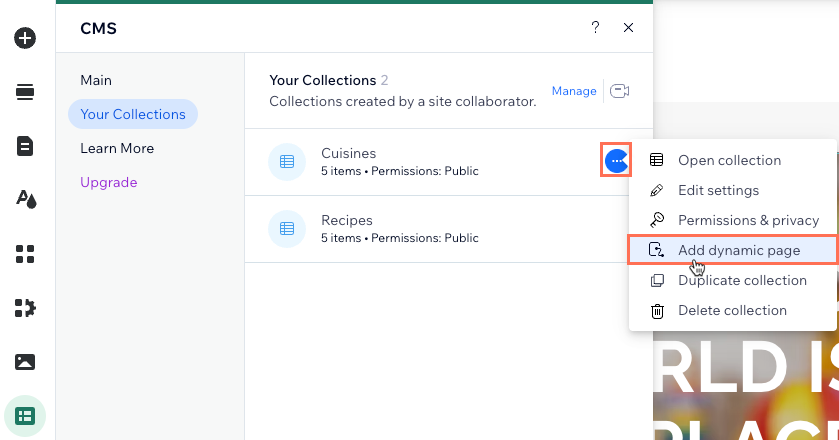
- Click Category page.
- Click Add to Site.
Step 2 | Adjust your category page connections
Each dynamic category page comes with multiple
datasets already connected. Before customizing, it helps to understand how the default datasets work and what each one controls on the page.
Your category page includes 3 datasets by default:
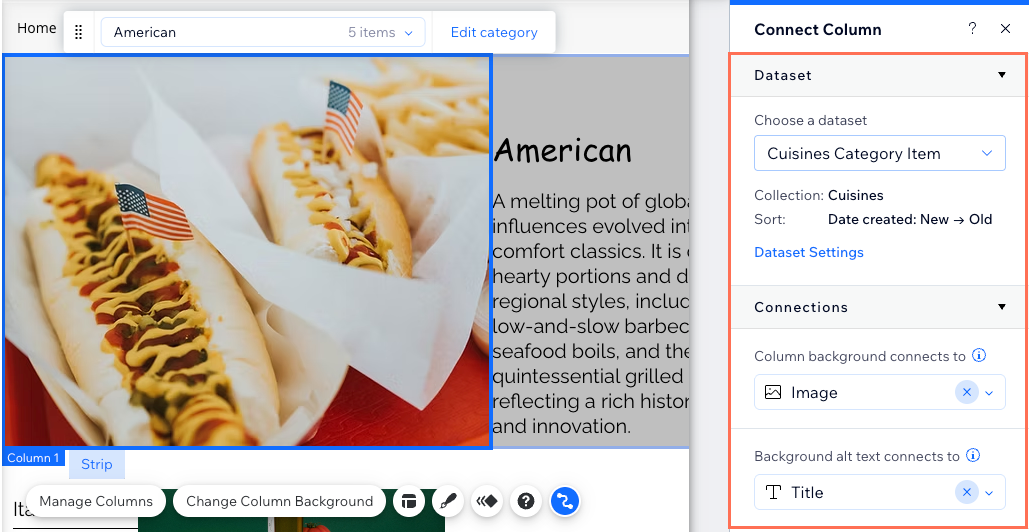
- Dynamic page dataset: Connects the page heading area to your category collection. This includes the category name, image, and description. The correct category automatically loads based on the URL of the page.
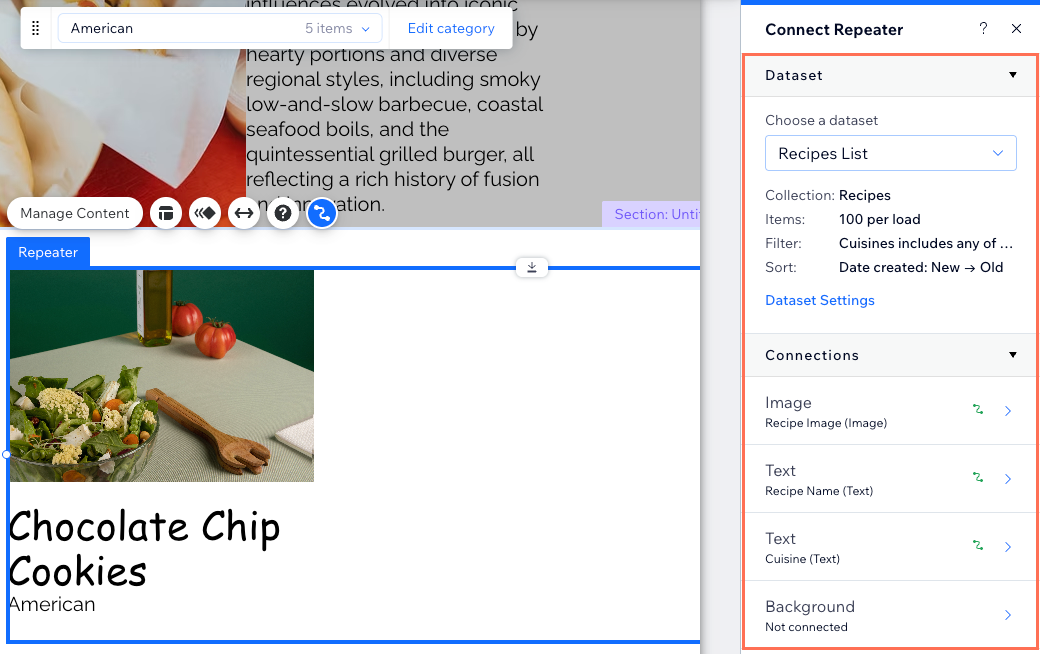
- 1st regular dataset: Connects the repeater or gallery to your items collection. This shows items assigned to the current category. The dataset is automatically filtered by the 'Category' field.
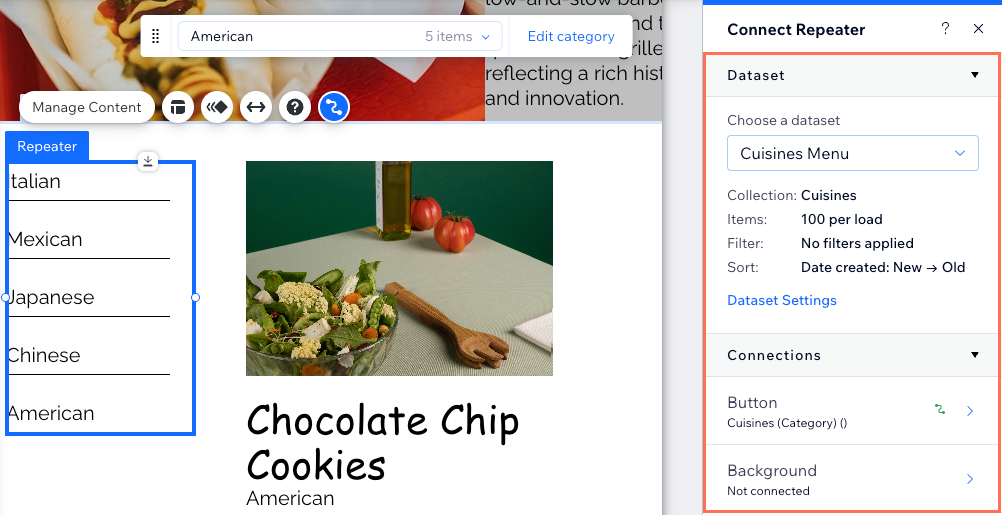
- 2nd regular dataset: Connects a category navigation menu to the category collection. This menu is a repeater with buttons that, when clicked, take visitors to the relevant category.
To edit the page connections:
Wix Editor
Studio Editor
- Go to the category page in your editor.
Tip: By default, your category page is titled {Category collection name} (Category). - Click the element in which you want to edit the connections:
Page heading area
 .
.
Repeater or gallery displaying items associated with the category
Category navigation menu
Step 3 | (Optional) Display items from another collection on your category page
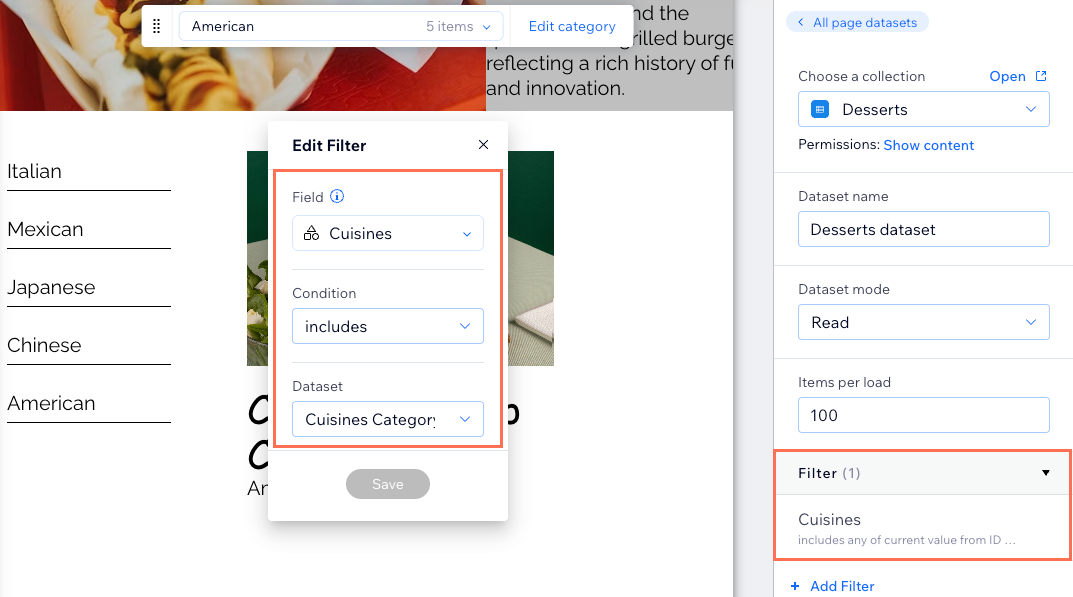
You can add more datasets to a category page if you want to display items from different collections on the same page. Your editor automatically adds a 'Category' field filter to each new dataset if the items collection has a 'Category' field associated with the page's category collection.
To display items from another collection:
Wix Editor
Studio Editor
- Make sure the items collection you want to display has a 'Category' field with items assigned to the category collection.
- Add a new dataset to the page and connect it to the other items collection:
- Click CMS
 on the left.
 - Click Manage Page Connections.
- Click Add a Dataset at the bottom right.
- Click the Choose a collection dropdown and select the other items collection you want to display. If needed, edit the dataset name.
- Click Create.
- Click CMS
Note:
The dataset automatically adds a filter that displays items when their 'Category' field value matches the category displayed on the page.
- Add a repeater or gallery and connect it to your new dataset.
- Preview the page to verify the correct items display for each category.
Step 4 | (Optional) Customizing the URL slug structure
Dynamic category pages are created with a default URL structure based on your collection name and the category title:
- Category list page: https://www.yoursite.com/{category-collection-name}
- Category page: https://www.yoursite.com/{category-collection-name}/{category-name}
You can customize the URL slug if needed. For more advanced URL customization, see
CMS: Creating Unique Dynamic Page URLs.
Step 5 | Publish your site
Once you confirm that all of the connections are correct in your editor, go ahead and publish. This creates the actual URLs for all of your dynamic pages and makes the content go live.
FAQs
Click a question below to learn more about dynamic category pages.
Why do I see a 404 error when previewing my category page?
What's the difference between a category page and a category list page?
How do I link to category pages from my site menu?
