


AI Phone Agent: Managing the Phone Agent
- Viewing your key stats
- Reviewing your call history
- Reading a call transcript
- Checking your usage
- Managing your settings
- FAQs
You must upgrade your Wix site with a plan in order to set up your AI Phone Agent.
Your AI Phone Agent uses AI credits from your Wix account when it answers a call. Learn more about using AI credits with your Phone Agent.
The Phone Agent is currently only available in English to Wix users in the US. We're working on expanding access.
Manage your Phone Agent from the dashboard. You can track call activity, review call summaries, read call transcripts, check your AI credit usage, manage follow-up, and update settings.
Viewing your key stats
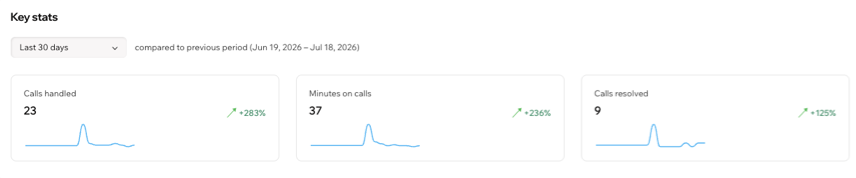
To view your key stats:
Go to Phone Agent in your site's dashboard.
Click the date range dropdown at the top.
Select the relevant time period.
Review your stats:
Calls handled: The total number of calls your Phone Agent received.
Minutes on calls: The total length of calls managed by your Phone Agent.
Calls resolved: The number of calls marked Resolved.
Reviewing your call history
The Call history section shows every call handled by your Phone Agent. You can review a summary, check the caller's sentiment, and update the call status.
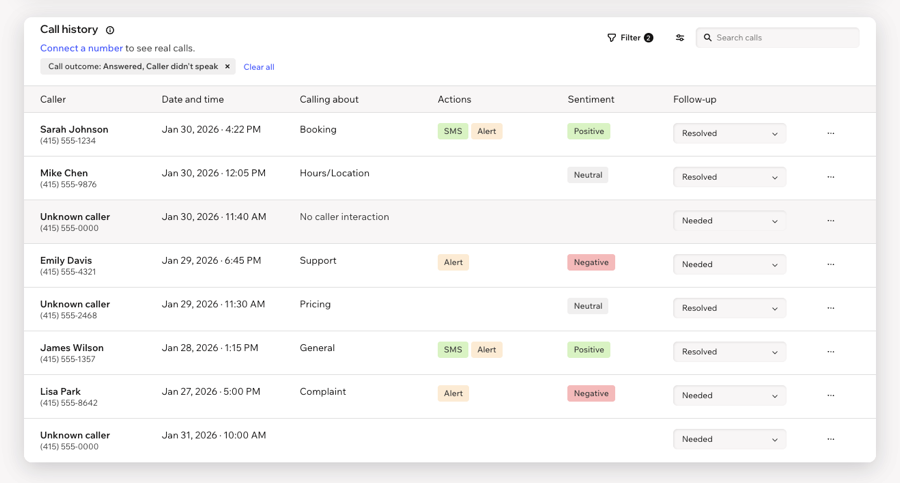
To review your call history:
Go to Phone Agent in your site's dashboard.
Scroll down to Call history.
Review the details for the relevant call:
Summary: See what the caller needed and how your Phone Agent responded.
Action: See whether the call triggered an SMS or Alert.
Sentiment: See whether the caller's tone was Positive, Neutral, or Negative.
Call outcome: See whether your Phone Agent answered the call. Calls marked Not handled - no credits were missed because your account had no AI credits left.
Click the Status dropdown next to the call and choose an option:
Resolved: The call was handled and no more action is needed.
Follow-up needed: The caller needs follow-up from you.
(Optional) Click the More Actions icon
 next to the relevant call and choose what you want to do:
Call details: View more information about the call, including the caller's name, date and time, summary, sentiment, duration, whether an SMS or alert was sent, and the call status.
View contact: Open the caller’s contact card to view their details, including their name and phone number.
Send message: Open the caller’s Inbox tab so you can continue the conversation in Wix Inbox. To send a message, make sure the contact has a valid email address or phone number and that you’ve connected a channel.
Use Filter to view calls by date, status, sentiment, notification type, or call outcome. To find calls your Phone Agent could not answer, click Filter, then select No credits to handle under Call outcome.
Use Search to find a caller by name.
Reading a call transcript
The Transcript section of a call's details shows the full conversation, line by line. You can read it when the summary leaves out a detail you need, such as which service a caller asked about, or a special request they mentioned.
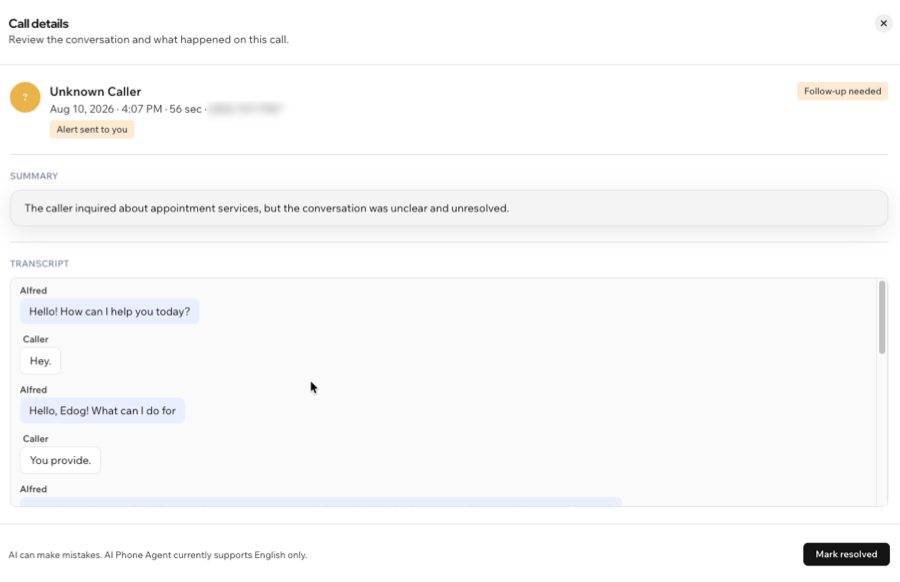
The AI Phone Agent is currently only available in English.
Reading call transcripts requires a Business or Business Elite plan.
Transcripts are generated by AI, so review them rather than treating them as an exact record of the call.
To read a call transcript:
Go to Phone Agent in your site's dashboard.
Scroll down to Call history.
Click the relevant call.
Scroll down to Transcript.
Checking your usage
Your Phone Agent shows 2 separate allowances on the Usage tab. AI credits are used when it answers a call, and are shared across your whole Wix account. SMS messages are used when it texts callers a link after a call, and belong to your Phone Agent alone.
The dashboard warns you when you've used 75% of your AI credits, and alerts you if they run out and the Phone Agent stops answering. To get more credits, upgrade your plan or add credits to your account.
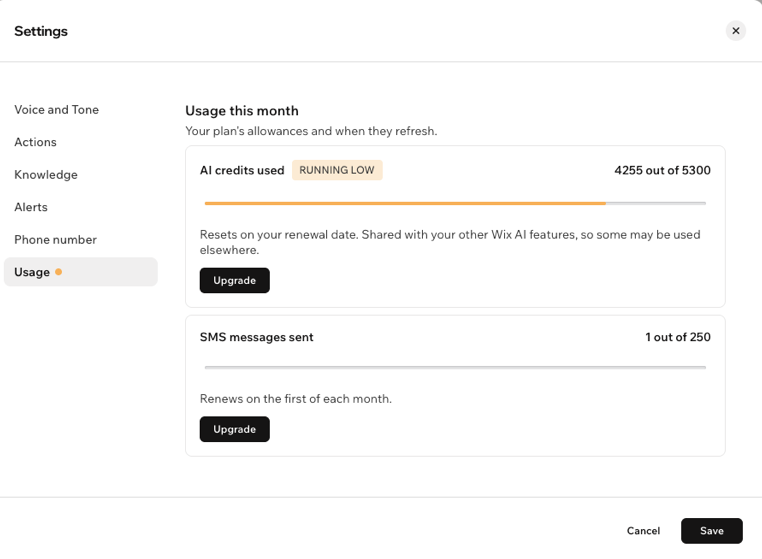
AI credits reset on your renewal date.
SMS messages renew on the first of each month.
To check your usage:
Go to Phone Agent in your site's dashboard.
Click Settings.
Click Usage.
Review AI credits used and SMS messages sent.
(Optional) Click Upgrade to move to a plan with more AI credits or to increase your monthly SMS quota.
Managing your settings
Click Settings at the top of the Phone Agent dashboard to customize how it works. From there, you can update the agent's voice and tone, the information it uses, when it alerts you, and how it handles calls.
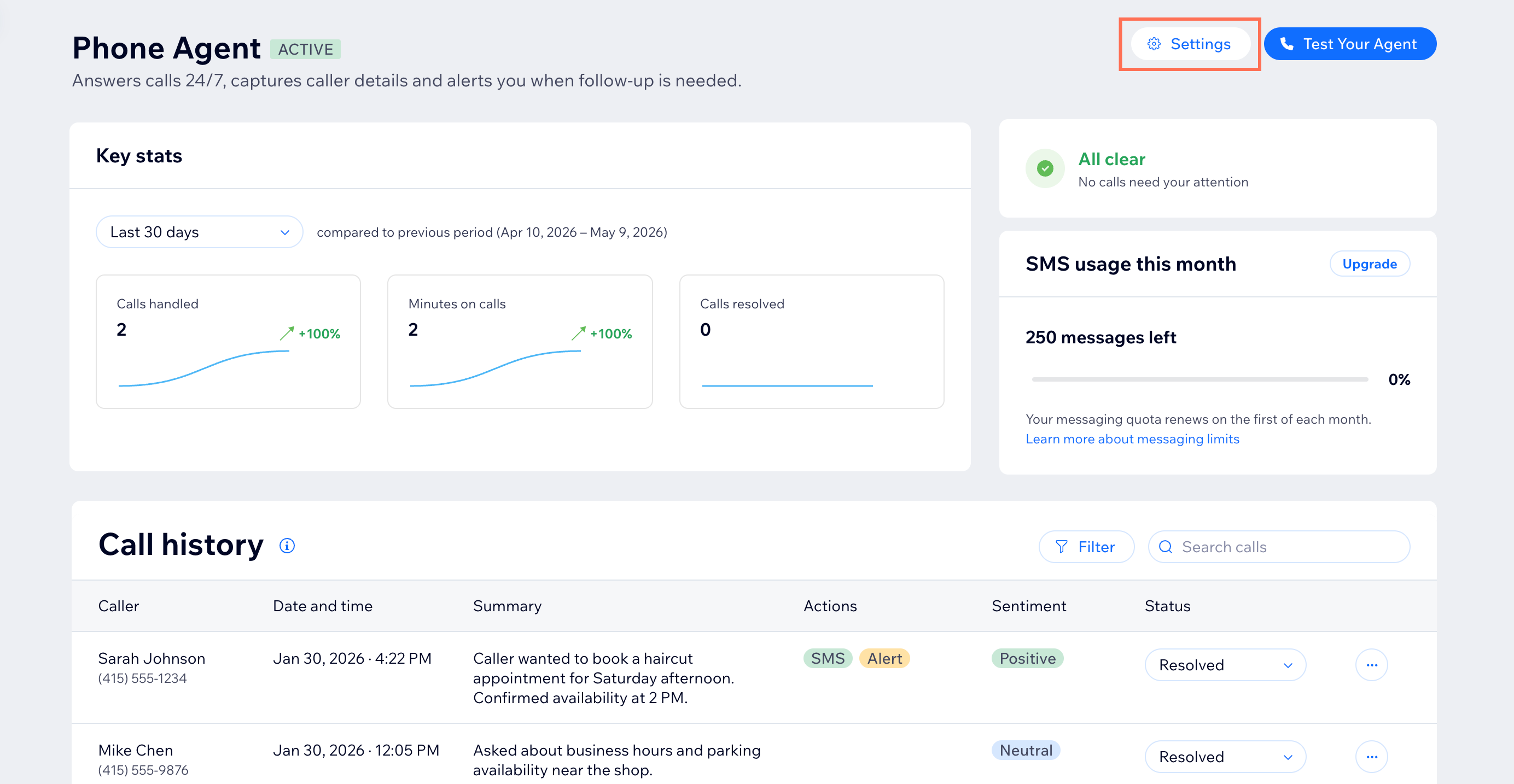
To manage your Phone Agent settings:
Go to Phone Agent in your site's dashboard.
Click Settings.
Choose the relevant tab:
Voice and Tone: Update the agent name, business name, voice, tone, and greeting.
Actions: Enable or disable the Send SMS links toggle to let your Phone Agent text callers links after a call.
Knowledge: Refresh your published site content manually or add extra details under Additional knowledge, such as policies, pricing, or special instructions
Alerts: Update the topics that should trigger an alert and choose whether to receive alerts by email, push notifications, or both
Phone number: View your connected virtual number, set up call forwarding from your existing business number, or get a Google Voice verification code.
Usage: Check how many AI credits and SMS messages you have used, or upgrade to a plan with more.
Click Save.
FAQs
