Customizing Links on Your Cart Page
8 min
In this article
- Accessing the Cart page settings
- Customizing the 'Continue Browsing' links
- Customizing the 'Promo Code' and 'Add a Note' links
- FAQs
Important:
- This article is relevant for Wix Stores, Wix Bookings, and Wix Restaurants Orders.
- The Cart page is not available with Wix Donations or Pricing Plans.
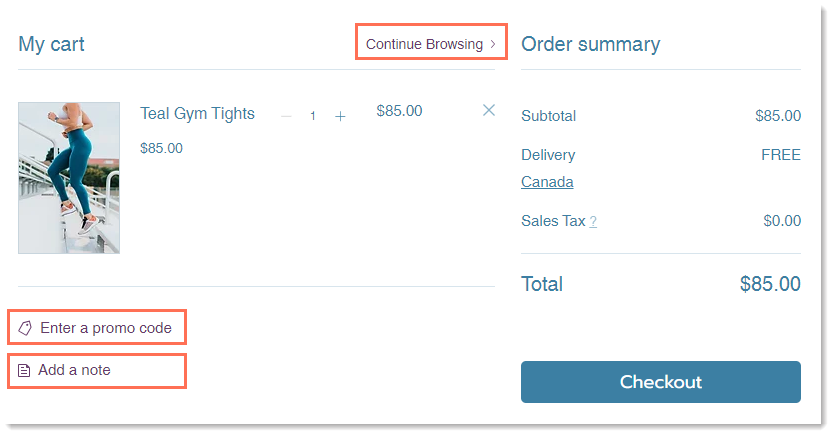
By default, the Cart page has 3 links. Customize the text and design of these links, or remove those you don't need. In addition, you can decide where the 'Continue Browsing' link directs to.
Tip:
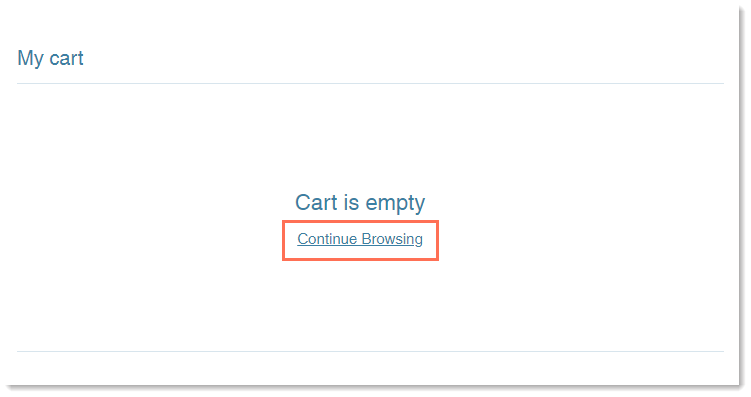
A 'Continue Browsing' link also appears in the cart when it's empty. This link cannot be removed.
Accessing the Cart page settings
Access to the Cart page varies according to which business solution or solutions you use.
Tips:
- If you're using Wix Restaurant Orders, access to the Cart page is always through Cart & Thank You.
- Wix Restaurant Orders is not yet available in the Wix Harmony editor.
Wix Editor
Studio Editor
Wix Harmony Editor
- Go to your editor.
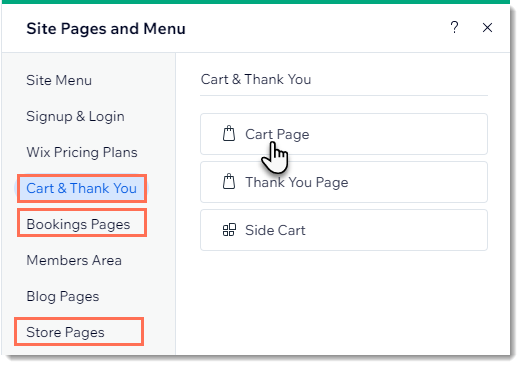
- Go to your Cart page:
- Click Pages & Menu
 on the left side of the editor.
 - Select an option:
- You have only 1 business solution (e.g. only Wix Stores or Wix Bookings):
- Click your business solution (e. g. Wix Stores).
- Click Cart page.
- My site has 2 or more business solutions:
- Click Cart & Thank You.
- Click Cart page.
- You have only 1 business solution (e.g. only Wix Stores or Wix Bookings):
- Click Pages & Menu
- Click the Cart page element on your page.
- Click Settings.
Customizing the 'Continue Browsing' links
When the cart is empty, the 'Continue Browsing' link is always displayed.
The 'Continue Browsing' link also appears when there are items in the cart, but can be removed from this view.
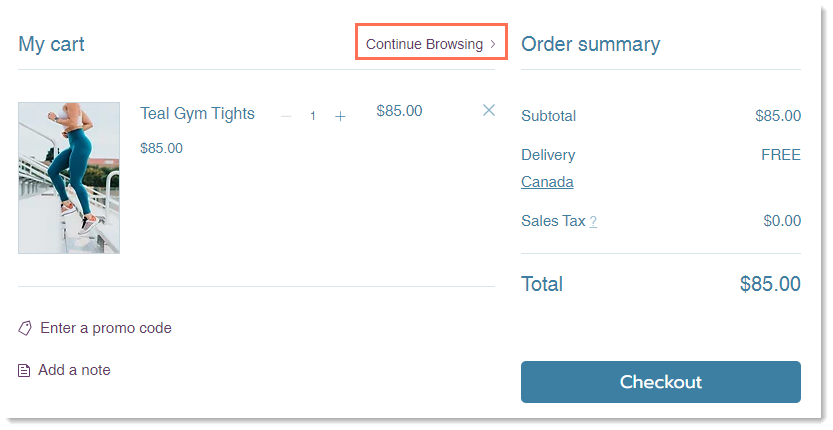
To customize the 'Continue Browsing' links:
Wix Editor
Studio Editor
Wix Harmony Editor
- Go to the Cart page in your editor.
- Click the Cart Page element.
- Click Settings.
- Show or hide the 'Continue Browsing' link:
- Click the Settings tab.
- Click the Show Link toggle to enable or disable it:
- Enabled: The 'Continue Browsing' link appears in the Cart page (when the cart has items and when it's empty) and in the Checkout page.
- Disabled: The 'Continue Browsing' link appears in the Cart Page only when it's empty.
- Set where the link directs to:
- Click the Settings tab.
- Under Where does it link to?, click the Link icon
 .
. - Under Which Page?, select what page the link directs to.
- Click Done.
- Customize the text color:
- Click the Design tab.
- Click the Links color box and select a new color.
Note: This affects the color of all the links in the Cart page but won't affect the "Continue Browsing' link color in the empty cart.
- Edit the 'Continue Browsing' link text:
- Click the Text tab.
- Edit the Continue Browsing link text.
Customizing the 'Promo Code' and 'Add a Note' links
If you offer coupons on your site, make sure you display the 'Enter a promo code' link so that customers can redeem their coupons. You can also display the 'Add a note' link to make it possible for customers to leave you a short message.
To customize the 'Promo Code' and 'Add a Note' links:
Wix Editor
Studio Editor
Wix Harmony Editor
- Go to the Cart page in your editor.
- Click the Cart page element.
- Click Settings.
- Show or hide the 'Promo Code' or 'Add a Note' links:
- Click the Settings tab.
- Deselect the Promo code checkbox.
- Deselect the Note checkbox.
- Customize the text color:
- Click the Design tab.
- Click the Links color box and select a new color.
Note: This affects the color of all the links in the Cart page but won't affect the 'Continue Browsing' link color in the empty cart.
- Edit the text:
- Click the Text tab.
- Edit the Promo code link and Note link text.
FAQs
Click a question below to learn more about the Cart page.
How can I view the cart with items in it so I can see what I'm designing?
Can I add a note field to the Checkout page?
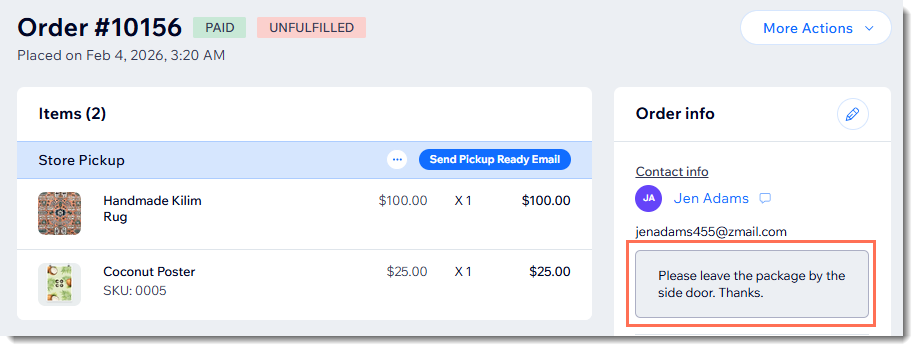
How can I read the notes that customers send?