


header-logo
Getting started with WixLearn how to build your website and business using Wix.
Creating a websiteDesign and manage your site with smart functionalities.
Account & billingManage subscriptions, plans and invoices.
Using the Wix mobile appsRun your business and connect with members.
Connecting a domainLearn to purchase, connect or transfer a domain to your site.
Managing your businessGet tools to grow your business and web presence.
Promoting your siteBoost your visibility with SEO and marketing tools.
Studio, Partners & EnterpriseGet advanced features to help you work more efficiently.
Need more help?Find solutions, learn about known issues or contact us.
placeholder-preview-image
Wix LearnImprove your skills with our courses and tutorials.
Wix BlogGet tips for web design, marketing and more.
SEO Learning HubLearn to increase organic site traffic from search engines.
Website developmentBuild a custom site using our full-stack platform.
Hire a ProfessionalGet matched with a specialist to help you reach your goals.
placeholder-preview-image

Wix Invoices: Creating a Revenue or Tax Report

1 min
Use revenue and tax reports to keep track of how much your business has billed. Choose a time period and run reports listing all amounts invoiced or all taxes invoiced during this period. At the bottom of your report you'll see a total figure.
Important:
We recommend consulting with an accountant regarding taxes collected from your customers and additional tax obligations.
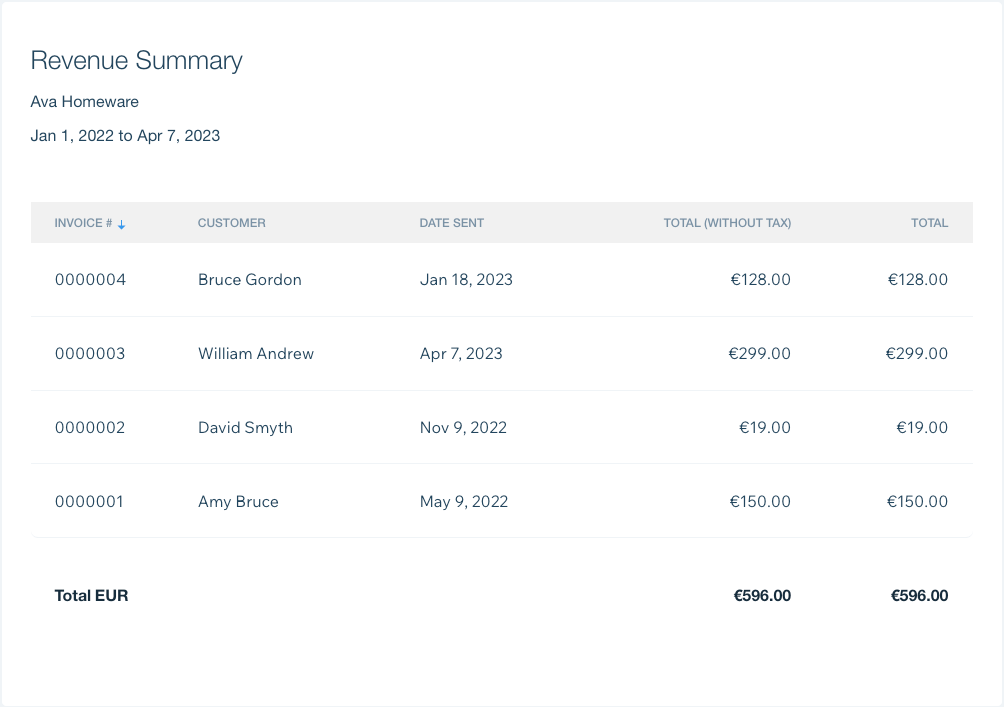
A screenshot of a revenue report.

To create a revenue or tax report:

  1. Go to Invoices in your site's dashboard.
  2. Click the More Actions drop-down at the top right and select View reports.
  3. Click Create Report under the type of report you'd like to run:
    • Tax Summary: View all taxes billed during a certain period.
    • Revenue Summary: View all amounts billed during a certain period.
  4. Set the report's date range by selecting start and end dates in the Date Range section.
  5. Click the Revenue drop-down and select a report type:
    • Cash Basis: Displays data on invoices paid during the date range. 
    • Accrual Basis: Displays data on all invoices sent during the date range, including both paid and unpaid.
  6. Export or print the report:
    • Export: Click Export to CSV to download your report in CSV format.
    • Print: Click Print to print the report.

Helpmate

Hello

Need a bit more guidance?
Summary of this article
Related articles
Wix Invoices: Managing Your Invoices

Wix Invoices: Creating an Invoice

Wix Invoices: Customizing Your Invoices

Wix Invoices & Price Quotes: Adding Tax Types
Unlock personalized helpLog in to get the most out of Helpmate.