


Wix Editor: Getting Site Feedback
In this article
- Sharing your site to get feedback
- Adding comments to a site
- Reviewing comments
- FAQs
Every site in your Wix account has an individual link that you can share with others to receive feedback before you publish. Those you send the link to can view the most recently saved version of your site, and leave comments and critiques to help you build the best possible site.
Sharing your site to get feedback
Send the link to your chosen commenters to begin receiving valuable ideas and responses on your site.
To share the link:
- Go to your site's dashboard.
- Click Site Actions icon
 at the top right.
 - Select Get Client Feedback.
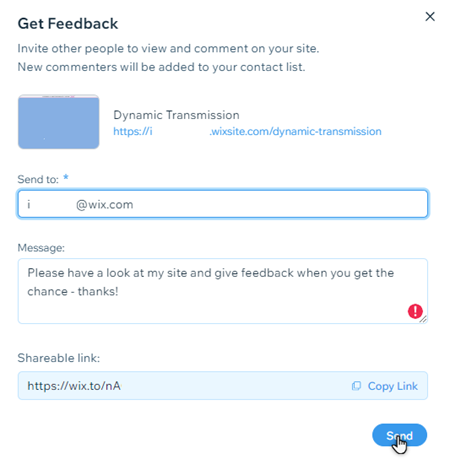
- Enter the name or email address of each person you want to receive feedback from.
- (Optional) Enter a message your commenters will see when they receive the invite.
- Click Send.
Tip:
You can also click
Copy Link next to the
Shareable link URL and send it to anyone you want to receive feedback from.
Adding comments to a site
When recipients open the link, they can view and leave comments on specific areas of your site. There are two ways for commenters to access your site: from the email, or by pasting the link directly into their browser.
Important:
It is not possible to add comments from a mobile browser.
To add comments to a site:
- Choose how you want to open the Get Feedback app:
- From the email: Click View Site from the invite email titled: "You're invited to give feedback on the [site name] website"
- From the shareable link: Paste the Get Feedback URL into your browser.
- Browse through the site to review it.
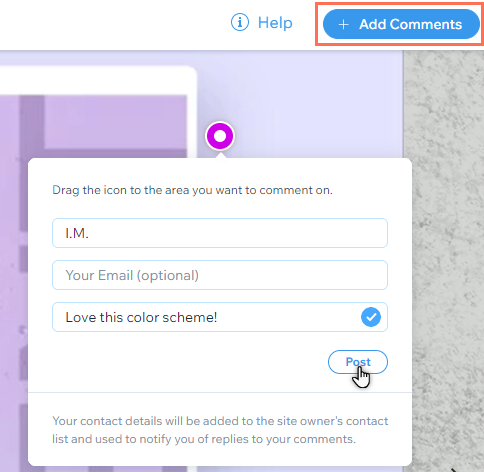
- Click + Add Comments at the top right.
- Click the Comment icon
 and drag it to the relevant area.
 - Enter your name in the My Name field.
- (Optional) Enter your email address so you can receive notifications when the site owner or collaborator replies.
- Enter your comment in the Add your comment field.
- Click Post.
Tip:
Click
Mobile View at the top to view and add comments to the mobile version of the site.
Reviewing comments
Any comments your visitors leave prompt an alert in your Editor, as well an email notification. Access the feedback to view, reply to, and resolve comments that have been left on your site.
To review comments:
- Choose how you want to open the Get Feedback app:
- From the notification email:
- Open the email titled "You got feedback on the [site name] website"
- Click the View Feedback link.
- From the Editor:
- Click Site at the top.
- Select Get Feedback.
- Click View Comments.
- From the notification email:
- Review comments in the panel on the right.
- Click Take Me There next to the relevant comment to view its location.
- Choose what you want to do with the comment:
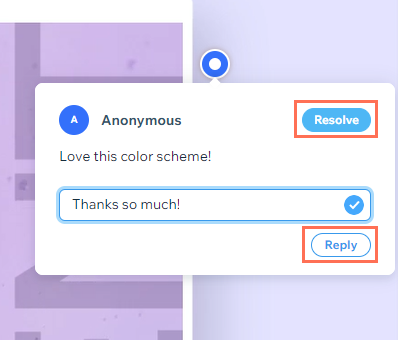
- Reply: Enter your reply in the field and click Reply to send it.
- Resolve: Hover over the comment and click Resolve.
Did you know?
- You can filter the comments by status (open / resolved) in the panel.
- Click Mobile View / Desktop View at the top of the app to switch between comments for desktop or mobile.
FAQs
How long is the shareable URL valid for?
Are private pages visible?
Can site collaborators use this feature?
Do commentors need to be logged in to Wix to add comments?
