Site Performance: Seeing a Flash of Color As Elements Load
6 min
In this article
- Causes of color flashes
- Changing the background color of site pages
- Changing the background color of sections, strips, and cells
- Changing background color of slides
When applying media background (image or video) to a page, section or element, site visitors might see a quick flash of color while the background is loading.
Usually, the background media loads fast enough that site visitors don't notice the background color. To make this flash of color less visible, you can change the background color of the affected elements.
Causes of color flashes
It can take longer for image and video backgrounds to load on the live site. If a site visitor is using a slower internet connection, or if the background media is large, a flash of color may appear before the image or video loads.
Changing the background color of pages and elements can make this flash less noticeable. We recommend choosing a color as similar as possible to the video or image to improve the experience for site visitors.
Changing the background color of site pages
If you have added a background image or video to a page in your Wix Editor site, you can change the background color from the Site Design panel.
Using the Studio or Harmony Editor?
It is not possible to add media to a page background in these editors, so you don't need to worry about this step.
To change the page background color:
- Go to the page in your editor.
- Click Site Design
 on the left side of the editor.
 - Click Page background.
- Click the flap at the top left of the background image preview.
- Select the shade you want from your site's theme colors, or apply / create a custom color under My colors.

Good to know:
You can apply this color to all pages with the same the image / video background by clicking Apply to Other Pages at the bottom of the panel.
Changing the background color of sections, strips, and cells
If you have added an image or video background to a section, you change the color from your editor to match the media's color scheme. Depending on your site builder, you can also change the color of strips or grid cells.
Wix Editor
Studio Editor
Wix Harmony Editor
When building a site with the Wix Editor, you can change the background color of sections and strips on a page.
To change a section's background color:
- Go to your editor.
- Right-click the relevant section.
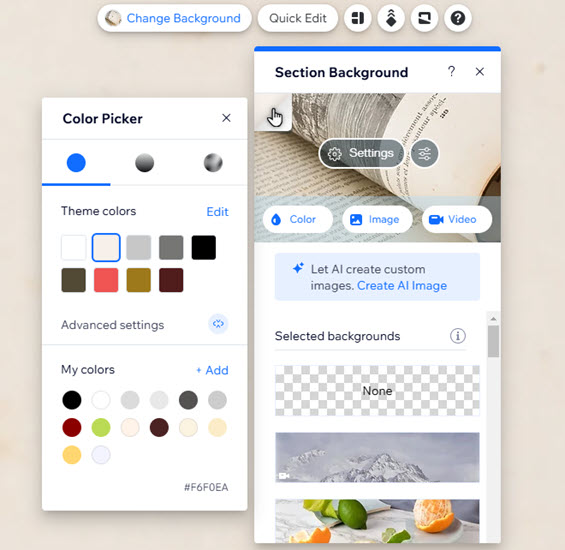
- Select Change Background.
- Click the flap at the top left of the background image preview.
- Select the shade you want from your site's theme colors, or apply / create a custom color under My colors.
To change a strip's background color:
- Go to your editor.
- Click the strip.
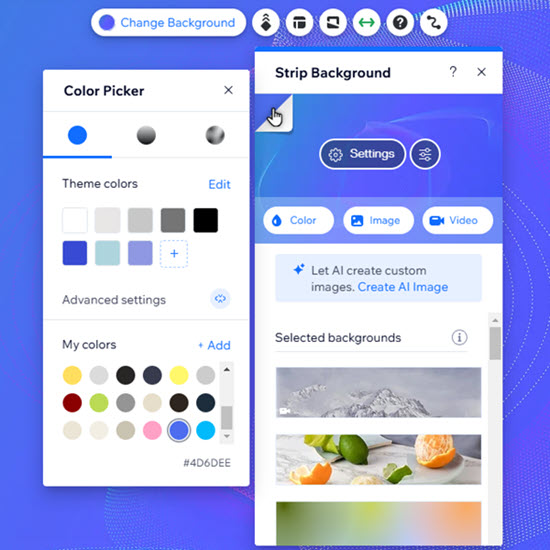
- Click Change Background.
- Click the flap at the top left of the background image preview.
- Select the shade you want from your site's theme colors, or apply / create a custom color under My colors.
Changing background color of slides
Slideshows are an eye-catching, interactive way to showcase media and content on a site. Align the background color of slides with their media to keep a professional, cohesive look.
Using the Studio Editor?
It is not possible to add media to a slideshow item background or customize slideshow items individually.
To change a slide's background color:
- Go to your editor.
- Select the slideshow on the page.
- Click the blue arrows to navigate to the relevant slide.
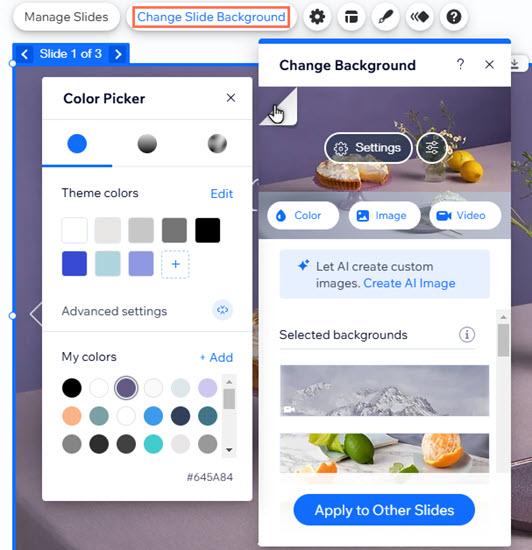
- Click Change Slide Background.
- Click the flap at the top left of the background image preview.
- Select the shade you want from your site's theme colors, or apply / create a custom color under My colors.