


Facebook Ads with Wix and Facebook Pixel & CAPI
2 min
When you use Facebook Ads with Wix to create a dynamic ad campaign on Facebook, Wix automatically creates a Facebook Pixel and connects your site to Facebook Pixel & CAPI.
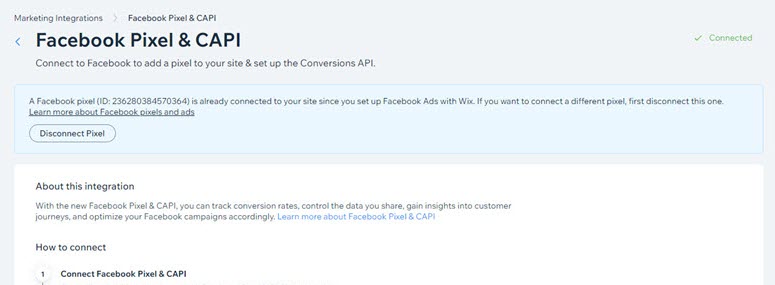
This integration is required for Wix to be able to create campaigns. Disconnecting it can negatively affect your current campaigns, budgets, and statistics. It is not possible to disconnect your pixel if you have already created a campaign.
However, if you have just set up your Facebook Ads account and have not yet created a campaign, you can follow the steps for disconnecting a Facebook Pixel.
You can view the activity related to your Facebook Pixel on the Events Manager page of your Facebook Business Manager.
Using your pixel for a campaign on Facebook
You can use the Facebook Pixel that Wix created for you in your campaigns that you create on Facebook. Go to your Facebook Business Manager and add the ad account that you use for campaigns to the pixel.
To add your Ad Account:
- Go to Facebook Business Manager.
- Click the All Tools icon
 in the left sidebar.
 - Select Business Settings.
- Select Pixels under Data Sources in the left sidebar.
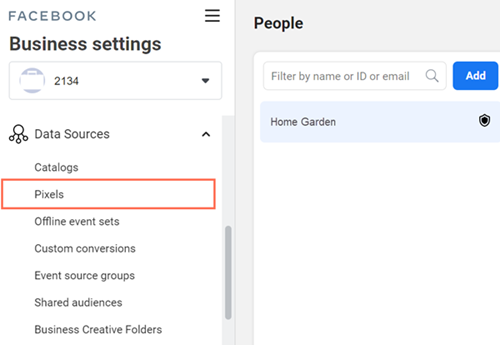
- Select the pixel connected to your site.
Note: If you have multiple pixels and you're not sure which to choose, go to Marketing Integrations and check the ID of the pixel. - Click Add Assets.
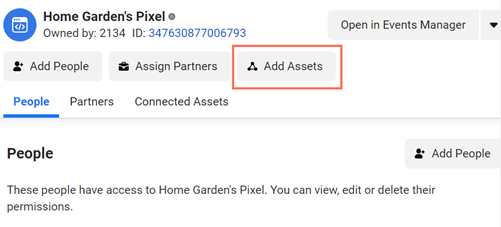
- Select the ad account that you use to run ads on Facebook.
Note: If you don't see the account, you will need to add it to your Business Manager. - Click Add.
