CMS Request: Looping Previous/Next Navigation Buttons on Dynamic Item Pages
Feature Request|We are collecting votes for this issue
Currently,
'Previous/Next' navigational buttons on dynamic item pages do not loop. When a visitor gets to the last item page returned by the dataset, the 'Next' button is inactive. Similarly, when a visitor is on the first item page, the 'Previous' button is inactive. It is not possible, without using Velo code, to have these buttons continue to navigate visitors through all the items.
We are always working to update and improve our products, and your feedback is hugely appreciated.
Workaround
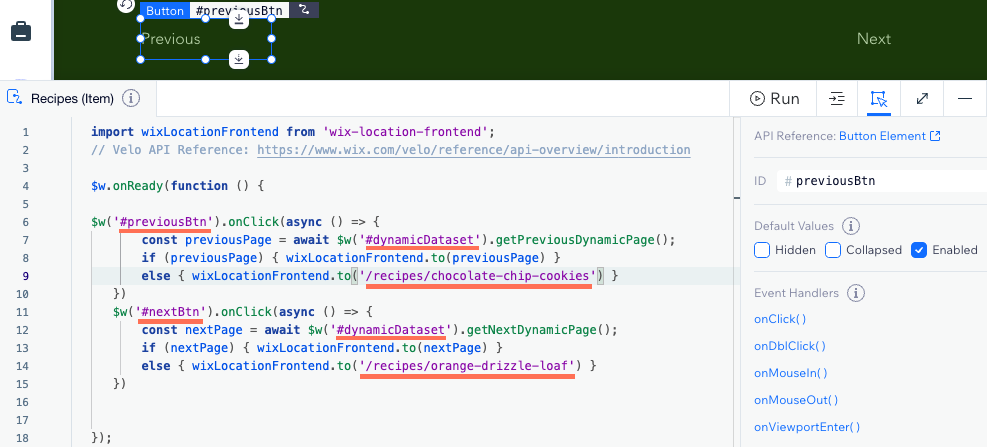
Using Velo, you can create 'Previous/Next' buttons that loop to continuously navigate through your dynamic pages.
Wix Editor
Studio Editor
- Go to your editor.
- Go to the dynamic item page that has 'Previous/Next' buttons.
- Make sure your 'Previous/Next' buttons' click actions are not connected to the dataset:
- Click your 'Previous' button and click the Connect to CMS icon
 .
. - Click the Click action connects to drop-down and select Not connected.
- Repeat steps 3a-3b with your 'Next' button.
- Click your 'Previous' button and click the Connect to CMS icon
- Enable Velo Dev Mode:
- Click Dev Mode at the top of the editor.
- Click Turn on Dev Mode.
- Copy the code snippet below and paste it at the top of your page code:
1import wixLocationFrontend from 'wix-location-frontend';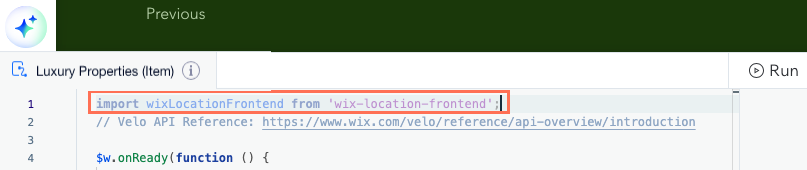
- Copy the code snippet below and paste it after: $w.onReady(function () {
1$w('#prevBtn').onClick(async () => {
2       const previousPage = await $w('#dynamicDataset').getPreviousDynamicPage();
3       if (previousPage) { wixLocationFrontend.to(previousPage) }
4       else { wixLocationFrontend.to('/last-page-url') }
5   })
6   $w('#nextBtn').onClick(async () => {
7       const nextPage = await $w('#dynamicDataset').getNextDynamicPage();
8       if (nextPage) { wixLocationFrontend.to(nextPage) }
9       else { wixLocationFrontend.to('/first-page-url') }
10   })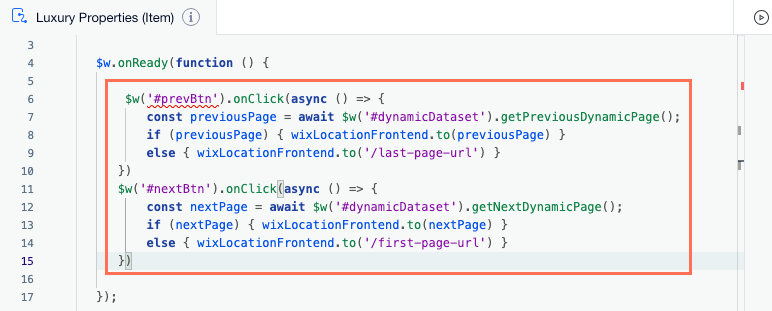
- In the sample code you pasted, replace the IDs and URLs listed below with those used by your site:
- prevBtn Replace with the ID of your 'Previous' button.
- nextBtn Replace with the ID of your 'Next' button.
- dynamic Dataset Replace with the ID of your dynamic page dataset.
- /last-page-url Replace with the URL slug of the last dynamic item page read by the dataset.
- /first-page-url Replace with the URL slug of the first dynamic item page read by the dataset.
Tips:
- Click the relevant button or dataset to find its ID in the Properties and Events panel. Do not remove the hashtags (#) or apostrophes (') in the code.
- To get the correct first and last dynamic item page URLs, create a custom collection view with the same sorting and filtering as in the dataset settings. You can copy the URL slug from the [Collection] (Item) page link field in your collection.