


Wix Stores: Adding Your Wix Store Products to a Meta Catalog
3 min
In this article
- Step 1 | Create a Meta catalog
- Step 2 | Copy your data feed link
- Step 3 | Add your data feed link to your Meta catalog
- Step 4 | Copy your checkout URL
- Step 5 | Add your checkout URL to Meta
- FAQs
Connect your Wix online store to a Meta catalog to display products on Facebook and Instagram. Customers who click on a product are directed to your site’s checkout with the product already selected.
After you set up the feed in Meta Commerce Manager, any changes you make to your store products update automatically in your catalog.
Important:
By using this service, you're engaging directly with a third-party service provider. We recommend reviewing the service provider's privacy policy and terms of use prior to your use of such third-party service. You acknowledge that we are not liable for any loss or damage resulting from your use of such third-party service, including any liability arising from any personal data exchanged between you and such third-party.
Step 1 | Create a Meta catalog
To get started, you need to create a Meta catalog in the Meta Commerce Manager.
Learn how to create a catalog in the Meta Commerce Manager.
Step 2 | Copy your data feed link
Now that you have a Meta catalog, you need to upload your product using a data feed link. In this step, we'll copy the link so that you can enter it in Meta.
To copy your data feed link:
- Go to Meta Catalog in your site's dashboard.
- Click Get Catalog Feed.
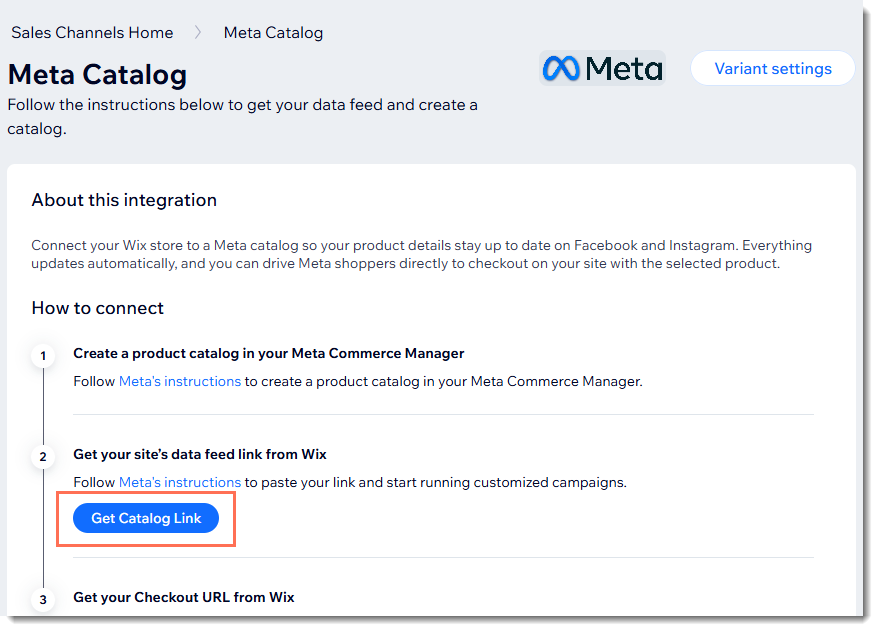
- Click Copy next to the URL and close the popup.
Note:
Keep this tab open as you continue into the next step. You'll need 2 tabs open to complete the set up process.
Step 3 | Add your data feed link to your Meta catalog
Now go back to the Meta Catalog and add the your data feed you copied.
To add your data feed link:
- Go back to the Meta Commerce Manager.
- Add the data feed you copied to the Meta Commerce Manager.
Tip:
If you uploaded a feed in the past, you'll be able to update or replace the feed. You can also keep both your old and new feeds.
Step 4 | Copy your checkout URL
The last step is to add your checkout URL to your Meta Commerce Manager. This allows Meta to direct customers to your checkout page.
To add your checkout URL:
- Go to Meta Catalog in your site's dashboard.
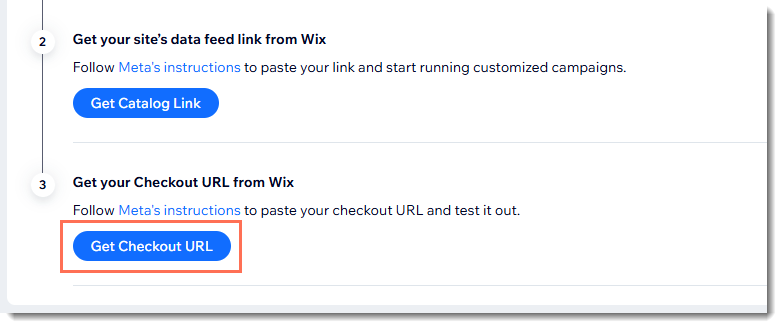
- Click Copy next to the URL and close the popup.
Step 5 | Add your checkout URL to Meta
- Go back to the Meta Commerce Manager.
- Add your store's checkout URL to Meta.
FAQs
Click a question to learn more about your Meta catalog.
What is a Meta catalog?
How can I optimize and collect relevant data from my Meta ads?
Can digital products be sold in my Meta shops?
