


Wix Price Quotes: Managing Your Price Quotes
5 min
In this article
- Reviewing your price quotes
- Managing your price quotes
Reviewing your price quotes
Review your price quotes to stay on top of each one you create. From your site's dashboard or the Wix app, you can check each quote's status, find specific quotes quickly, and see which ones need your attention.
To review your price quotes:
Dashboard
Wix app
- Go to Price Quotes in your site's dashboard.
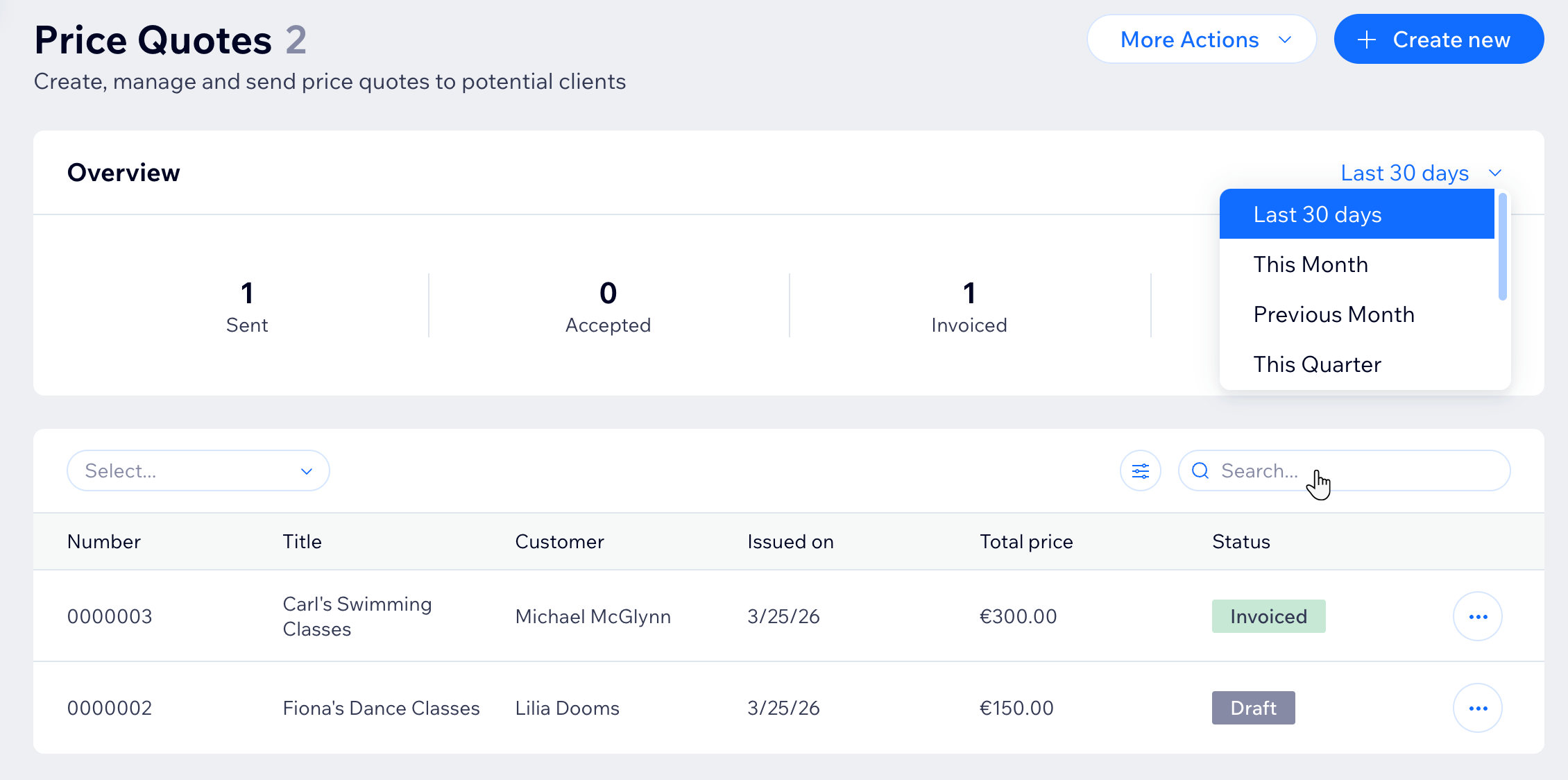
- In the Overview section, check the price quotes by their status: Sent, Accepted, Invoiced, Expired
- Click the drop-down at the top right to change the date range.
- Review your list of price quotes in the main section.
- Click the Filter by drop-down to narrow down the list.
- Use the Search bar to find a specific quote.
Note:
By default, the overview shows price quotes from the last 30 days.
Managing your price quotes
Manage your price quotes to keep your client communication organized and your sales process moving. You can quickly check each quote’s status, follow up on pending quotes, and convert accepted quotes into invoices. Actions depend on the quote's status.
To manage a price quote:
Dashboard
Wix app
- Go to Price Quotes in your site's dashboard.
- Click the More Actions icon
 next to the relevant quote.
 - Choose what you want to do:
Edit a quote
Send or resend a quote
Print a quote
Download a quote as a PDF
Duplicate a quote
Mark a quote as accepted
Convert a quote to an invoice
View the invoice associated with a quote
Delete a quote
