Wix Multilingual: Troubleshooting a Missing Language Menu
In this article
- The language menu is missing from your live site
- The Language Menu is missing from your editor
- Another element is hiding the Language Menu
- The Language Menu was deleted
Can't see the Language Menu? No problem, you can always add it again. Below are some common reasons why your Language Menu could be missing, and the way to solve every issue.

The language menu is missing from your live site
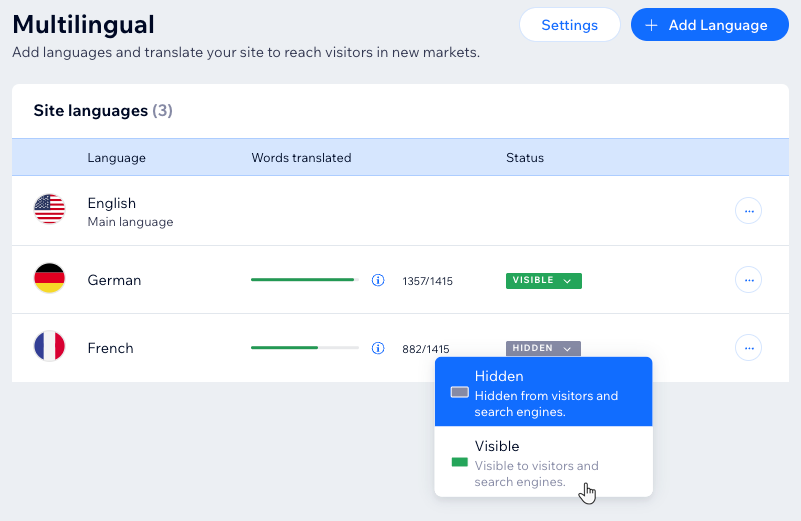
If the Language Menu doesn't appear on your live site but is still visible in your editor, your secondary language might be hidden. When your main language is the only visible language, the Language Menu is not displayed to visitors.
Any time you add a secondary language to your site, it's hidden by default. When your translation is ready to go live, you need to make the secondary language visible.
Dashboard
Wix Editor
Studio Editor
- Go to Multilingual in your site's dashboard.
- Ensure the secondary language is visible:
- Click the Status drop-down next to the relevant secondary language.
- Select Visible.
- (In the editor) Click Publish at the top right to publish your site.
The Language Menu is missing from your editor
If you're unable to see the Language Menu in your editor, there are several reasons to look into.
Another element is hiding the Language Menu
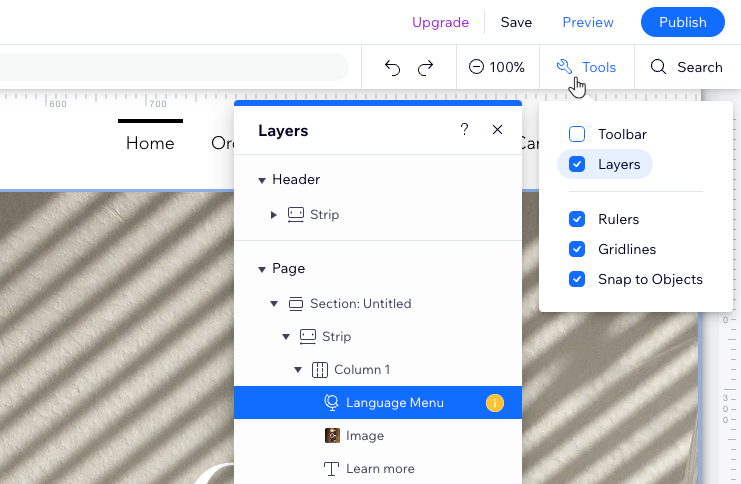
If your Language Menu is hidden behind, or overlapped, by another element, you might not see it on your live site. You can use the layers panel to locate the Language Menu and then
bring it to the front so it is visible.
Wix Editor
Studio Editor
- Go to your editor.
- Click Tools
 at the top of the editor.
 - Select the Layers checkbox.
- Select the
 Language Menu in the Layers panel.
Tip: You can find the language menu by click Header / Page / Footer to view the layers of each section, or the Arrow icon next to a specific layer.
 - Click and drag the Language Menu up to reorder it. When it appears as the first element on the list, it also visually appears as the top layer in your editor.
- Click Save or Publish.
The Language Menu was deleted
If you accidentally deleted the Language Menu, don't worry, you can always re-add it, just like other elements.
Wix Editor
Studio Editor
- Go to your editor.
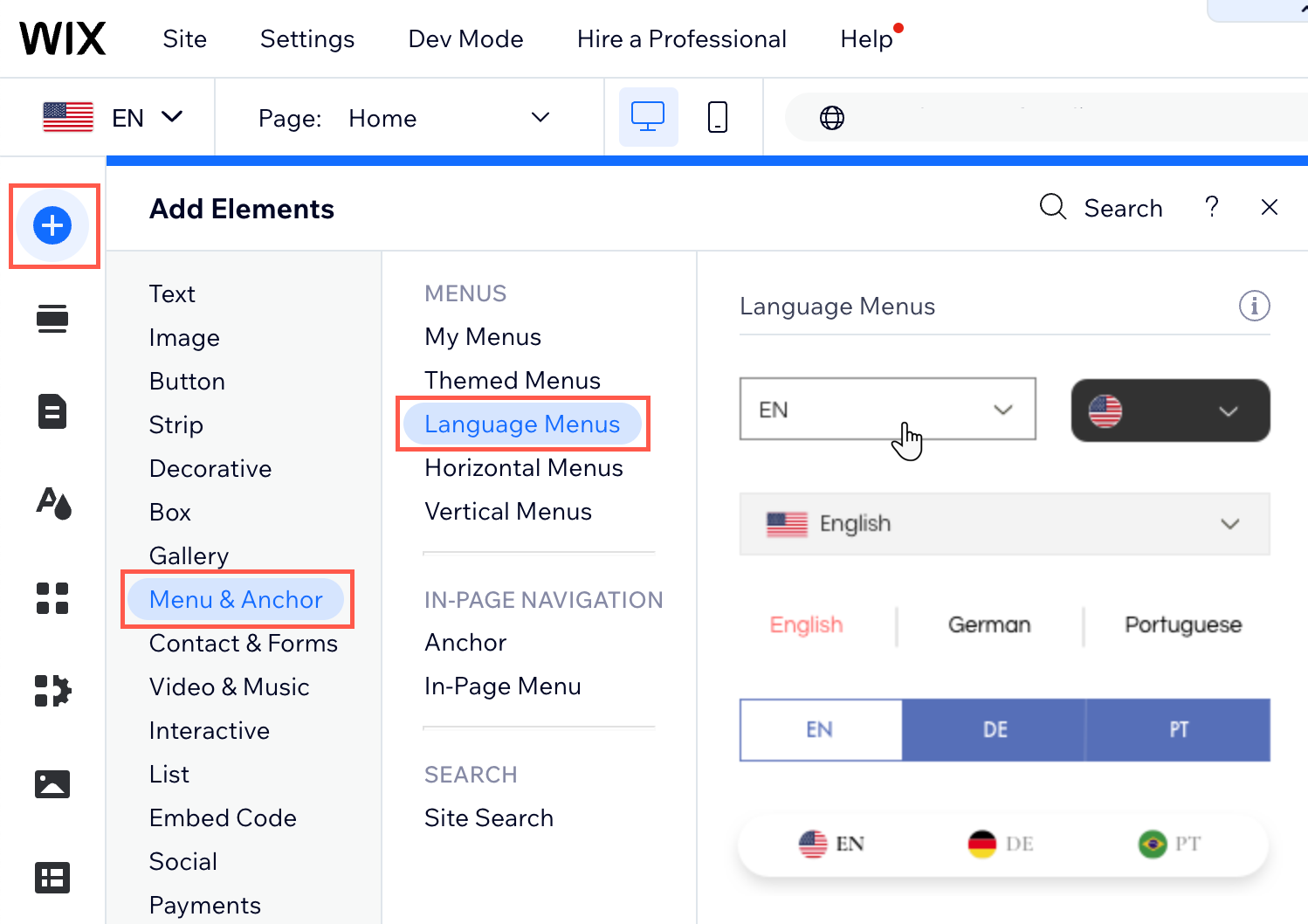
- Click Add Elements
 on the left side of the editor.
 - Click Menu & Anchor.
- Click Language Menus.
- Click a menu or drag the menu to the relevant location.
- Click Save or Publish.