


Wixel: Adding Elements to a Document
19 min
In this article
- AI tools
- Media
- Layout elements
- Embeds
- FAQs
This article refers to the new Wixel, released in December 2025. If you're unsure whether you’re using the new or previous Wixel, view more information here.
Make your Wixel document more impactful by adding interactive and visual elements. Whether you want to showcase data with a chart, embed media, or organize your layout, you have all the tools you need directly in your project workspace. Mix and match different elements to make your document both useful and engaging for any reader.
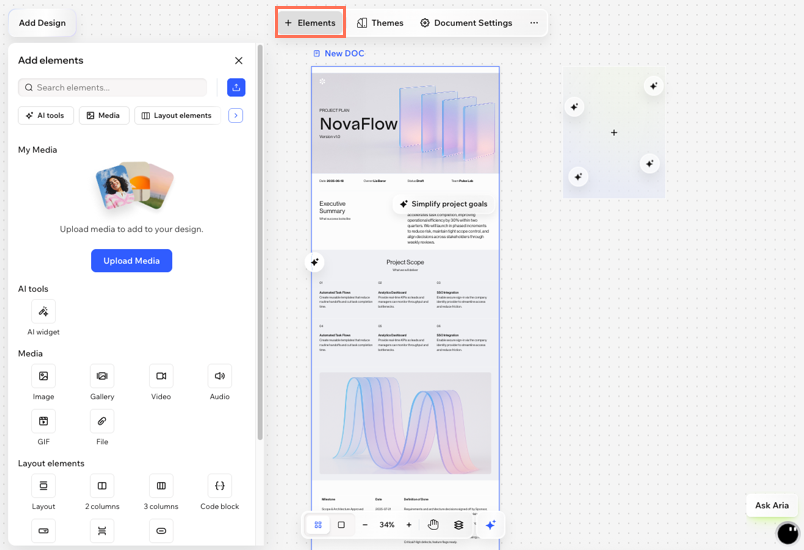
AI tools
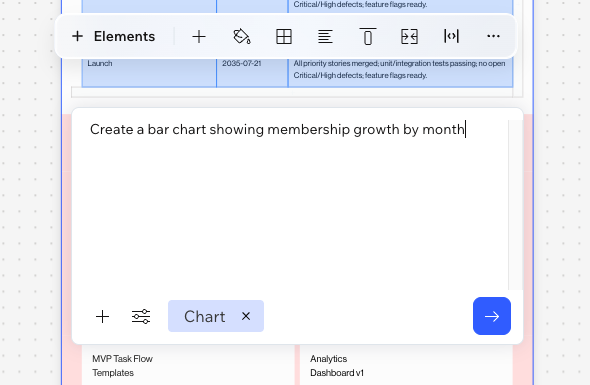
Use Wixel’s AI-powered tools to go beyond standard document features. The AI widget lets you add interactive, smart content to your documents, like charts, infographics, games, maps, and more, by describing what you want to create.
Desktop browser
Wixel app
- Go to your project in Wixel.
- Select the relevant document in your project.
- Click + Element on the action bar.
- Select AI widget.
- Describe what you want to create in the text box. For example: "Create a bar chart showing membership growth by month" or "Build a simple meal planning calculator".
- (Optional) Click Types to choose a specific widget type (e.g. chart, calculator) and click the Add icon
 to include reference files.
 - Click the Send icon
 .
. - (Optional) Review the widget that's added to your document. If you want to refine or update it, select the widget and chat with Aria to explain what to change. You can also use the suggestions provided above the widget.
Media
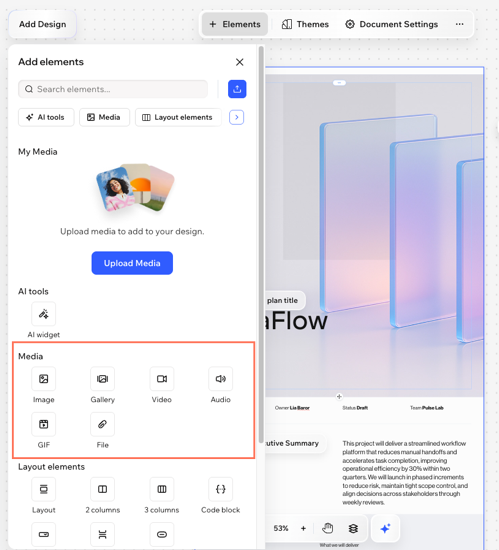
Make your document more dynamic and informative by including a variety of media. Add images, galleries, videos, GIFs, files, or audio directly from your Media Manager, device, or external sources.
Desktop browser
Wixel app
- Go to your project in Wixel.
- Select the relevant document in your project.
- Click + Element on the action bar.
- Select the relevant element under Media:
Image
Gallery
Video
GIF
File
Audio
Layout elements
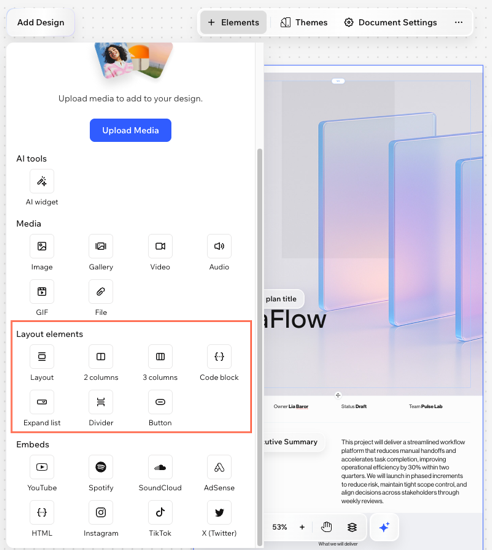
Structure and organize your content using ready-made layouts, columns, and other visual design tools. This helps ensure your document is easy to follow, attractive, and effective.
Desktop browser
Wixel app
- Go to your project in Wixel.
- Select the relevant document in your project.
- Click + Element on the action bar.
- Select the relevant element under Layout elements:
Layout
2 columns / 3 columns
 on the action bar.
 on the action bar.
Code block
Expand list
Divider
Button
Embeds
Add content from your favorite platforms directly into your project by embedding media, social posts, and more. You can embed videos, audio, or posts to make your document dynamic.
Desktop browser
Wixel app
- Go to your project in Wixel.
- Select the relevant document in your project.
- Click + Element on the action bar.
- Select the relevant element under Embeds:
YouTube
Spotify
SoundCloud
Adsense
HTML
Instagram
TikTok
X (Twitter)

FAQs
Click a question below to learn more about document elements.
Can I add a table to my document?
What types of media files can I add to my document?
Why is my media not displaying correctly in my shared document?
