


Wix Table Reservations: Creating an Experience
In this article
- Step 1 | Create an experience
- Step 2 | Set up your experience preferences
- FAQs
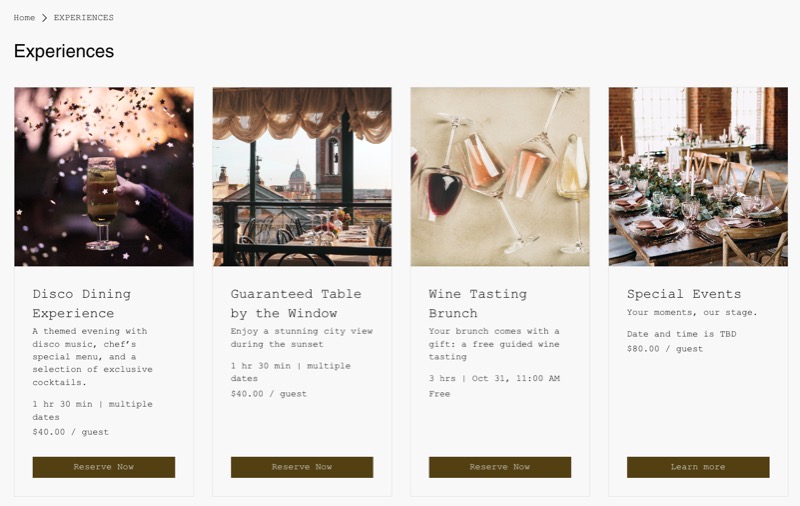
Create a unique dining experience through table reservations that goes beyond a standard booking. Experiences let you showcase what makes your restaurant special — whether it’s a chef’s tasting menu, a wine-pairing dinner, or a seasonal holiday brunch.
Fully customize each experience by setting the schedule, guest capacity, pricing, and booking options to fit your concept.
Before you begin:
Make sure to
add and set up Wix Table Reservations on your site.
Step 1 | Create an experience
Start by creating an experience to define what guests can book and how it appears on your site.
To create an experience:
- Go to Experiences in your site's dashboard.
- Click Create Experience.
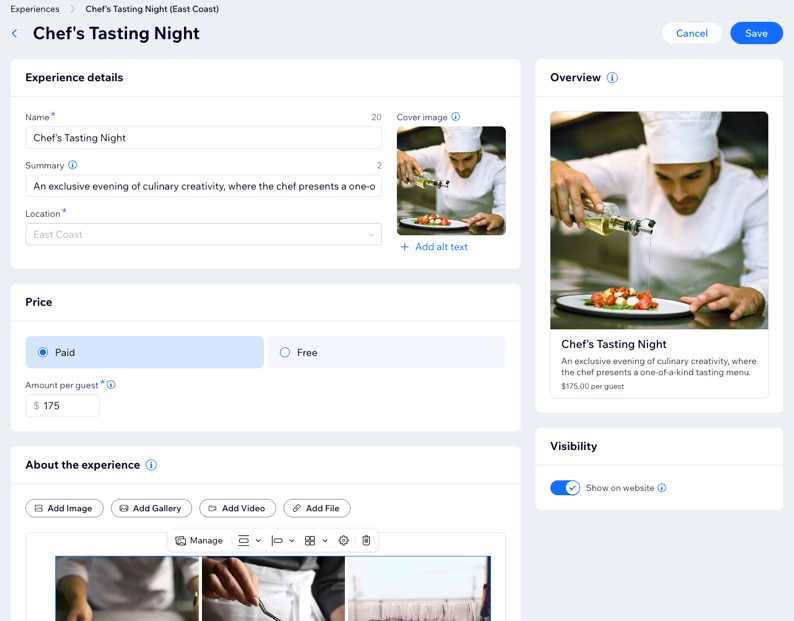
Tip: Click + Add Experience if you've already saved at least one experience. - Enter your experience details using the options:
- Name: Enter the title of the experience.
- Cover image: (Optional) Upload the main visual that appears on your site.
- Summary: (Optional) Add a short description highlighting what guests can expect.
- Location: (If relevant) Click the drop-down and select the location for your experience.
Note: The location can’t be changed after the experience is created.
- Set the Price for your experience:
- Paid: Enter the amount per guest.
- Free: Select if there is no cost to attend.
- Add information in the About the experience section so guests know what to expect. Choose the options that best represent your experience:
Write a description
Add an image
 / Alignment
  : Adjust the size and positioning of the image.
 : Make the image clickable and direct users to a specific webpage or a part of your post.
 : Add a caption for context, provide alt text for accessibility, enable or disable image downloads, and mark as a spoiler to blur content until clicked.
Add a gallery
 : Click Manage to add more images.
 Add a video
Add a file
6. Click the
Show on website toggle under
Visibility to display this experience on your site.
7. When ready, click
Save.
Step 2 | Set up your experience preferences
Once your experience is set up, fine-tune how guests book it. You can let them reserve online for select dates and times, or have them reach out to you directly to make a reservation.
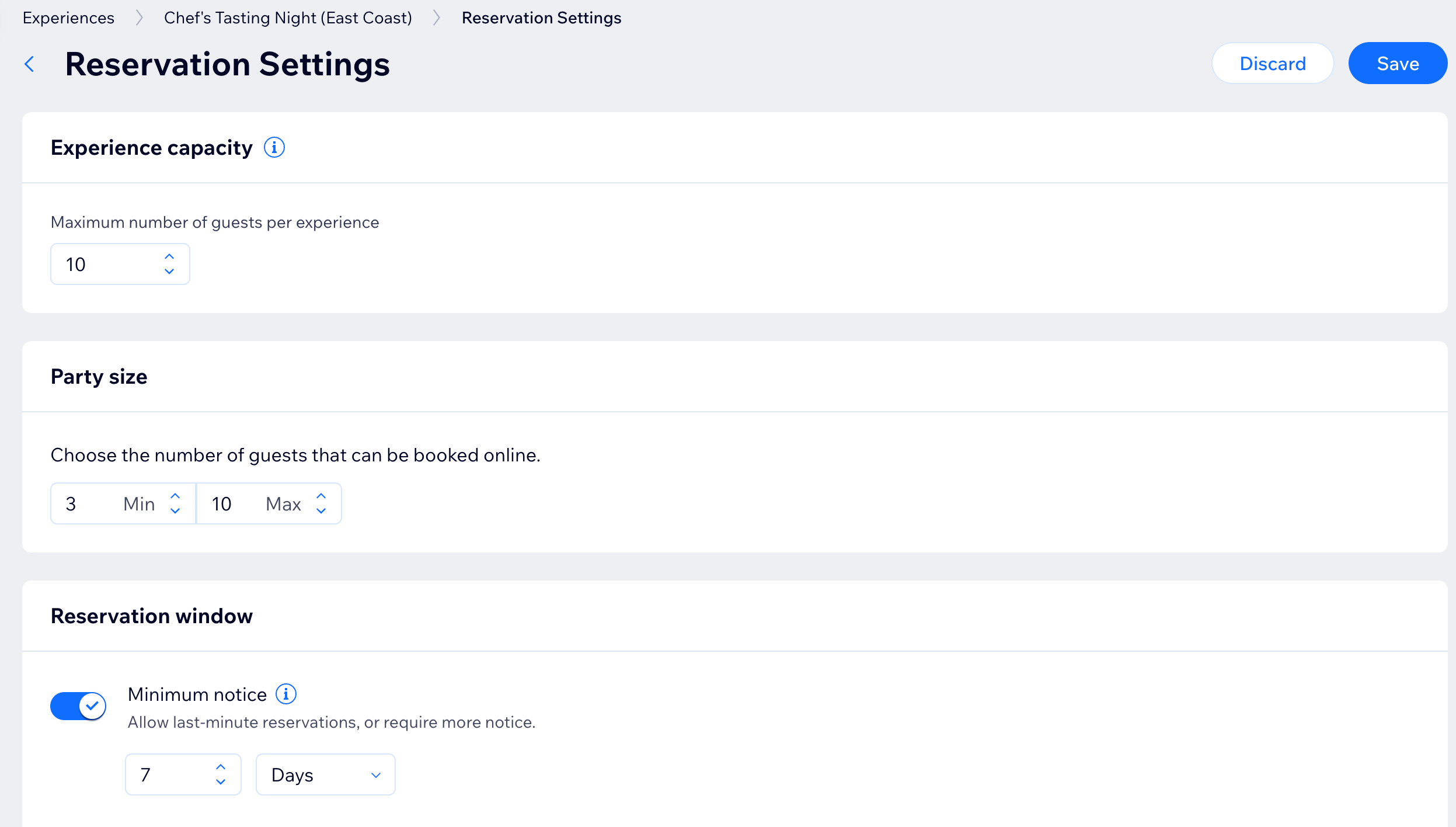
You can also define important details like the maximum number of guests per time slot, party size limits, and how far in advance guests can reserve.
To customize experience preferences:
- Go to Experiences in your site's dashboard.
- Hover over the relevant experience and click Edit.
- Set your experience preferences:
Schedule
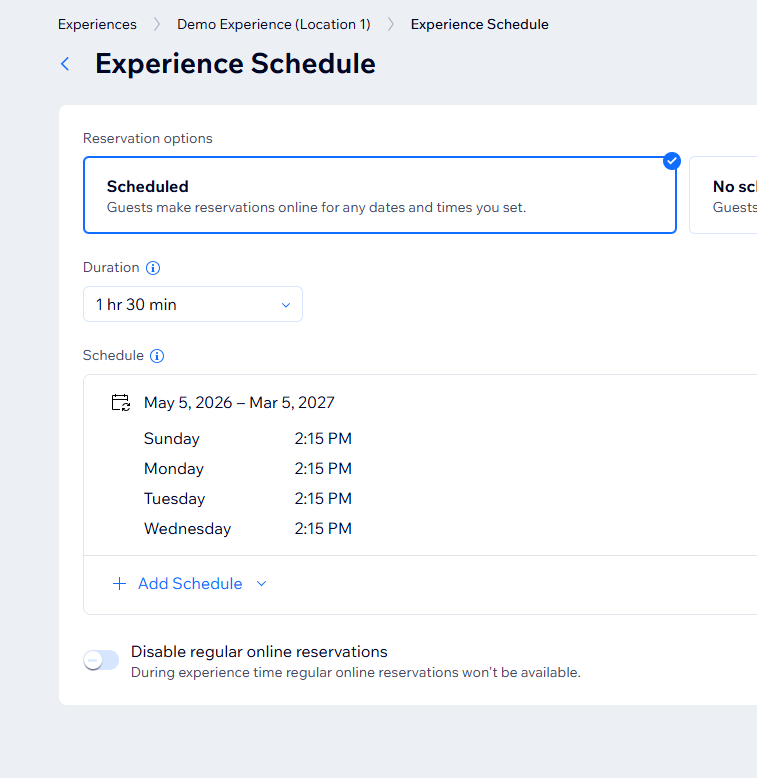
Table assignment
Reservation settings
Reservation form

Policies
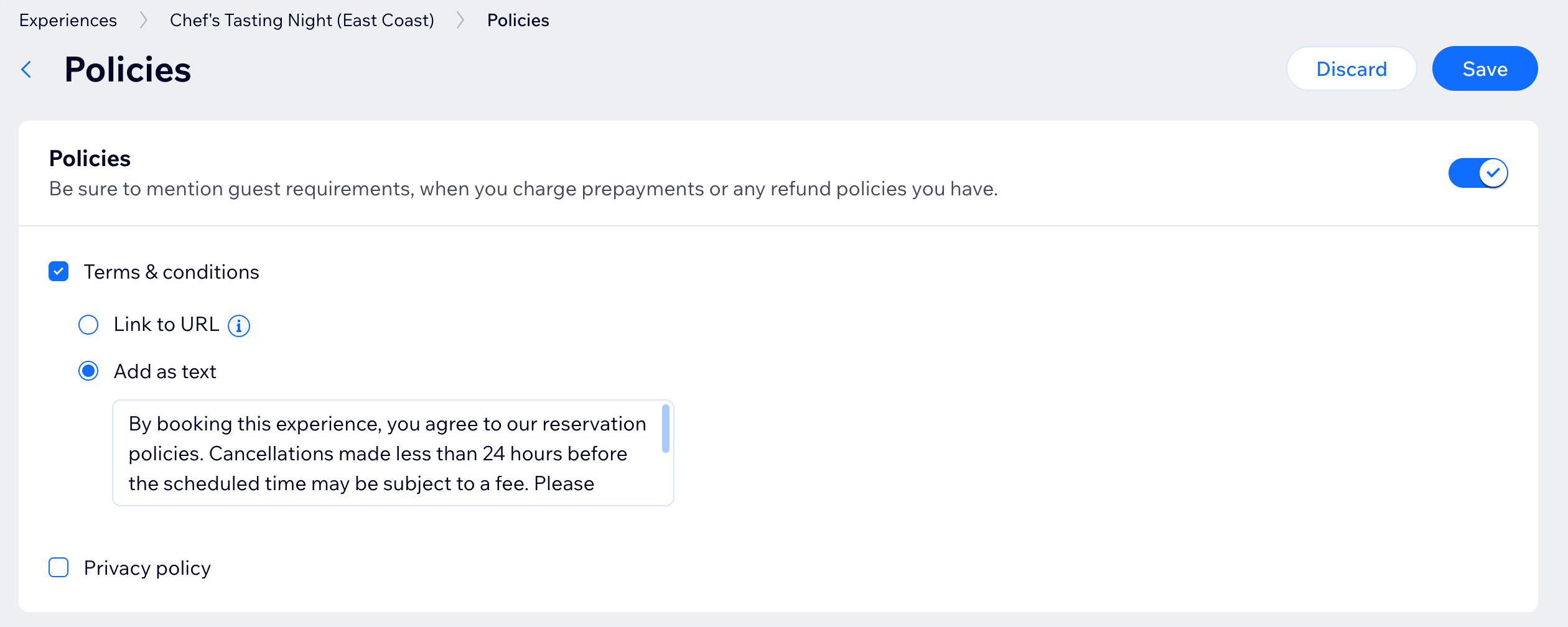
Tip:
For full details about choosing table connections, blocking regular reservations for selected tables, and setting assign mode, learn how to set up table assignment for experiences.
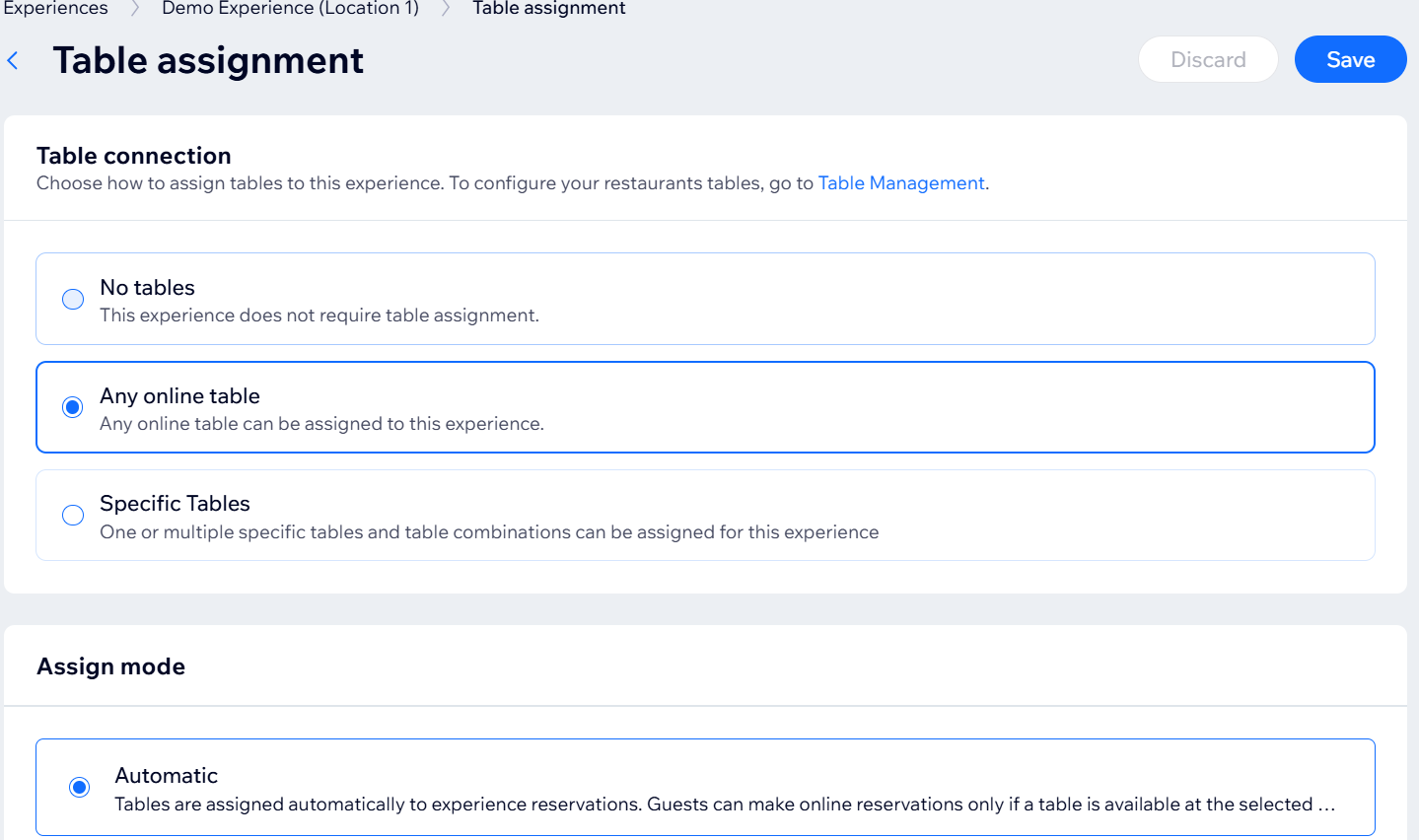
What's next?
Turn on online reservations to allow guests to reserve an experience:
- Go to Table Reservations in your site's dashboard.
- Click Settings at the top right.
- Click the Online reservations are toggle to enable or disable online reservations:
- Online reservations are on: Customers can book a table on your site.
- Online reservations are off: The reservations app appears on your site, but customers won't be able to book a table.
FAQs
Click a question below learn more about creating an experience with table reservations.
Can I show / hide an experience on my live site?

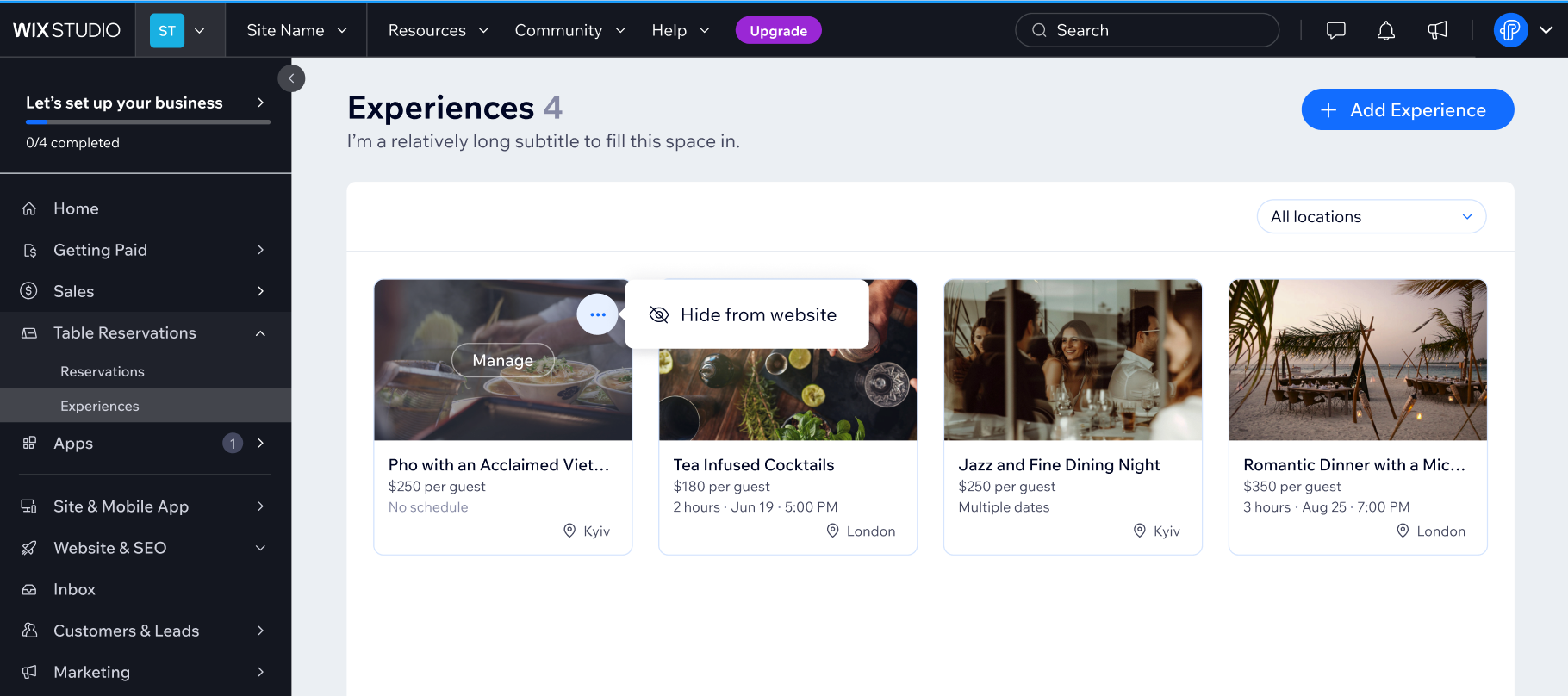
Can I change a location after creating an experience?
Can I assign an experience to more than one location?
Can I delete an experience?
How do I archive or unarchive an experience?
Can I display my experiences on any page?
