Wix Stores: Managing Product Categories
In this article
- Adding products
- Changing the order of products
- Adding a category name and image
- Removing products
- Deleting a category
Important:
We're releasing a new version of product categories that is not yet available for all users. If your category creation page doesn't match the image below, click
this link and the links inside the article to learn how to add and display categories.
Product categories (previously called product collections) are a handy way to organize your products. You can use product categories to display different types of products on different pages, to create custom filters, and more.
Adding products
- Go to Categories in your site's dashboard.
- Click the relevant category.
- Click + Add Products.
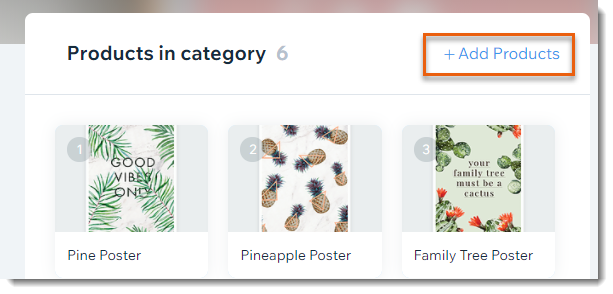
- Click to select the products you want to add.
- Click Add.
- Click Save.
You can also:
- Add a product to a category while creating it.
- Add multiple products to a category at once in the Products tab.
Changing the order of products
- Go to Categories in your site's dashboard.
- Click the relevant category.
- Click and drag the products to change the order.
- Click Save.

Adding a category name and image
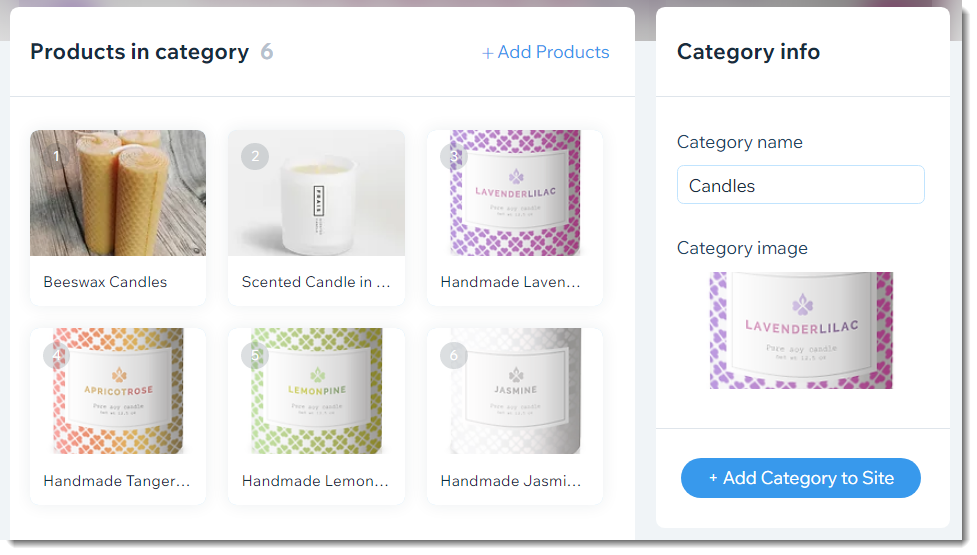
Give your category a name and image so you can easily identify them.
Note:
Category names and images do not appear on your live site.
To add a name and image to a category:
- Go to Categories in your site's dashboard.
- Click the relevant category.
- Enter a name under Category Name on the right.
- Add a category image:
- Click the Add icon
 under Category Image.
 - Add an image and click Add to Page.
- Click the Add icon
Removing products
- Go to Categories in your site's dashboard.
- Click the relevant category.
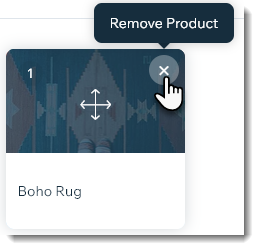
- Hover over the product you want to remove.
- Click the Remove icon
 .
.
Deleting a category
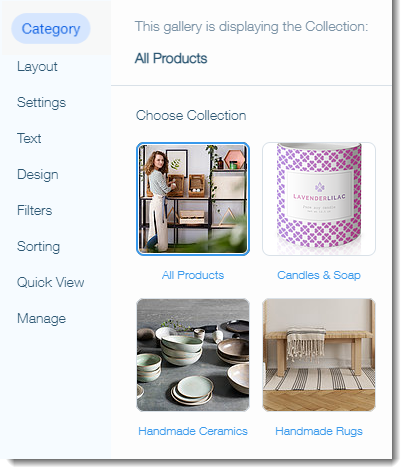
You can delete a category you no longer need. If your site has a product gallery that displays that category, make sure to first remove the gallery or select a different category to display so that customers won't see a blank gallery.
Note:
Deleting a category does not delete the products in it.
To delete a category:
- Go to Categories in your site's dashboard.
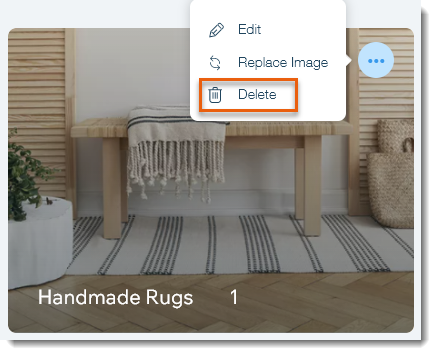
- Click the More Actions icon
 on the category you want to delete.
 - Click Delete.
- Click Delete to confirm.