


Wix Stores: Adding a Product Feed to your Google Merchant Center Catalog
Adding your product feed to Google Merchant Center allows Google to access and understand your product catalog, including pricing, availability, and product details. This makes your products eligible to appear in Google Shopping results and other Google surfaces for relevant searches.
After setup, you can promote your store products on Google and schedule regular updates.
Important:
- By using this service, you are engaging directly with a third-party service provider. We recommend reviewing the service provider's Privacy Policy and Terms of Use prior to your use of such third-party service. You acknowledge that we are not liable for any loss or damage resulting from your use of such third-party service, including any liability arising from any personal data exchanged between you and such third-party.
- Google does not support some product types. Learn more about unsupported products.
Step 1 | Set up a Google Merchant Center account
If you haven't done so already, start by
creating and setting up a Google Merchant Center account.
As part of the process, you’ll need to verify and claim your website in Google Merchant Center. This confirms that you own the site and allows Google to associate your product data with your store. One way to do this is to
verify your site with Google Search Console.
Step 2 | Copy your site's data feed URL
First, you need to get your site's data feed in the
Marketing Integrations section of your site's dashboard.
To get your data feed:
- Go to Google Catalog in your site's dashboard.
- Click Get Catalog Link.
- Click Copy to copy your data feed's URL.
- Click Close.
Step 3 | Add your feed URL to Google Merchant Center
Next, you need to add your feed in Google Merchant Center. You can select the countries where you sell your products, choose the languages that you use, and set the update schedule for Google to check for product changes.
Important:
Make sure that your products meet the requirements of the countries you choose and Google's requirements for
feed specifications and
ad policies.
To add a feed:
- Sign in to your Google Merchant Center account.
- Click Products & store in the sidebar.
- Select Products.
- Click Add products source.
- Select Add product from file.
- Paste the URL you copied under Enter a link to your file.
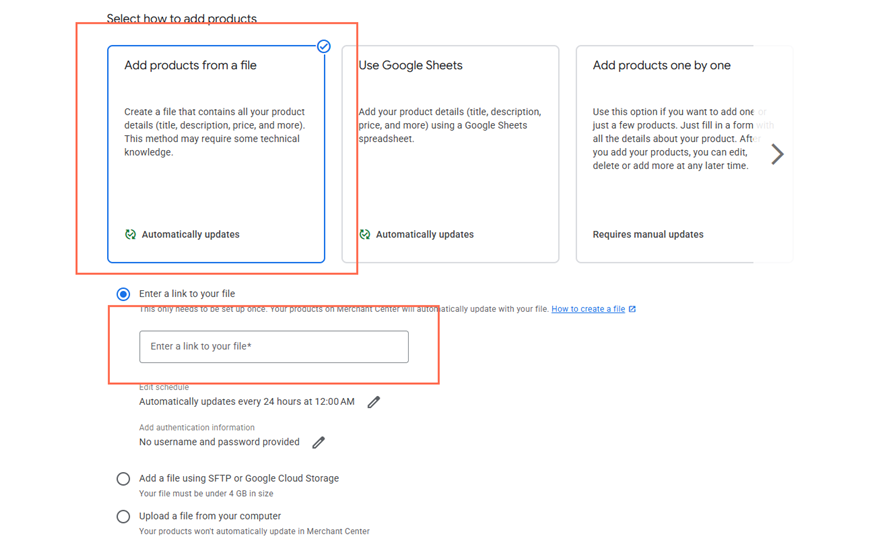
- Click Edit schedule to choose how often your feed will update.
- Click Save.
- Click Select country to select your country of sale.
- Click Save.
- Select the feed destinations for your products.
- Click enter feed label and enter a name for your feed.
- Click Save.
- Click Continue.
Notes:
- Your products sync with your Merchant Center catalog feed according to the feed schedule that you create. This means that your products do not update in real time. You can manually trigger a sync at any time by clicking Fetch Now on the Feeds page.
- Digital and subscription products cannot be sold through Google Merchant Center.
