


Wix Site Members: Customizing the Member Authentication Pages and Popups
- Understanding the pages and popups
- Customizing a page or popup
- Controlling who can access your member pages
- FAQs
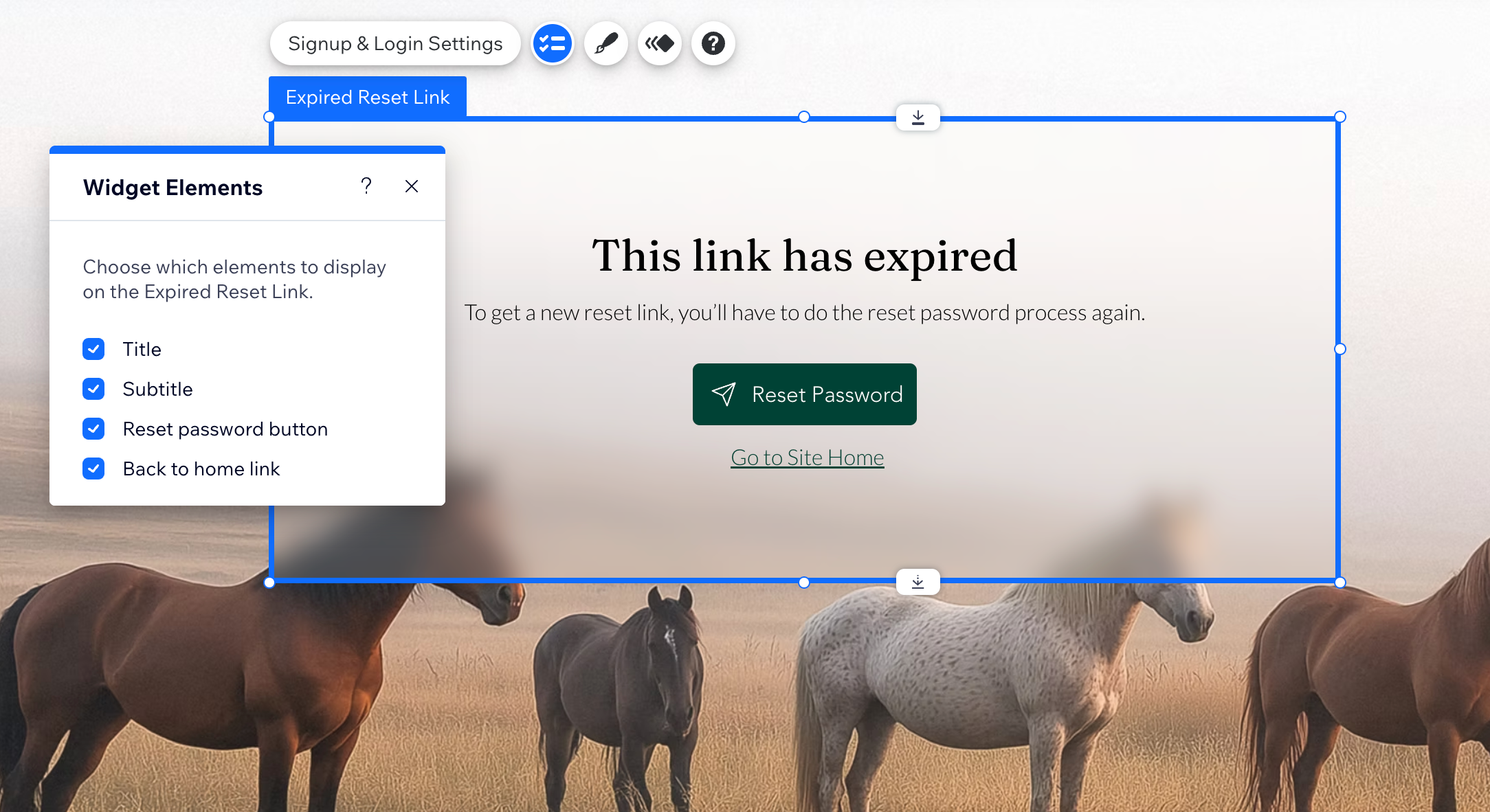
Make every step of your member journey feel like part of your site. With the Member Authentication app, you can customize the 6 pages and popups members see when they sign up, log in, and reset their password. Fine-tune the text, elements, and design, then set who can access your member pages.
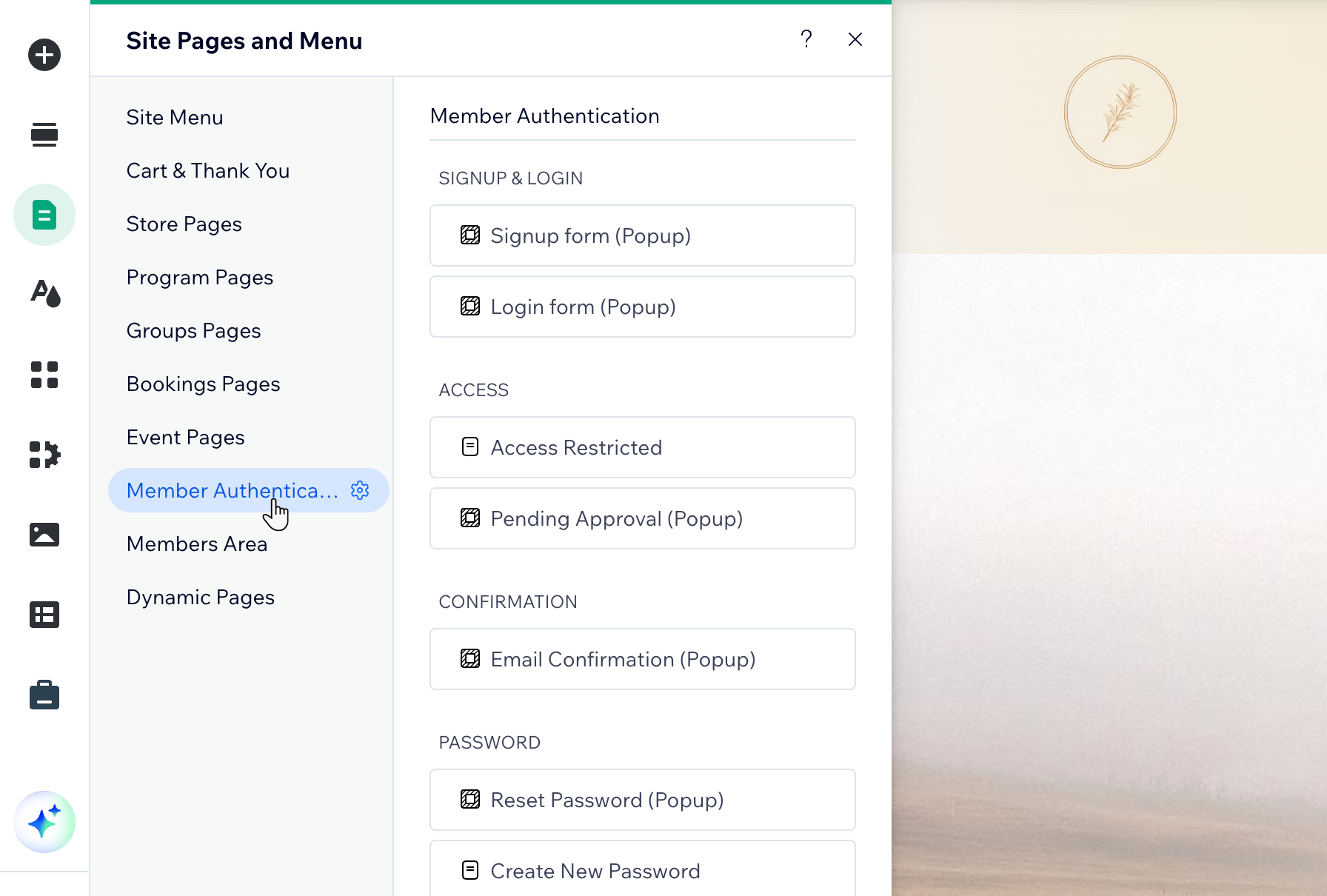
Understanding the pages and popups
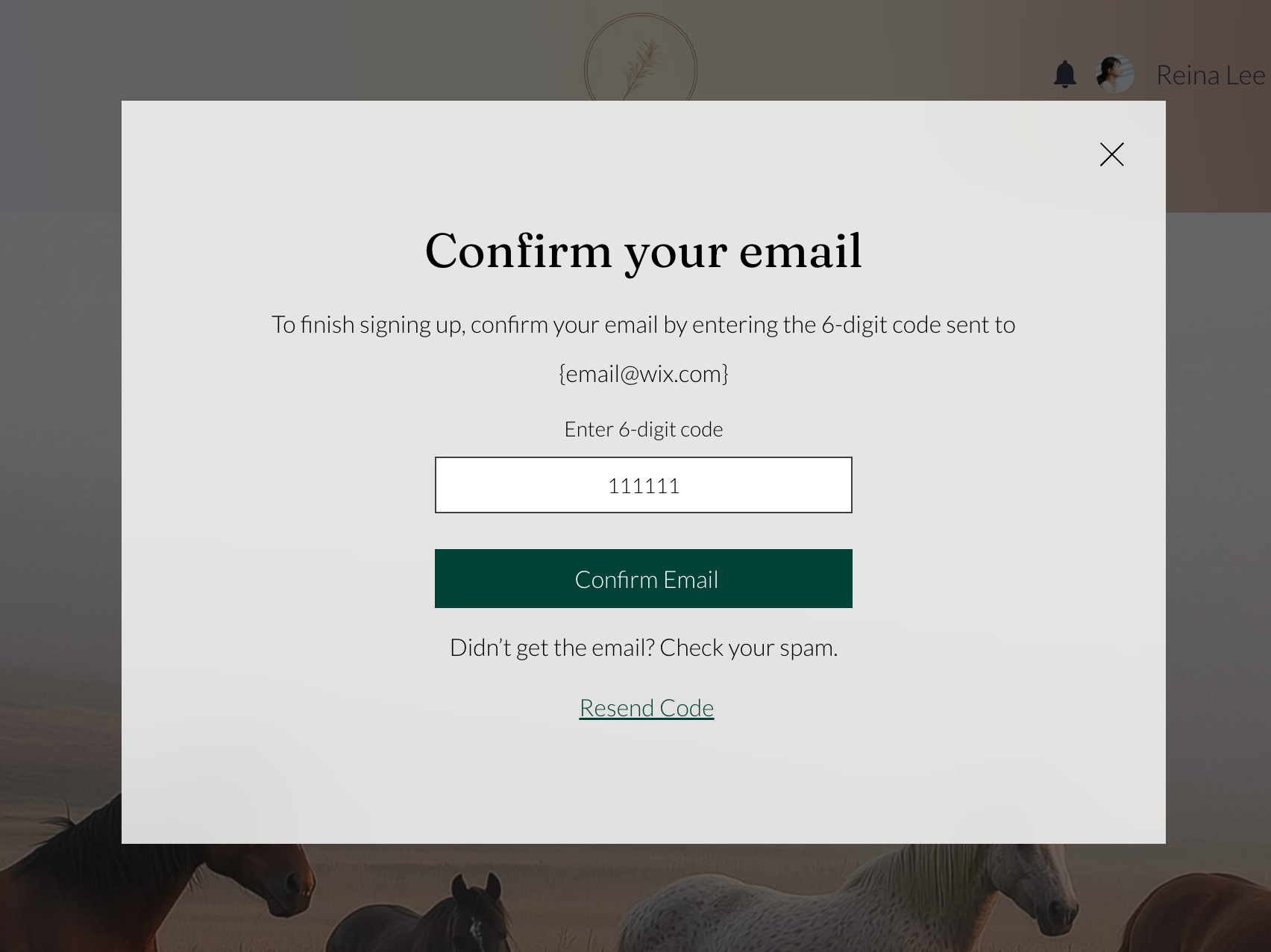
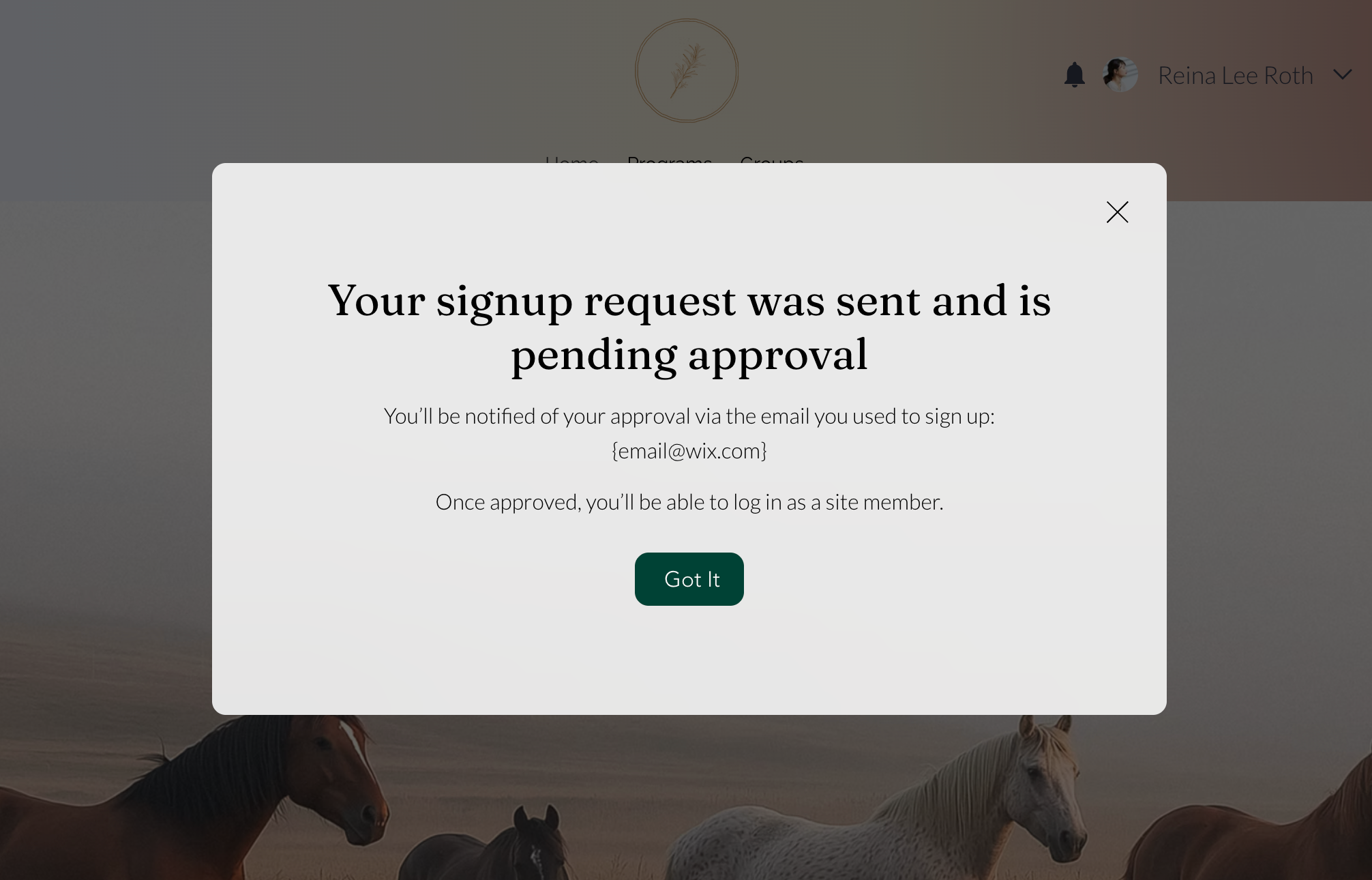
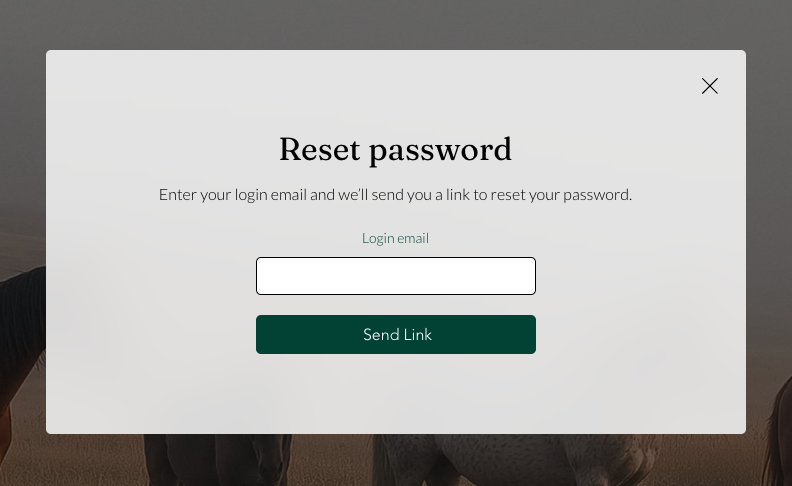
Each page and popup appears at a different moment. Match the text and elements to what your members need to know at that point. Click an option below to learn more about a specific page or popup:
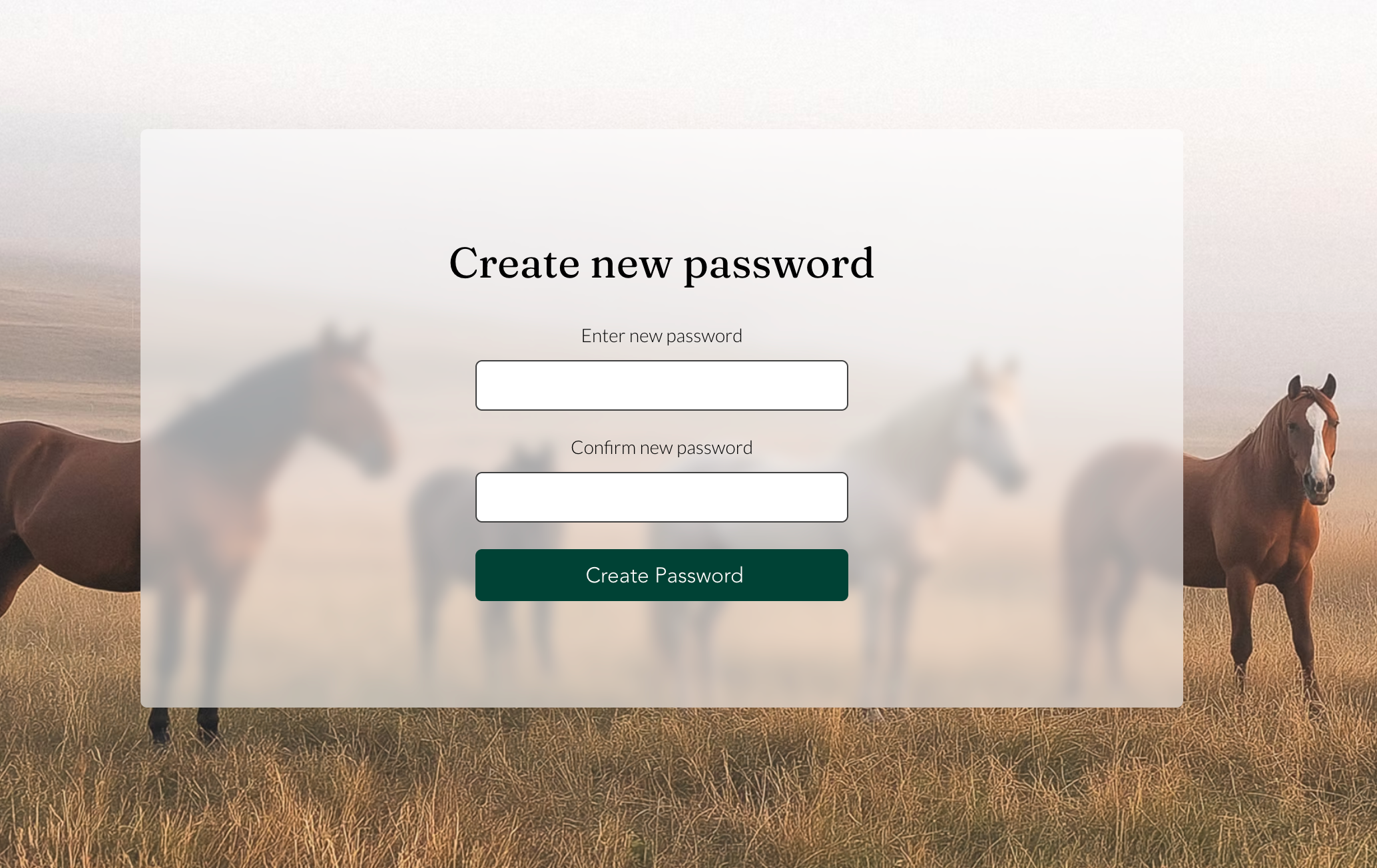
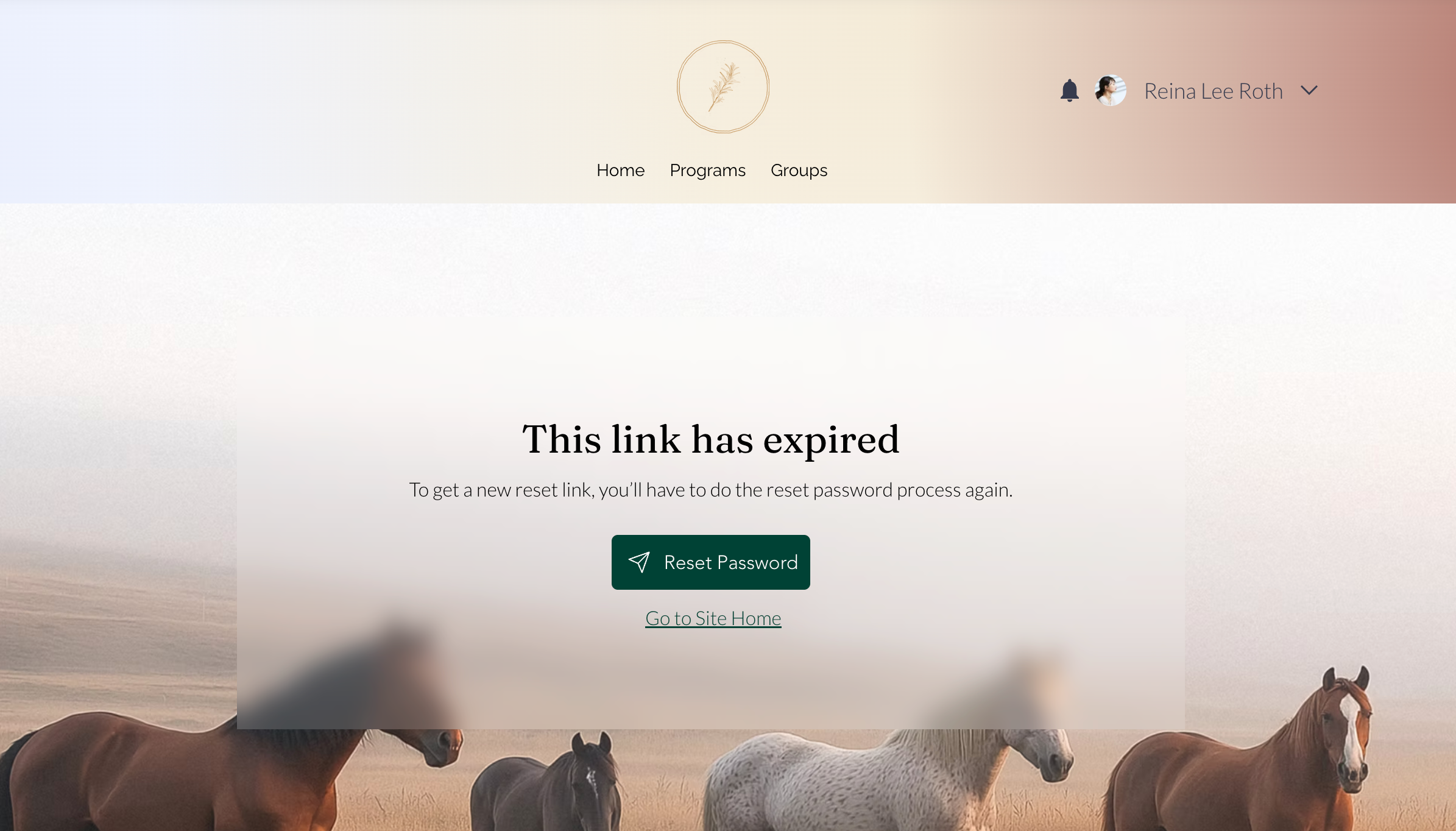
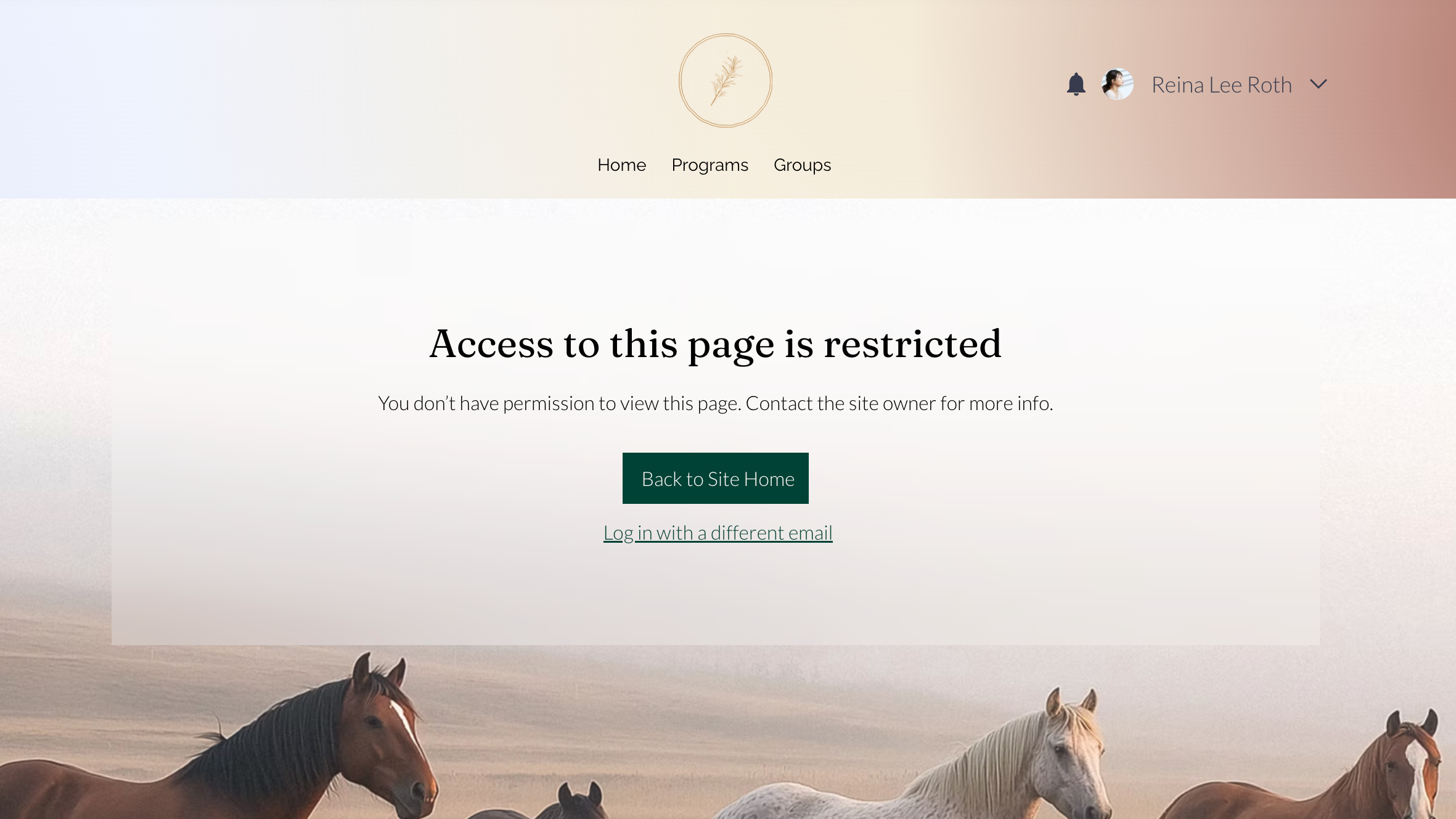
Customizing a page or popup
Customize each page and popup separately from the Member Authentication section of your editor. Your changes to one don't affect the others.
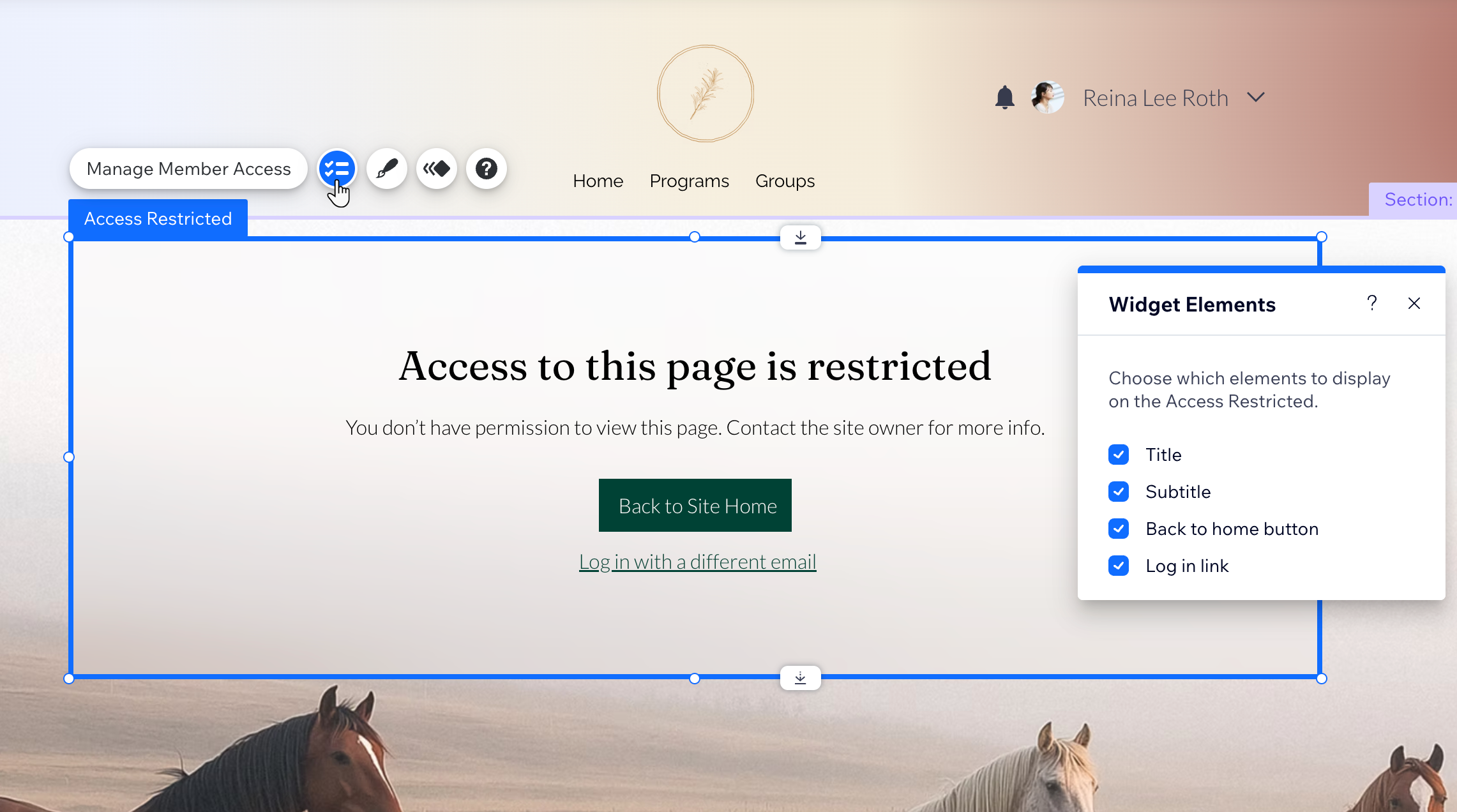
- Go to your editor.
- Click the Pages & Menu icon
 on the left side of the editor.
 - Click Member Authentication.
- Click the page or popup you want to customize.
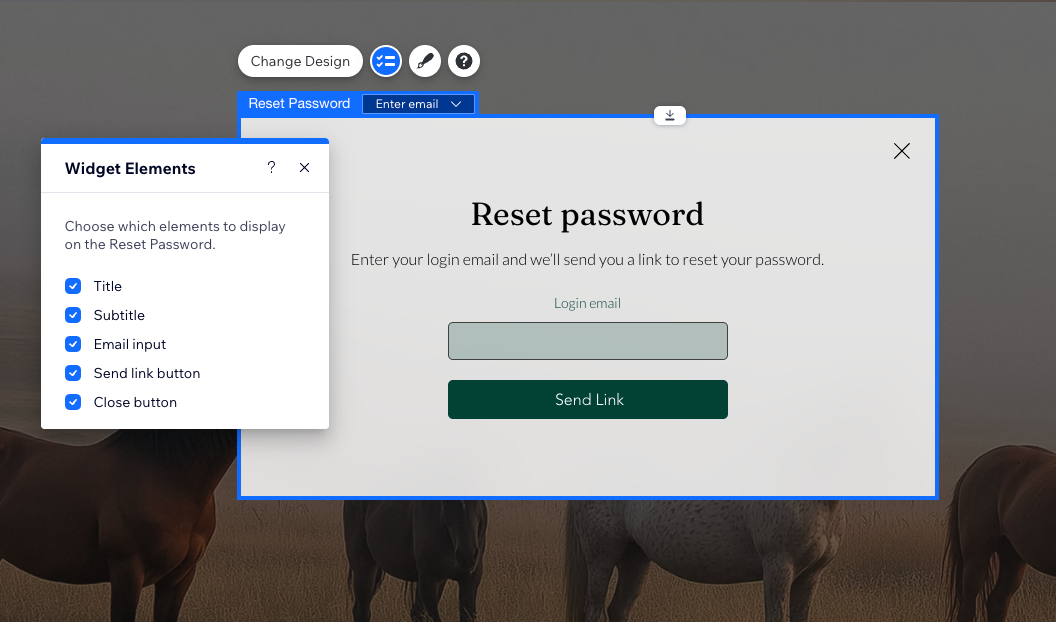
- Click the element on the page or popup.
- Choose what you want to do next:
 .
. .
.
Publish your site to make your changes visible to members.
To go back to the original design, right-click the element and select Reset Widget.
Controlling who can access your member pages
Choose who can sign up to your site and who needs your approval first. You can also control which roles open your member pages. Change these settings to control when the Access Restricted page and the Pending Approval popup appear.
- Go to your editor.
- Click the Pages & Menu icon on the left side of the editor.
- Click Member Authentication.
- Choose what you want to manage:
FAQs
Click a question below to learn more about customizing your Member Authentication pages and popups.