


Wix POS Register: Managing Shifts for Team Members
In this article
- Enabling shift management in the Wix Point of Sale
- Clocking in and out as an employee
- Making changes to timecards sessions
- View, email or print team member timecards
Important:
- This article is about the Wix POS Register for brick-and-mortar businesses.
- Learn more about using POS on a mobile device.
- Learn more about using POS on your desktop.
Stay on top of staff management by having your team members track their hours working on the POS tablet.
After enabling time tracking, team members can clock in and out whenever they start or stop working. You can then view the team members' timecards, make changes to them, or email or print the information.
Enabling shift management in the Wix Point of Sale
Important:
If you purchased your Wix POS Register system after October 25, 2023 and before April 2024, you may need to upgrade to enable shift management.
Learn more about upgrading to a POS Register plan.
To start tracking working hours, you need to enable time tracking in the team settings.
To enable time tracking:
- Open the POS tablet.
- Tap the Menu icon
 at the bottom left.
 - Tap Settings.
- Tap Roles & Permission on the left menu.
- Enable the Time Tracking toggle.
Clocking in and out as an employee
Once time tracking is enabled, employees can clock in when they start working and clock out when they stop.
To clock in and out as an employee:
- Open the POS tablet.
- Select your name from the staff list.
- Tap the lock screen.
Tip: If the lock screen isn't visible, tap Lock Screen at the bottom right. - Tap Clock in the top right and enter the passcode to start the clock.
- To stop the clock, repeat steps 1-3, then tap Clock out.
Making changes to timecards sessions
If you need to manually make a change to your timecards, you can do so from your computer. From there, you can edit an existing session, delete a session, or add a new one.
To edit timecards:
- Go to POS Home in your site's dashboard.
- Scroll down to Team performance.
- Hover over the team member and click View Timecard.
- Choose what you want to do next:
Add a new session

Edit an existing session

Delete a session

View, email or print team member timecards
You can view timecards reports in the
Team Timecards section and email or print the card so you'll have them handy anytime.
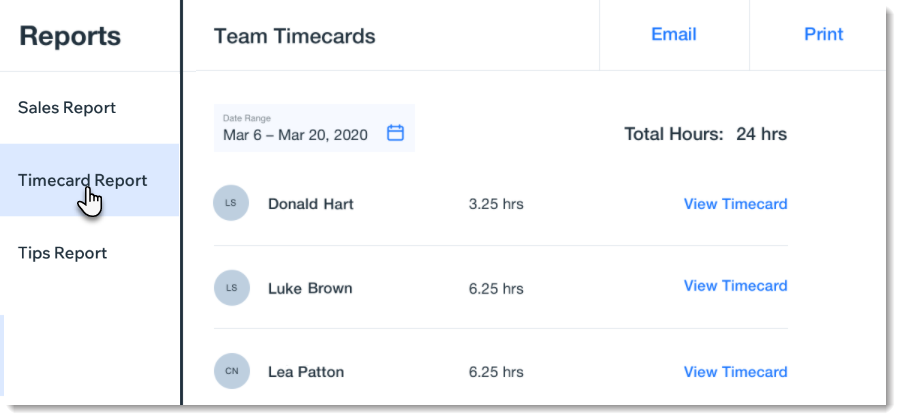
To email or print timecard reports:
- Open the POS tablet.
- Tap the Menu icon at the bottom left.
- Tap Reports.
- Select Timecard Report.
Note: On this screen you can see the total number of hours each employee worked during the chosen period. - (Optional) Tap Email or Print at the top right to email or print a time report for all employees for a set time period.
- Tap View Timecard next to the staff member whose timecard you want to view.
- Tap Email or Print at the top right to email or print a time report for the selected employee.
