Wix POS Go: Setting Up Receipt Printing
In this article
- Step 1 | Purchase a printer
- Step 2 | Pair the printer with your POS Go
- Step 3 | Print a receipt
- FAQs
Important
- This article is about setting up a printer when using the Wix POS Go as a standalone solution.
- The Wix POS Go card reader is currently available only in the US, Canada, and UK.
Provide your customer with a physical receipt of their purchase when making sales with your POS Go. Purchase a compatible printer and pair it with your device to start providing clear, branded receipts on the spot.
Step 1 | Purchase a printer
To get started,
purchase your Epson M30-III thermal receipt printer from our shop.

Step 2 | Pair the printer with your POS Go
Once your printer is unboxed and plugged in, you need to pair it with your Wix POS Go via WiFi.
Tap More at the bottom right of your Wix POS Go.
Tap Settings.
Tap Hardware management.
Tap Connect next to Receipt printer.
Select how your printer connects:
 at the bottom right of your Wix POS Go.
Wi-Fi
Ethernet cable
USB-C cable
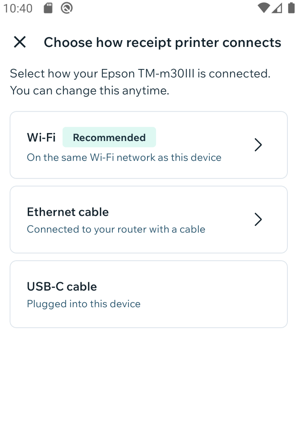
- (Optional) Tap Print Test Receipt to test the connection to the printer.
- Tap Done.
Note:
Make sure to connect your Epson printer to the same WiFi network as your Wix POS Go device.
Step 3 | Print a receipt
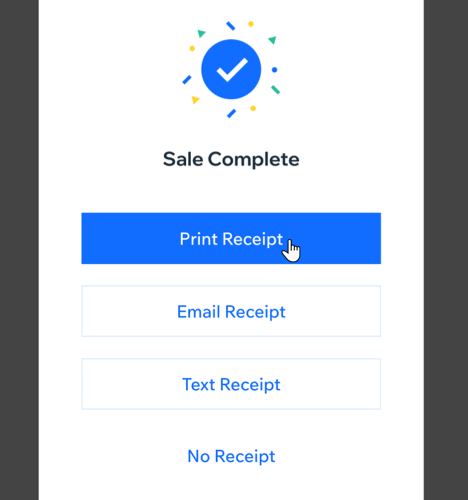
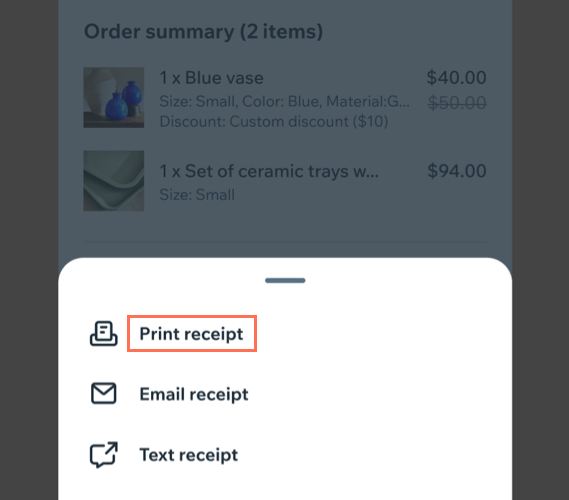
After your printer is connected, you can print receipts when making a sale, or print a receipt for a previous order.
Print when making a sale
Print for a previous order
FAQs
Click a question below to learn more about connecting a receipt printer to your POS Go.
How do I test if my printer is working properly?
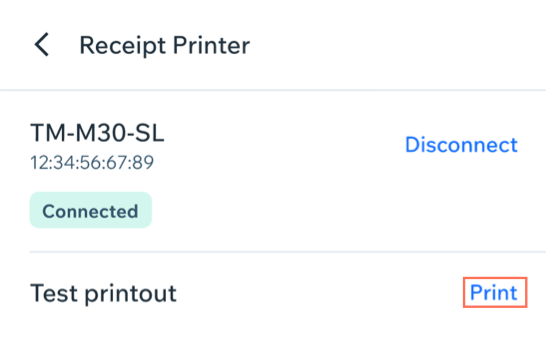
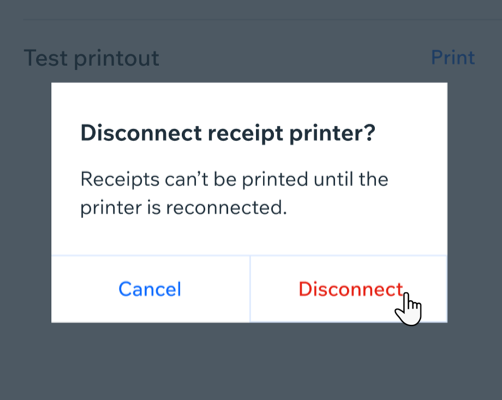
How do I disconnect a receipt printer from my POS Go?