


Wix POS Go: Issuing Refunds
In this article
- Issuing refunds
- FAQs
Important
- This article is about issuing refunds when using the Wix POS Go as a standalone solution.
- The Wix POS Go card reader is currently available only in the US, Canada, and UK.
You can provide refunds for purchases made using the Wix POS Go. Once issued, refunds take 3 to 5 business days to be processed.
Issuing refunds
When issuing a refund for an order with more than 1 item, you can decide whether to refund some or all of the items in the order.
To issue a refund:
- Tap Sales History at the bottom of your Wix POS Go screen.
- Tap the order you wish to refund.
- Tap Actions at the top right.
- Tap Issue refund.
- Tap the Plus icon
 next to any item you want to refund.
Tip: Tap more than once to refund more than one of the same item.
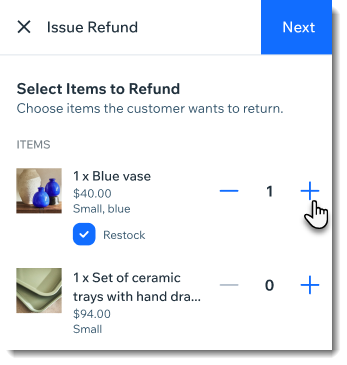
- Select or deselect the Restock checkbox (for items that track inventory):
- Selected: Inventory level for this item increases after the refund is processed.
- Deselected: Inventory level remains the same after issuing the refund.
- (Optional) Select the checkbox next to additional fees to refund them (e.g. tips, shipping, or custom fees).
Tip: You can refund the full fee or enter a custom amount. - (Optional) Select a reason for refund.
- Tap Next.
- Tap Refund.
Important: This cannot be undone.
FAQs
Click a question below to learn more about issuing refunds.
Can I refund gift card purchases?
Can I refund an online order at my point of sale?
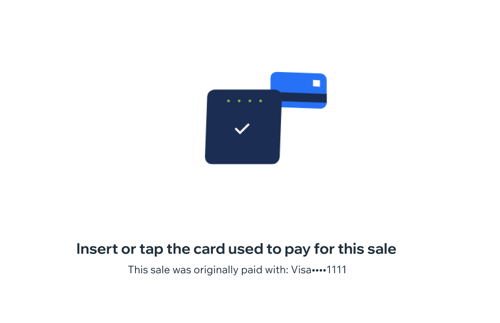
Does the customer need to tap their card to get the refund?
Can customers exchange items purchased through Wix POS Go?
Can I also refund a POS sale in my Wix dashboard?