header-logo
Getting started with WixBuild your website and business with Wix. Try using our AI tools to create your website, customize templates, or hire professionals to build or enhance your online presence.
Creating a websiteRead how to use the Wix Editor and manage content on your site. Discover how to protect your visitors' privacy and make your site accessible.
Account & billingReview your account settings, manage your subscriptions and plans and understand your invoices.
Using the Wix mobile appsUse our mobile apps to run your business efficiently on the go and set up a dedicated app for your site members to stay in touch.
Connecting a domainFollow our step-by step guides to learn how to purchase, connect or transfer a domain for your site, and find out how to keep your site’s data secure.
Managing your businessGet tools to grow your business and web presence. Find the right tools for your specific needs, set up online payments and keep track of your site's analytics.
Promoting your siteLearn to make your site more visible promoting it on search engines, sending emails and running paid ads. Improve your online presence with practical tips.
Studio, Partners & EnterpriseGet the most out of your Studio or Enterprise account with advanced features that'll help you work more efficiently.
Need more help?Find solutions for site performance and technical issues, learn about issues we’re working to fix or contact us for help.
placeholder-preview-image
Wix LearnImprove your skills with our courses and tutorials.
Wix BlogGet tips for web design, marketing and more.
SEO Learning HubLearn to increase organic site traffic from search engines.
Website developmentBuild a custom site using our full-stack platform.
Hire a ProfessionalGet matched with a specialist to help you reach your goals.
placeholder-preview-image
In this article
  • Generating an element
  • Adding a custom element to your page
  • Editing an element
  • Tips for describing your idea
  • FAQs

Wix Harmony Editor: Generating an Element with AI

In this article
  • Generating an element
  • Adding a custom element to your page
  • Editing an element
  • Tips for describing your idea
  • FAQs
This article refers to the new Wix Harmony Editor, released in January 2026. If you're unsure whether you’re using the Wix Harmony Editor or the Wix Editor,  view more information here.
The AI Element Generator lets you create site elements that perfectly match your creative vision. Create anything from a glowing call-to-action button that bursts with confetti, to a dynamic event calendar or a weather widget with real-time updates.
Whether you have a one-of-a-kind idea or just need something not found in the Wix library, you can describe it in your own words and let AI bring it to life as a ready-to-use, editable custom element.
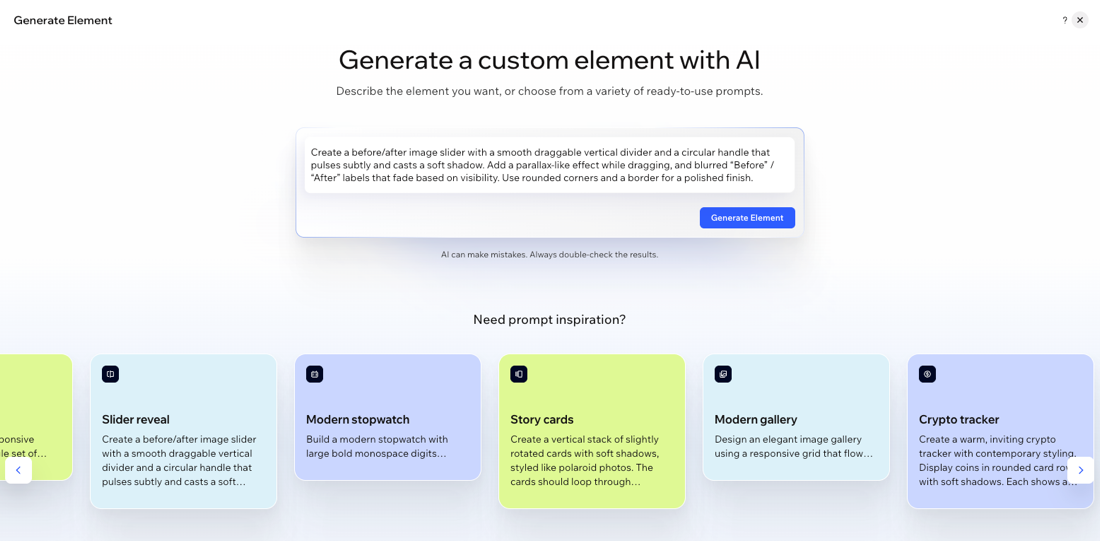
A screenshot of the Generate Element screen in the Wix Harmony Editor.
Important:
This feature is powered by AI and as such may produce unexpected or inaccurate results. Always review the AI's suggestions or changes before finalizing your site.

Generating an element

Start from a blank prompt or use the provided ideas for extra inspiration. Describe exactly what you want, then customize, preview, and save the element to use anywhere on your site.

To generate an element:

  1. Go to your editor.
  2. Click + Add at the top left of the editor.
  3. Click the Generate with AI icon .
  4. Describe the element you want in the text box and click Generate Element.
    Tip: You can also explore the suggested ideas below. Hover over any example and click Edit prompt to copy and tweak the description as you like or click Generate to use it right away.
  5. Once the AI generates your element, review the element and description. If you want to make any changes, type instructions into the chat box and refine your idea as many times as you need.
  6. When you're happy with the output, click Save to add the new element to your AI Elements library.
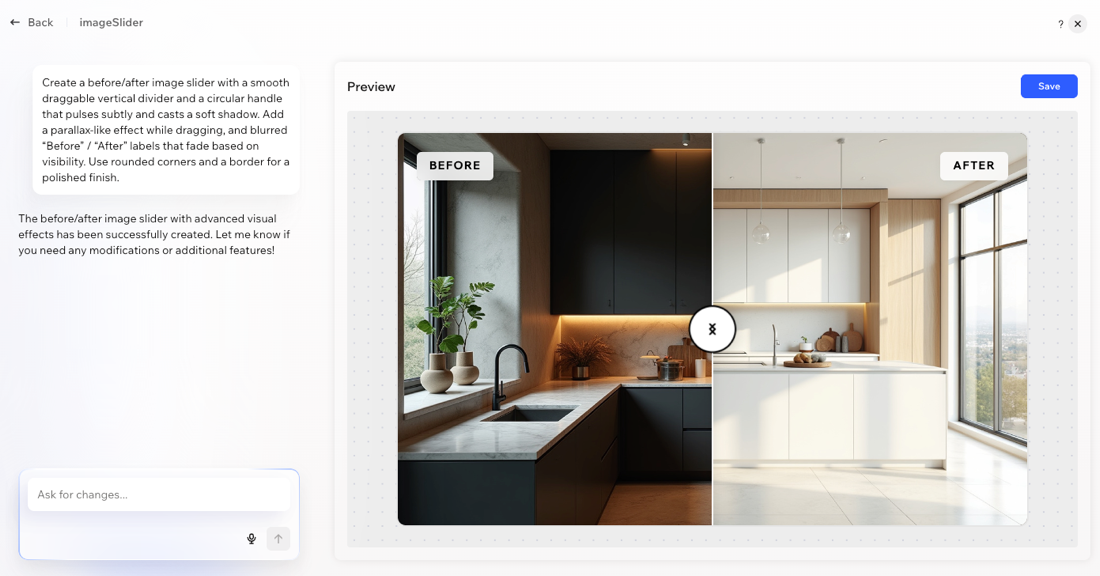
A screenshot of generating an element in the AI Element Generator.
Note:
Custom elements are saved per site, not per account.

Adding a custom element to your page

Once you’ve generated a custom AI element, you can add it to any page on your site.

To add a custom element to a page:

  1. Go to your editor.
  2. Click + Add at the top left of the editor.
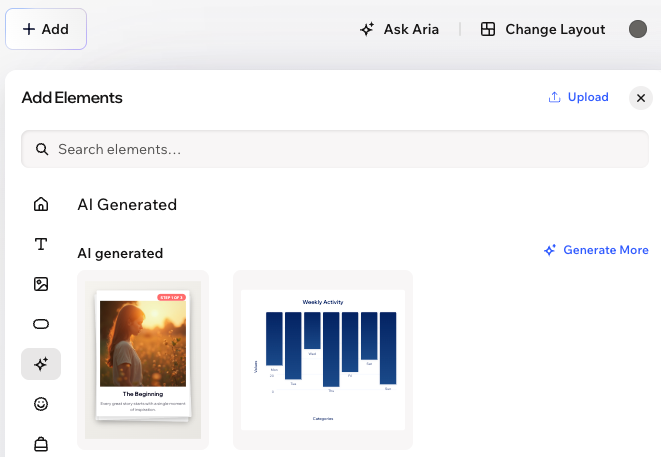
  3. Find your saved element under AI Generated, then drag and drop it onto your page.
  4. (Optional) Customize the element by using the design options in the action bar or use the AI chat to further tweak the design, functionality, or style.
A screenshot of the AI Generated element button highlighted in the Add Elements panel of the Wix Harmony Editor.

Editing an element

Custom AI elements are always editable, even after adding them to your site. You can update their look, behavior, or content any time.

To edit an element:

  1. Go to your editor.
  2. Click the relevant custom element in the editor.
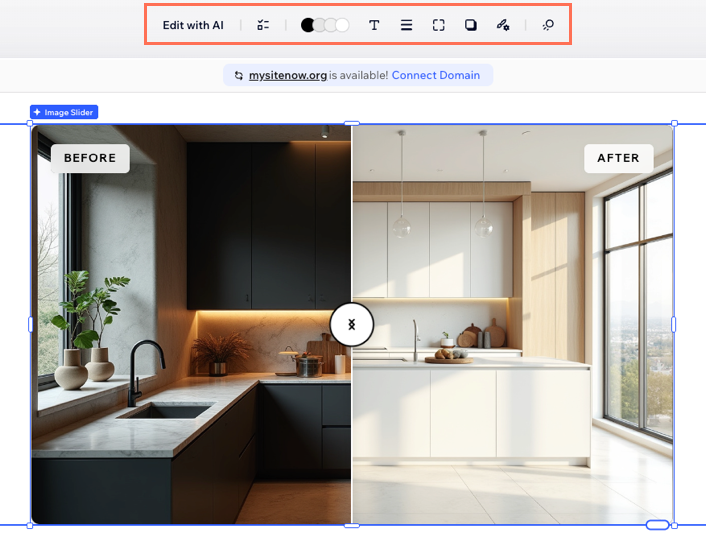
  3. Choose what you want to do:
A screenshot of the options in the action bar highlighted in the Wix Harmony Editor.
Notes:
  • If you update a custom element from the chat, the changes apply to every instance of that component placed on your site. If you edit a custom element directly from the editor, those changes only apply to that instance on the page. Edits made in the editor always override chat-based changes.
  • Some elements within the component (e.g. objects or text boxes) can only be edited, moved, or redesigned through the chat.

Tips for describing your idea

When you describe your idea to the AI Element Generator, think of it as a creative conversation. The more details you share about how your custom element should look, feel, and function, the closer the result will be to your vision. Here’s how to get great results:
  • State your goal: What do you want this element to do? For example, “I want a price comparison table with highlight colors,” or “Build a poll that displays instant visual results.”
  • Describe the vibe: Should it be modern, playful, bold, elegant? Mention colors, animations, or any style inspiration.
  • Specify interactive features: Do you want users to click, sort, vote, expand, or see live updates? Tell the AI about any effects or interactive options.
There’s no one “right” way to write your prompt, but being specific helps. If you’re not sure where to begin, start with one of the suggested prompts and adjust it to fit your own vision. You can always edit or refine your idea after you see the first version.

FAQs

Click a question below to learn more about the AI Element Generator.

Helpmate

Hello

Need a bit more guidance?
Unlock personalized helpLog in to get the most out of Helpmate.