


Wix Gift Cards: Managing Purchased Gift Cards
In this article
- Viewing gift card & customer information
- Resending a gift card code
- Disabling gift cards
- FAQs
View and manage all your gift card sales from your dashboard. See the status of each gift card, view customer information, and disable gift cards as needed.
Note:
It is not possible to refund the purchase of a gift card.
Viewing gift card & customer information
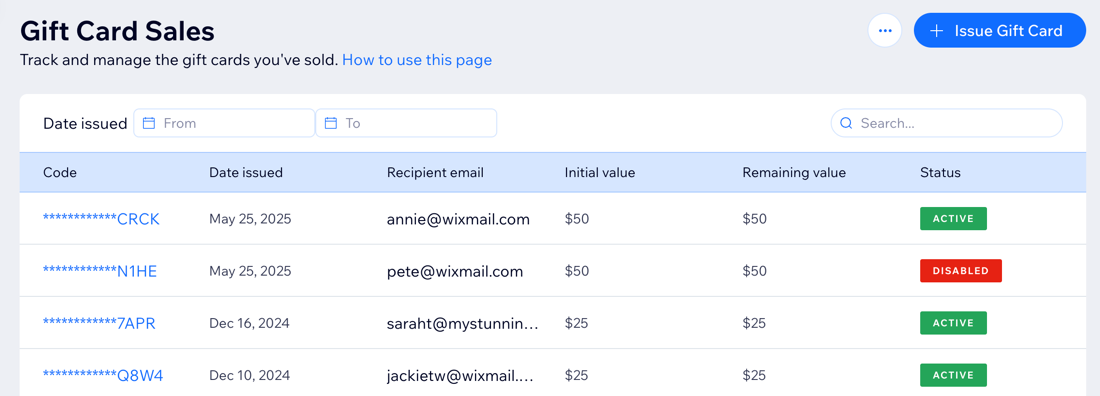
View the status of each gift card in the
Gift Card Sales tab.
Each gift card has one of the following statuses:
- Active: The card is not disabled or expired.
- Scheduled: The card was purchased and is set to be delivered at a future date.
- Expired: The card has passed its expiration date.
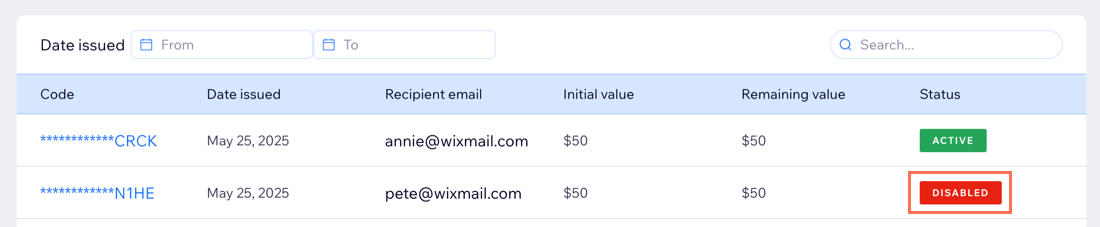
- Disabled: You have manually disabled the card so it cannot be redeemed at checkout.
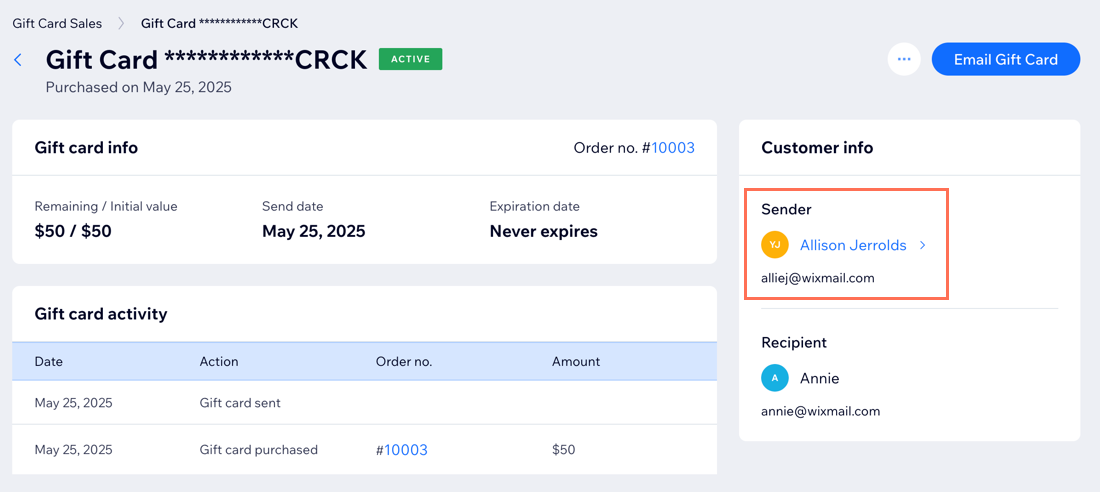
Select a specific sale to view more details, such as the remaining and initial value, expiration date, order number, and more.
The Gift Card Sales table includes a Code column. Gift card codes are partially hidden by default, and only the last 4 characters appear (for example, **********W7RC). This lets you identify gift cards without exposing the full code.
You can also click the sender name to view their contact details and make changes to their contact card.
Search for a gift card:
To locate a specific gift card order, enter the last 4 digits of the gift card code, a full or partial email address, or the customer's first or last name in the search field at the top right.
Resending a gift card code
You can easily resend the gift card code to your recipient if they did not receive it or accidentally deleted it.
Note:
By default, only Admin and Co-Admin roles can resend gift cards. You can change who has access to this action in
Roles & Permissions.
To resend the gift card email:
- Go to Gift Card Sales in your site's dashboard.
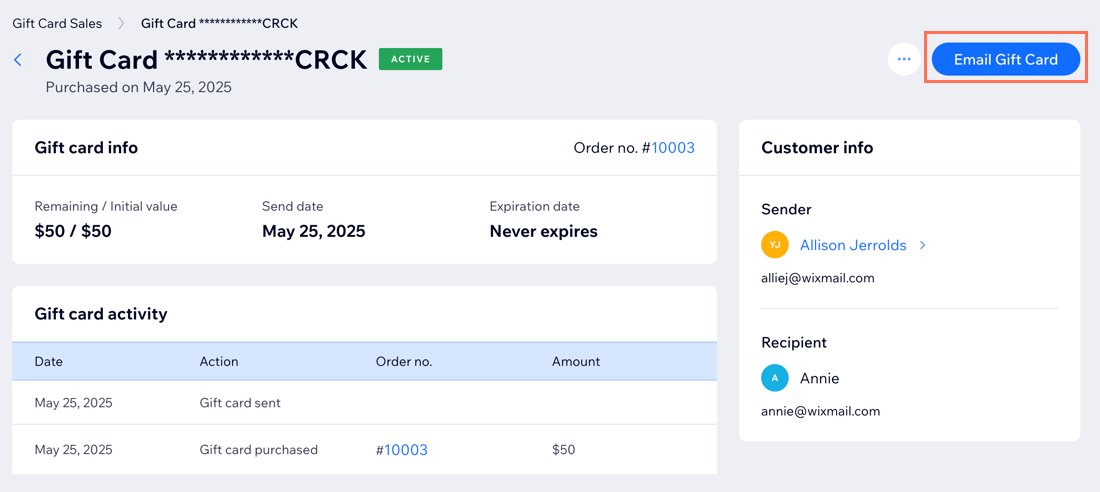
- Select the gift card you want to resend.
- Click Email Gift Card.
- (Optional) Edit the email address.
- Click Send Email.
What's next?
Customize the gift card email sent to recipients to reflect your style.
Disabling gift cards
You may occasionally need to disable a gift card, for example if it was sent by mistake to the wrong email address.
To disable a gift card:
- Go to Gift Card Sales in your site's dashboard.
- Select the gift card you want to disable.
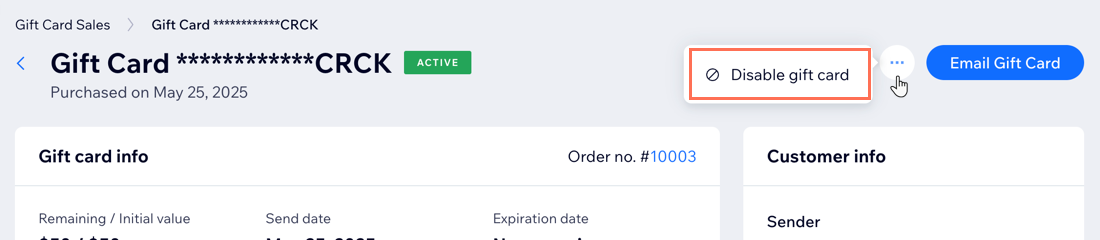
- Click the More Actions icon
 .
. - Click Disable gift card.
- Click Disable gift card to confirm.
FAQs
Click a question below to learn more about purchased gift cards.
Can I change the recipient email address for a gift card that has already been purchased?
Can I track which orders were paid using gift cards?
Can I manually deduct an amount from a gift card after a service is provided?
Can I export a detailed list of gift card sales?
 , choose whether to export All sales or Selected. To export specific gift cards, select them before opening the export window. Transaction history is not included in this export.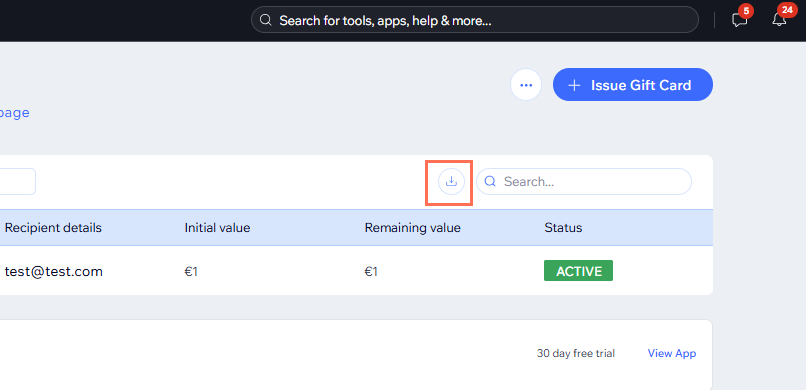
What should I do if the gift card code is showing as invalid?
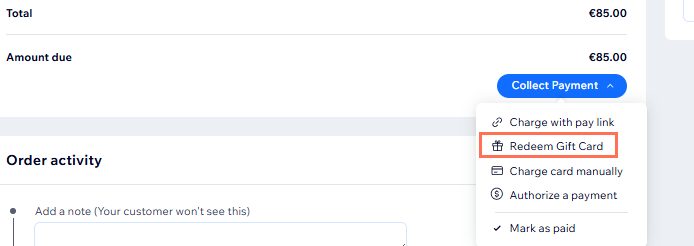
Can I use a gift card to pay for an order offline?
Can I see when a gift card has no recipient?