
Wix Editor: Saving, Previewing and Publishing Your Site
3 min
Manage your site from within the editor to keep it updated, and to keep any new changes that you've made. You can save, preview, and publish your site from the editor at any time.
Saving your site
Your site is automatically saved regularly as you are working in the editor. It starts after the first manual save on your site.
Even with autosave, we still recommend that you save your site regularly as you are building it, to avoid losing any changes.
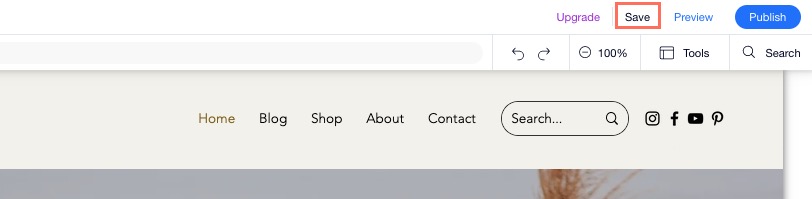
To save your site:
- Click Save at the top right of the editor.
- Click Done in the pop-up window.
Previewing your site
You can preview your site without publishing it to see what it looks like to visitors. This is a great way to test how new changes and updates look before publishing them.
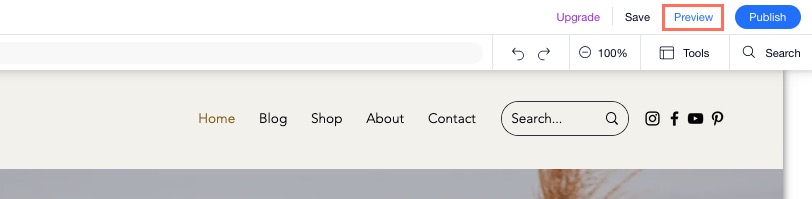
To preview your site:
- Click Preview at the top right of the editor.
- Browse your site preview.
- Click Back to Editor to go back to the editor.
Note:
Viewing your site Preview will trigger an automatic autosave, regardless of whether autosave has been disabled.
Publishing your site
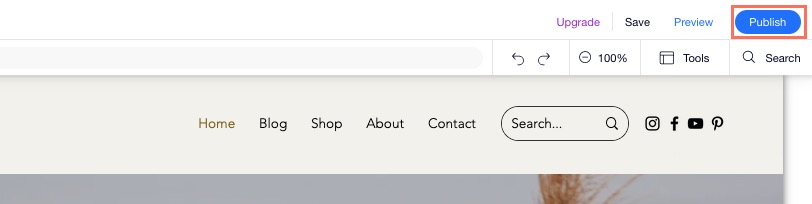
You need to publish your site for the changes to be made live on the Internet. You can publish new changes to your site at any time by clicking
Publish at the top right of the editor.
FAQs
Click a question below to learn more about saving, previewing and publishing.
How do I turn autosave off?
How do I undo or redo changes I made in the editor?
 at the top of your editor, or press
Ctrl +
Z on your keyboard. To redo an action, click the
Redo icon
 at the top of your editor, or press
Ctrl +
Y on your keyboard.
Can I leave the editor without saving?
How do I hide a page from my site if it's not ready for my visitors to see?
Can I go back to a previous saved or published version of my site?