


Wix Editor: Adding an Image to Your Page Background
In this article
- Uploading a background image
- Adding a background image from your site files
- Using a background image from Wix, Shutterstock or Unsplash
Select an image background for your page to give it a sense of depth. Upload your own, add a free Wix / Unsplash image, or purchase a Shutterstock image. You can customize settings like the image's opacity, scale or positioning, and even add scroll effects (e.g., Parallax).
Tip:
Adjust the settings of your background image (e.g., scaling, position) so it fits your design and complements your content.
Uploading a background image
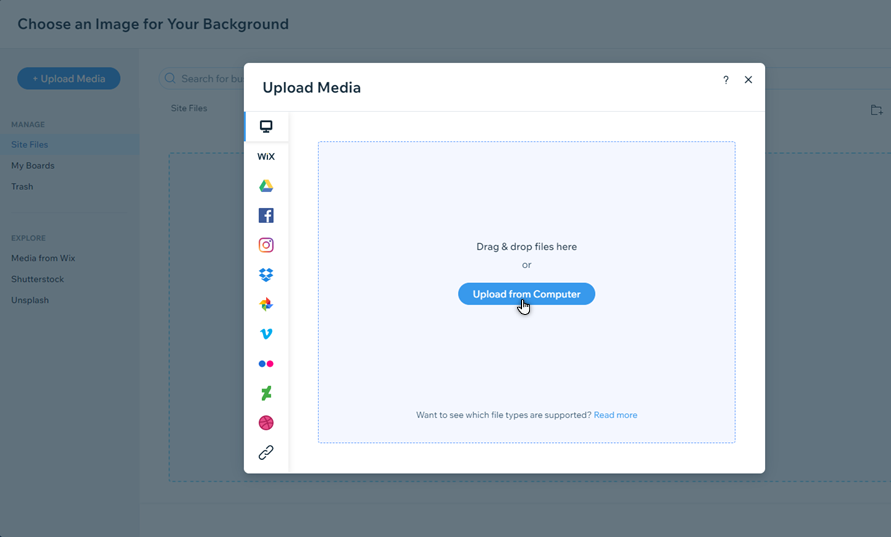
Upload an image of your own to personalize your page's background. You can import images from your computer, social platforms, your other Wix sites and even from a URL.
To upload a background image:
- Go to your editor.
- Click Site Design
 on the left side of the editor.
 - Click Page Background.
- Click Image.
- (In the Media Manager) Click + Upload Media at the top left.
- Add an image from your computer, other Wix sites, social networks or from a URL.
- Click Change Background.
- (Optional) Click Apply to Other Pages to add the background to other pages of your site.
Adding a background image from your site files
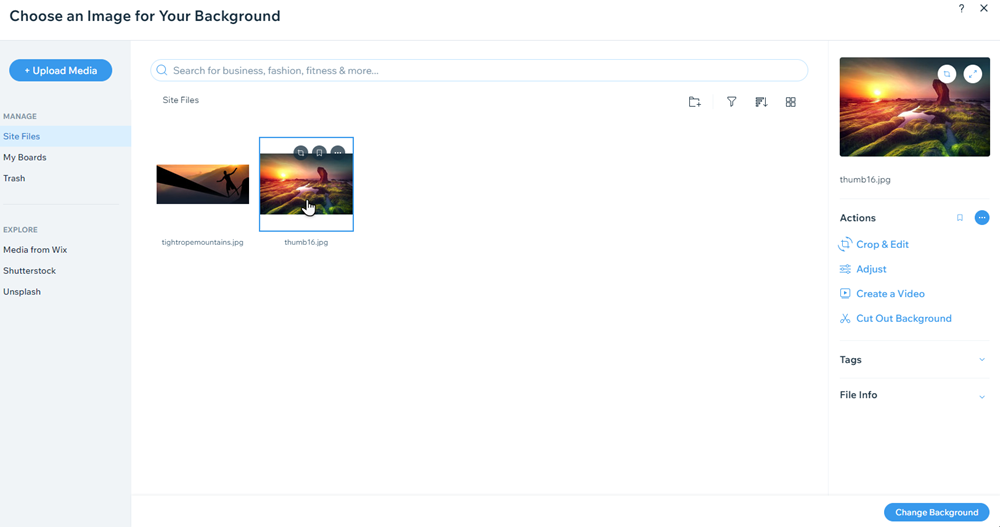
Already have the image stored in your site files? You can set it as your page's background directly from the Media Manager.
To add a background image to your page:
- Go to your editor.
- Click Site Design on the left side of the editor.
- Click Page Background.
- Click Image.
- (In the Media Manager) Click Site Files on the left.
- Select the image you need for your page's background.
- Click Change Background at the bottom right.
- (Optional) Click Apply to Other Pages to add the background to other pages of your site.
Using a background image from Wix, Shutterstock or Unsplash
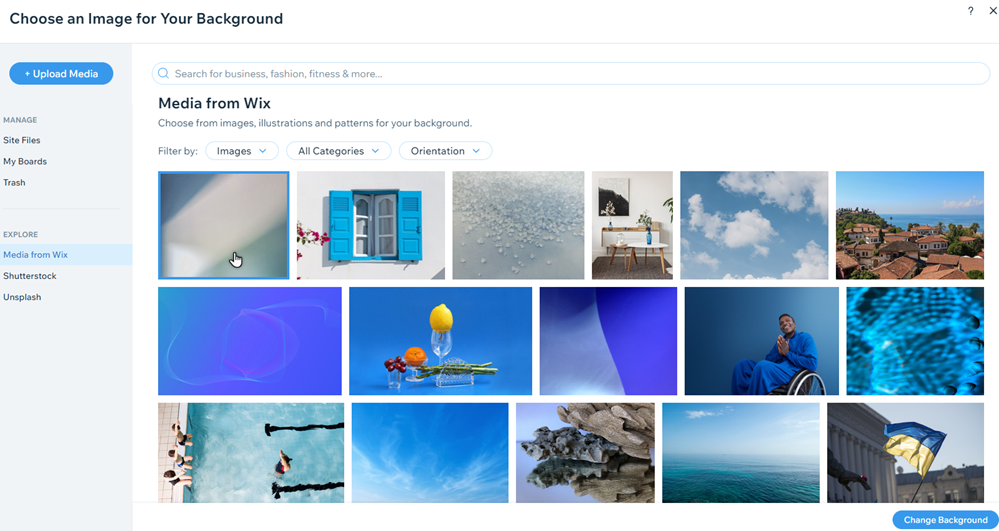
Enhance the background of your pages with professional-quality images. You can use background images offered by Wix or Unsplash for free, or purchase an image from Shutterstock.
To add an image from Wix, Unsplash or Shutterstock:
- Go to your editor.
- Click Site Design on the left side of the editor.
- Click Page Background.
- Click Image.
- (In the Media Manager) Choose one of the following from the Explore section:
- Media from Wix: Free images, illustrations, and patterns offered by WIx.
- Unsplash: Free images, illustrations, and patterns available from Unsplash.
- Shutterstock: Licensed images available from Shutterstock (fee varies).
- Find an image you like in the following ways:
- Scroll through the available selection of images.
- Enter a term in the search bar (e.g., 'Coffee').
- Use the filter drop-down menus to find relevant images.
- Select an image and click Change Background at the bottom right.
- (Optional) Click Apply to Other Pages to add the background to other pages of your site.
Tip:
To remove a page background completely, change the background color to white.
Looking for additional design inspiration?
The Wix design hub is a great resource for ideas and
website design trends.
