Wix App: Uploading and Managing Your Media
In this article
- Uploading media
- Editing your images
- Managing your media
- Filtering and sorting media
- Managing media folders
- FAQs
Upload and manage your site's media directly from the Wix app. You can organize files into media folders, filter files based on file type, and sort them alphabetically or chronologically.
You can also edit your files directly from the Wix app, download and share them, and even copy the file's direct link.
Important:
Any file you upload or edit in your Wix app is also saved to and accessible from your site's Media Manager on desktop; just search for the file's name.
Uploading media
Add a variety of media and file types to your site directly from the Wix app.
To upload media from the Wix app:
- Go to your site in the Wix app.
- Tap Manage
 at the bottom.
 - Tap Settings and select Media Manager.
- Tap Add.
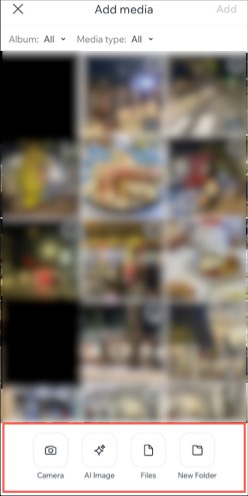
- Depending on what you want to upload, tap Camera, AI Image, Files, or New Folder.
Adding a downloadable PDF:
Allow site visitors to easily download important documents, brochures, menus, or any other type of file directly from your app. You can add a PDF in the following ways:
- Add a content box with hyperlinked text, leading to the PDF file URL. If you have the file on your device, you can tap the Add icon
 to upload it to the content box.
 - Add a button that is linked to the PDF file URL.
Important:
Images uploaded from the Wix app are automatically compressed. This may affect their quality.
Editing your images
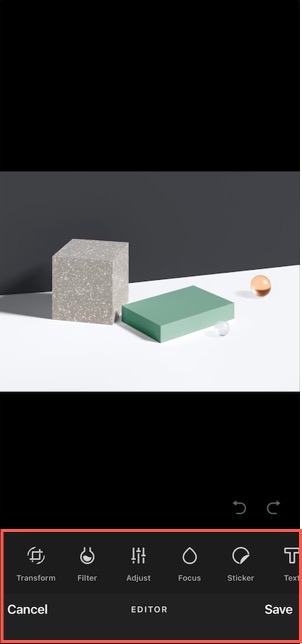
Overhaul your image directly from the Wix app using our built-in editing tools. Add filters and frames, adjust the image's brightness, focus and saturation, apply overlays and stickers, and even add text.
To edit your image:
- Go to your site in the Wix app.
- Tap Manage at the bottom.
- Tap Settings and select Media Manager.
- Tap the media you want to edit and tap Edit.
- Customize your media using the options available:
- Transform: Crop, flip and rotate your image.
- Filter: Tap a filter to apply it to your image.
- Adjust: Adjust the saturation, brightness, highlights, shadows, and more of your image.
- Focus: Reposition the focus of your image and adjust the blurriness of the surrounding area.
- Sticker: Add an illustration to your image.
- Text: Add text to your image. Customize the font, color, background color and alignment of the text.
- Overlay: Apply a graphic overlay to your image. Drag the slider to adjust the intensity of the overlay.
- Frame: Tap a frame to add it to your image. Customize the frame's width and opacity.
- Brush: Draw directly on your image using a brush. Customize the size, color and hardness of the brush.
- Tap Save.
Managing your media
Keep on top of your media management directly from the Wix app. Download, share, rename, remove and copy media links to your clip board all from the one place.
To manage your media:
- Go to your site in the Wix app.
- Tap Manage at the bottom.
- Tap Settings and select Media Manager.
- Tap the relevant media file.
- Tap the More Actions icon
 .
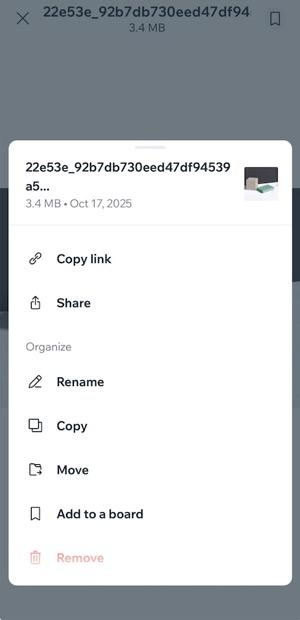
. - Manage your media using the available options:
- Save to camera roll: Tap to download the media to your device.
- Copy link: Tap to copy the direct link to your media to your clip board.
- Share: Tap to share your media on your social media.
- Rename: Tap to rename your file.
- Remove: Tap to move your media to Trash.
Managing Trash:
- To retrieve a file from Trash, open the Trash folder and tap the relevant file. Tap Restore.
- To permanently delete a file from your media manager, open the Trash folder and tap Delete from Trash.
Note: Deleting files from your Trash folder that are displayed on your live site will delete them from your site too.
Filtering and sorting media
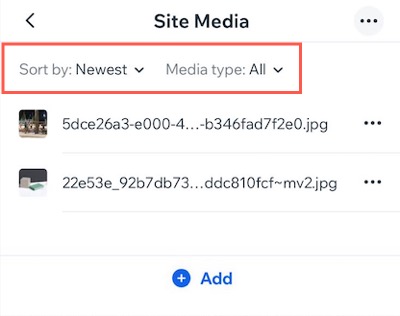
Filter your media files based on file type and sort them alphabetically or chronologically.
To filter and sort media:
- Go to your site in the Wix app.
- Tap Manage at the bottom.
- Tap Settings and select Media Manager.
- Tap Site media.
- Choose what you want to do:
- Sort: Tap the Sort by dropdown and select how to sort your files (e.g. Newest, oldest).
- Filter: Tap the Media type dropdown and select the relevant filter (e.g. Images, documents).
- Tap Save.
Managing media folders
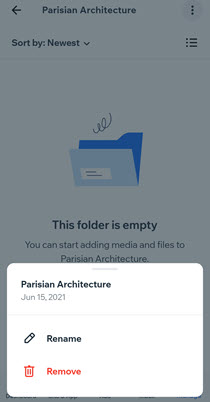
With the Wix app, you can keep your media files organized by creating folders for your photos and videos. Give your folders a name, add new media to them or remove folders at anytime.
To manage your media folders
- Go to your site in the Wix app.
- Tap Manage at the bottom.
- Tap Settings and select Media Manager.
- Choose what you want to do:
Create a new folder
Add media to a folder
Rename a folder
 .
. Remove a folder
FAQs
Click a question to learn more about uploading and managing your media.
Why do I see the 'Can’t use this folder' message when adding media from my phone?
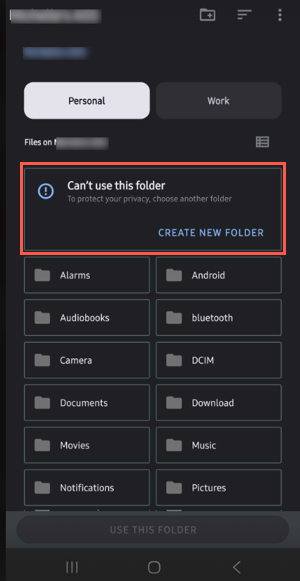
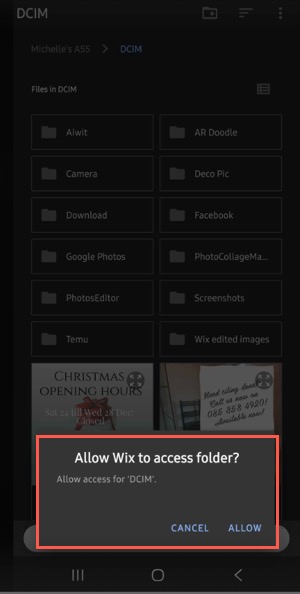
Which folder should I choose to upload images from my Android device?