Studio Two Editor: Creating a Site With AI
This article refers to the new Studio Two Editor, released in November 2026. If you're unsure whether you’re using the Studio Editor or the Studio Two Editor, view more information here.
Wix Studio Two's AI design agent, Aria, helps you generate a custom site for you or your client's business. Based on your description and any materials you provide, Aria designs a tailored site, giving you a professional starting point you can continue refining in the Studio Two Editor.
Step 1 | Create a new site
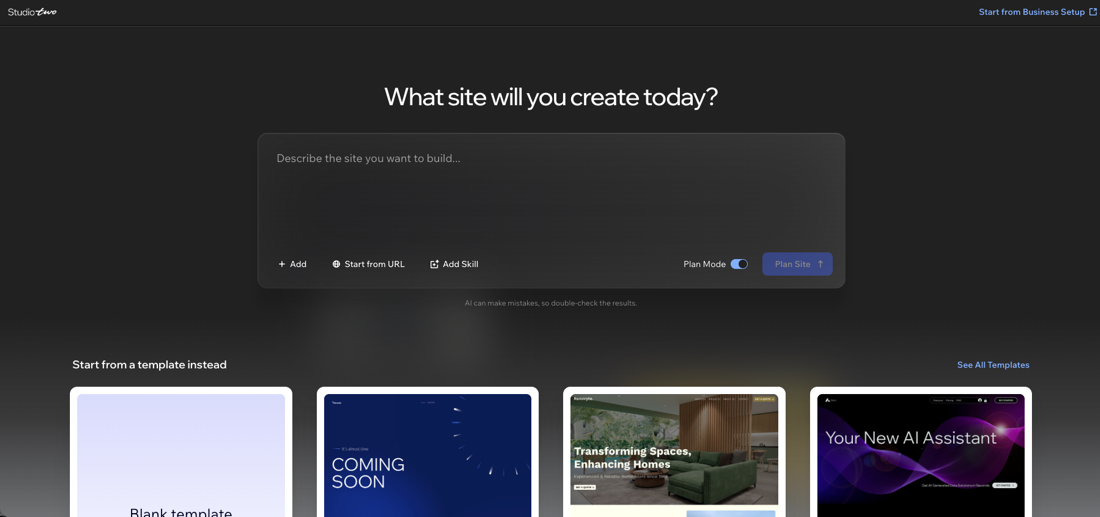
Create a new site in the Studio Two Editor and describe what kind of site design you want to generate. You can describe the site with a prompt, add files and visual references, and use skills. Add as many resources as you need so Aria has all the information to work with.
To create a new site:
Create or log in to your Wix account.
Click Create New Site.
Hover over Wix Studio Two Editor and click AI Prompt.
Choose how you want to add information:
5. (Optional) Click the Plan Mode toggle to refine the brief with Aria before generating.
Enabled: Chat with Aria to build a site plan before generating a site design. Aria asks questions to understand what you want, and you can ask your own (e.g. "How are my competitors structuring their sites?"). This is recommended if you want more control or aren't sure what you want yet.
Disabled: Aria automatically fills in the brief from the information you provided and builds the site directly. Plan Mode is off by default.
6. Click Plan Site (Plan Mode on) or Generate Site (Plan Mode off).
To start building a site manually, you can browse the templates below or click Start from Business Setup at the top right to get to your dashboard first.
Step 2 | Build the brief
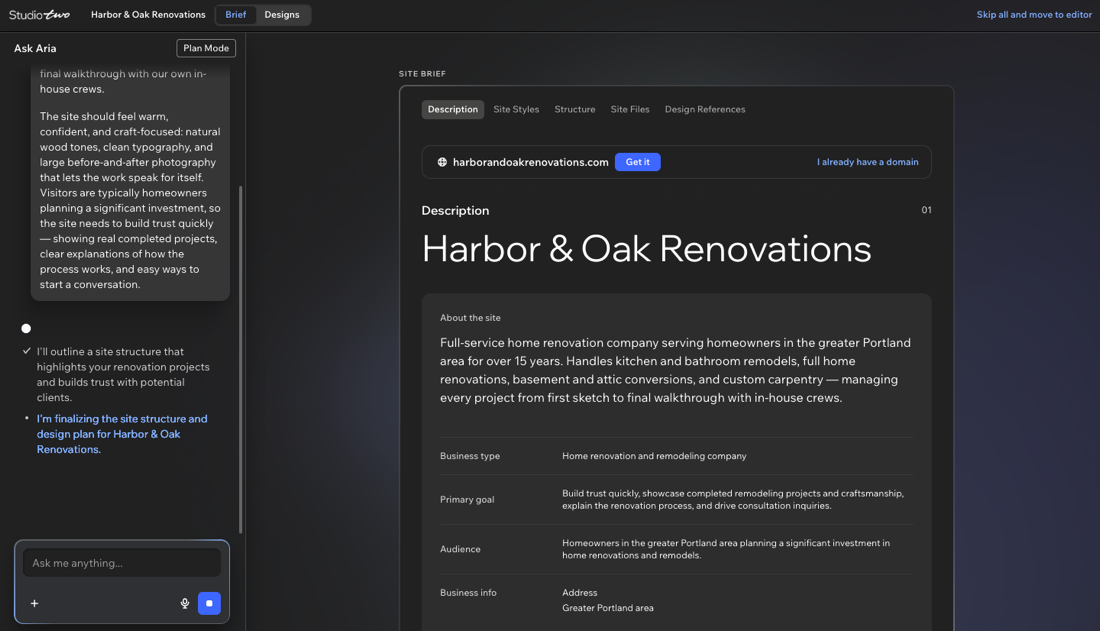
With Plan Mode enabled, Aria uses your description and provided materials to fill in the brief on the next page, and asks you questions to fill in the missing information. If you have Plan Mode disabled, you can skip to Step 4.
You can look through the site brief by clicking the different tabs: Description, Site Styles, Structure, Site Files, Design References. Review the brief and make changes either by editing it directly or by chatting with Aria before proceeding to the design options.
Step 3 | Choose a homepage design
Aria generates 3 different directions for the site's homepage from the same brief. Each uses the same design choices (e.g. brand, colors, typography) from the brief but offers a different layout. The direction you choose becomes the home page, so review the options carefully on this tab before deciding.
Hover over a site and click the Expand icon to check how it will look on a desktop computer. To choose a design, click Generate Site.
 to check how it will look on a desktop computer. To choose a design, click Generate Site.
At this point, Aria is handling high-level design decisions only. Specific layout requests like moving buttons or images can be done in the Studio Two Editor afterward.
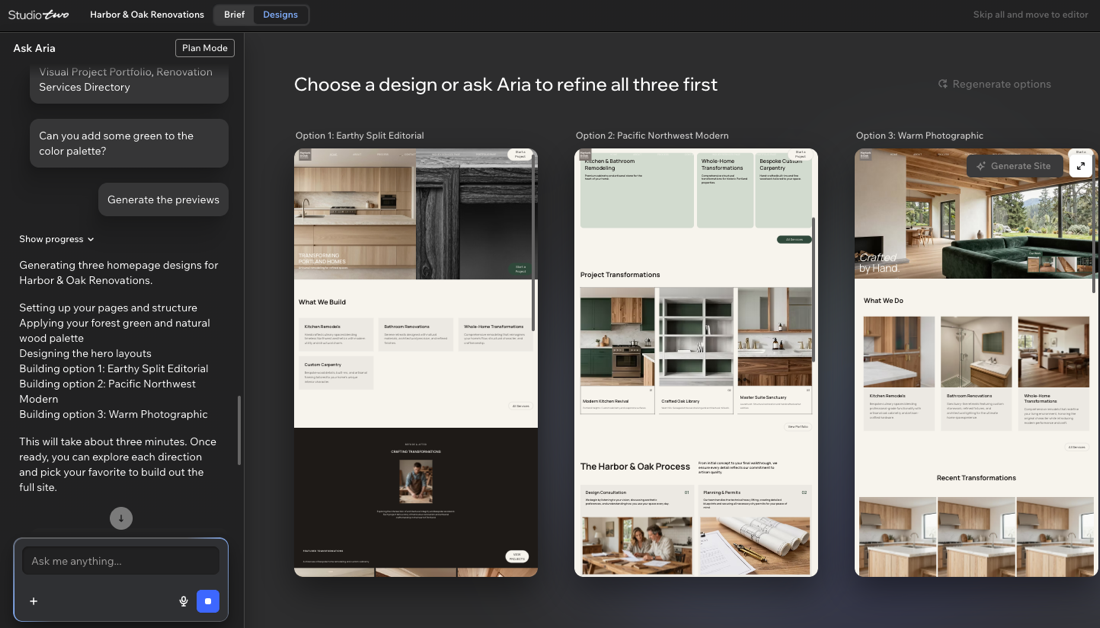
Click Regenerate options at the top right to get new designs. Once you do this, you won't be able to return to the previous options.
Step 4 | Generate the full site
Once you select a design, the Studio Two Editor opens with the selected homepage loaded on the canvas. Aria will still be there for anything you need, for iterations and edits. Learn more about working with Aria.
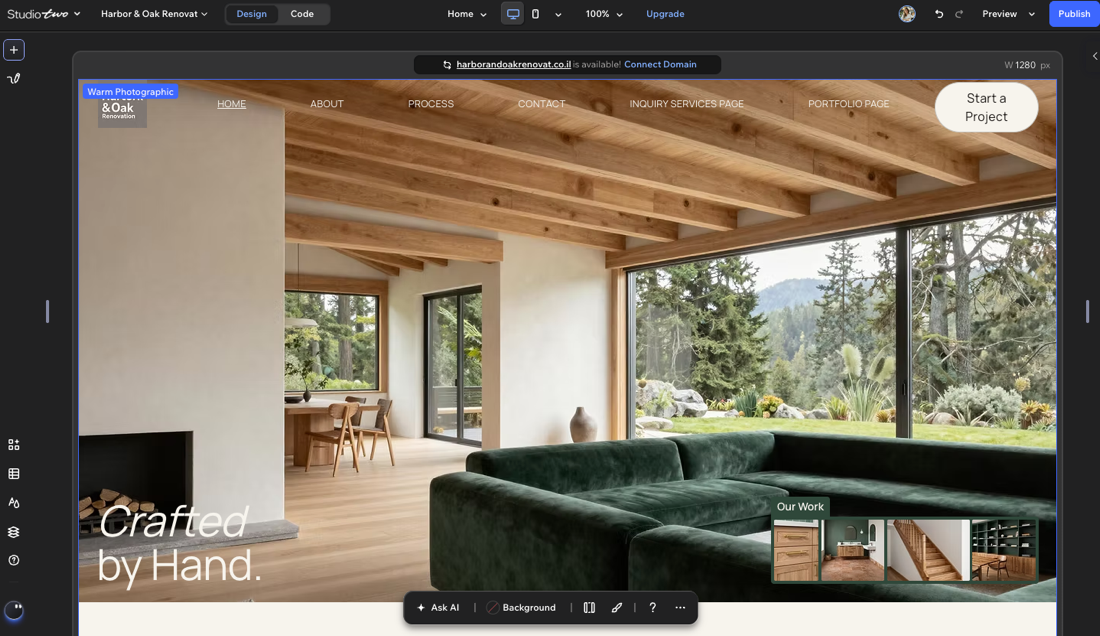
Learn more about the Studio Two Editor with a guided tour.
FAQs
Click a question below to learn more about creating a site with AI.