Studio Two Editor: Working With Aria
This article refers to the new Studio Two Editor, released in November 2026. If you're unsure whether you’re using the Studio Editor or the Studio Two Editor, view more information here.
Aria is your built-in AI partner in the Studio Two Editor. You can ask Aria to build and design sites, generate and update content, write custom code, and more - all from a chat panel that stays in context with the site you're editing.
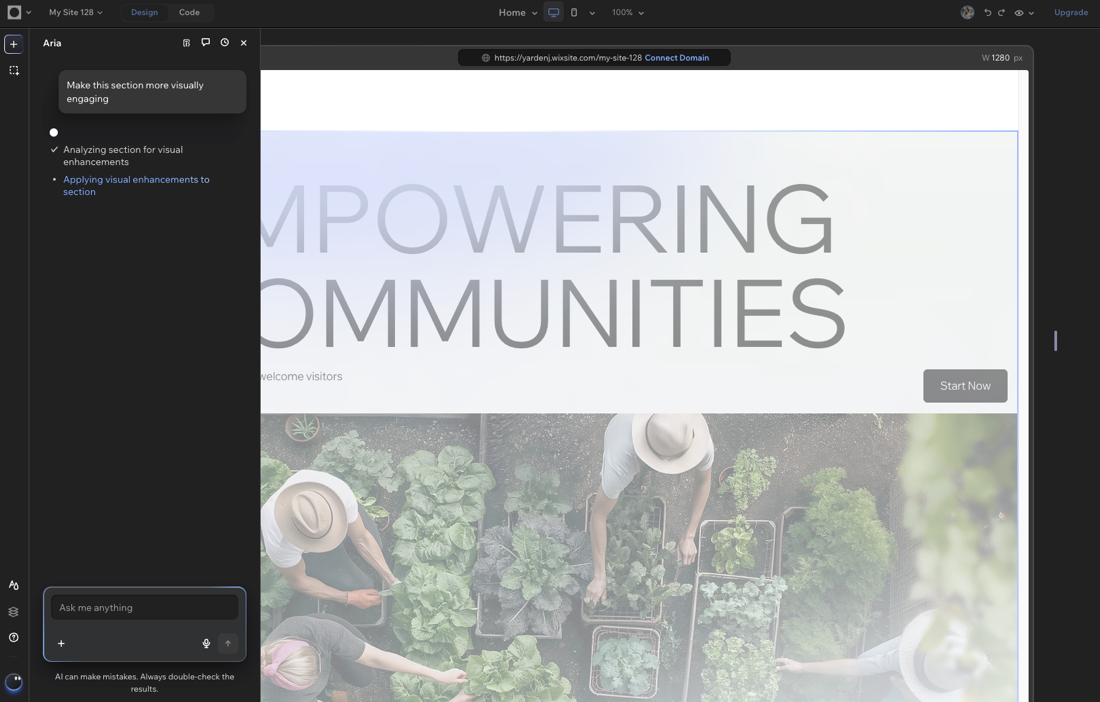
Aria is powered by AI and as such may produce unexpected or inaccurate results. Always review Aria’s suggestions or changes before finalizing the site.
Accessing Aria
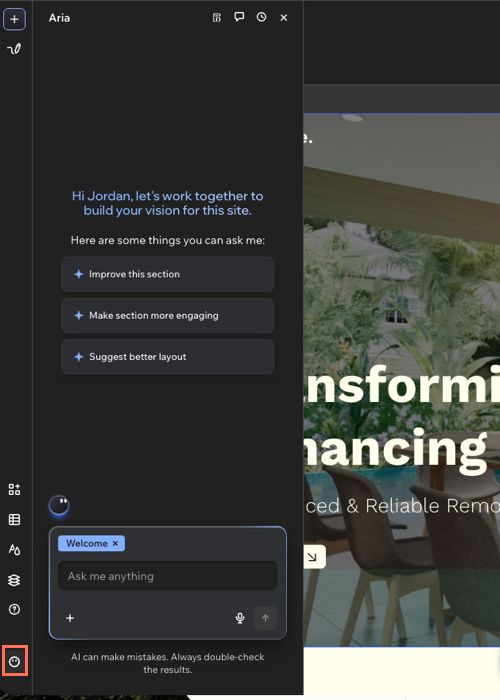
You can access Aria by clicking the Aria avatar at the bottom left of the editor. Simply start chatting whenever you have a task, idea, or question related to the site.
When using Aria, you can:
Send a message: Type your message in the text box or click the Dictate icon to speak.
Share files and images: Click the Add icon + to upload images or files from your computer, or add media from your Media Manager.
Start a new chat: Click the Start new conversation icon to start a conversation on a different topic.
View chat history: Click the View chat history icon to review your past conversations.
Tag an element: Select an element in your editor to automatically tag it in the chat, so you don't need to explain which element you're working on. Just send your request and Aria will know exactly what to update.
 to speak.
 to start a conversation on a different topic.
 to review your past conversations.
What can Aria help me with?
Aria covers a wide range of site-building and management tasks, so you can move from idea to execution faster and with clear guidance. She knows the site and the business, so she can personalize answers and suggestions for you.
Aria can help you:
Design and structure the site: Create, edit, and organize pages, sections, and layouts to fit your needs. Aria can also add and edit elements on the canvas.
Personalize the site's look and feel: Update brand colors, fonts, and elements across the site.
Generate and update elements: Generate and update elements, write text, create and enhance images, and more.
Enhance and manage business features: Add or update apps, and manage site settings from the chat.
Write custom code: Generate and edit code for custom functionality. Learn more about writing custom code with Aria.
Get quick guidance and answers: Ask questions about site features, settings, SEO, or how to complete specific actions.
Creating and managing skills
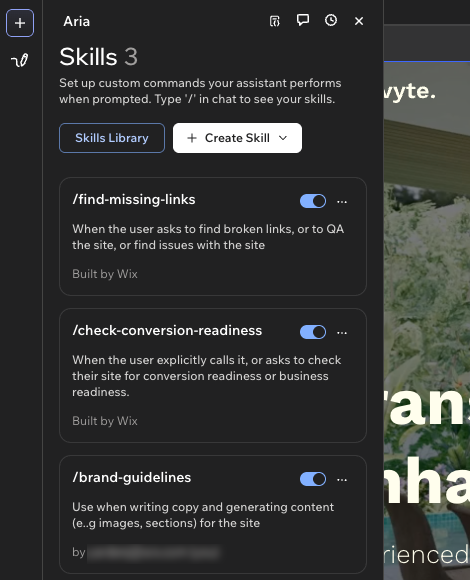
A skill is a set of saved instructions you can call up in any chat with Aria. To attach a skill, type a slash "/" in the chat and select a skill from the list. Aria can also detect which active skills are relevant to your request and apply them automatically.
For example, you can create a skill called "Brand guidelines" to describe a client's typography rules, color preferences, and tone of voice. Whenever you ask Aria to create or update content for that site, it applies those guidelines.
Skills are shared at the account level, so they're available across your account's sites and for other site collaborators.
To create and manage skills:
Open a chat with Aria.
Click the Add icon + and select Skills or type a slash "/" in the chat.
Choose what to do:
 on the relevant skill and click Duplicate or Delete.