
Studio Two Editor: About Motion and Effects
Motion and effects bring a design to life and keep visitors engaged as they move through the page. Each type responds to its own trigger (e.g. an element entering the view, continuous motion, or a click) so you can choose the right effect for the moment.
For example, use an entrance animation to reveal a portfolio piece as a visitor scrolls to it, or a hover interaction to reveal pricing details on a product card.
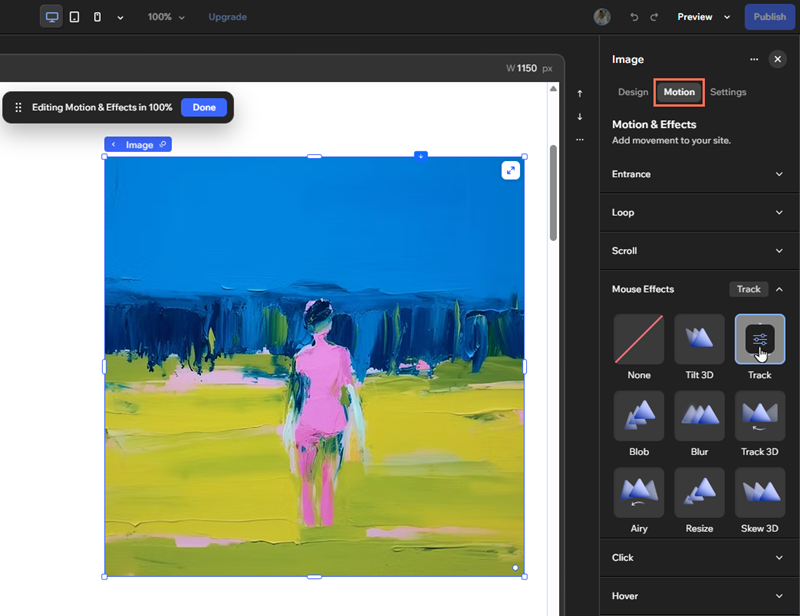
Select an element and open the Motion tab in the Inspector to add or customize an effect.
Entrance animations
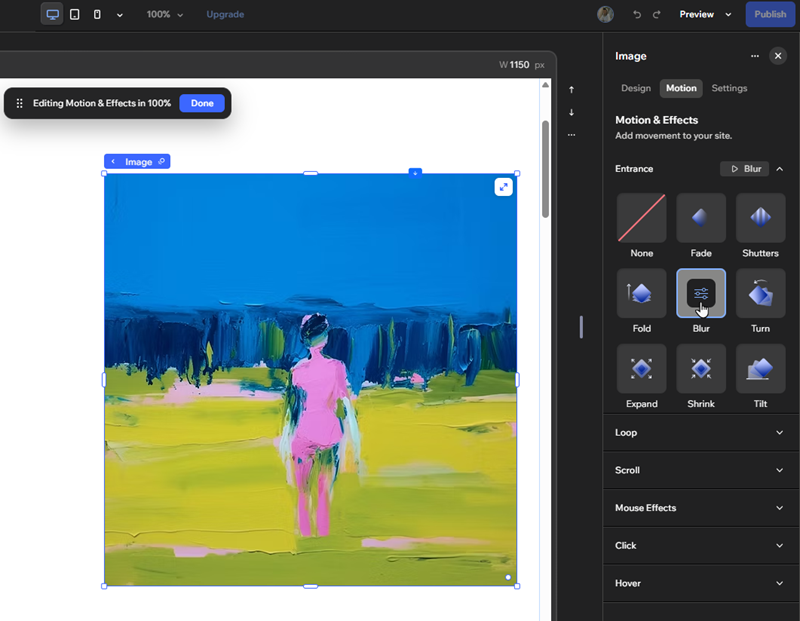
Entrance animations catch a visitor's attention the moment an element enters view, whether that's when the page loads or as they scroll to it. The animation plays once, giving the design a strong first impression as each element appears.
Pick a preset entrance effect, then adjust its direction, duration, and intensity to fit the design.
You can also combine an entrance animation with a loop animation, so the element settles into continuous motion once it loads.
Loop animations
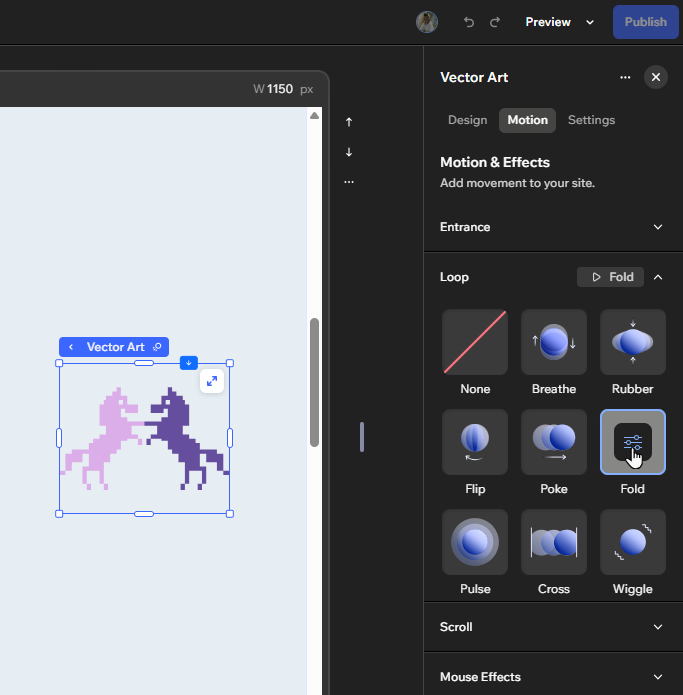
Loop animations keep an element in continuous motion for as long as visitors stay on the page. Use them to draw attention to an element without needing a scroll or a hover to trigger it.
Select a preset loop effect, then fine-tune its direction, duration, and intensity to fit the design.
Scroll animations
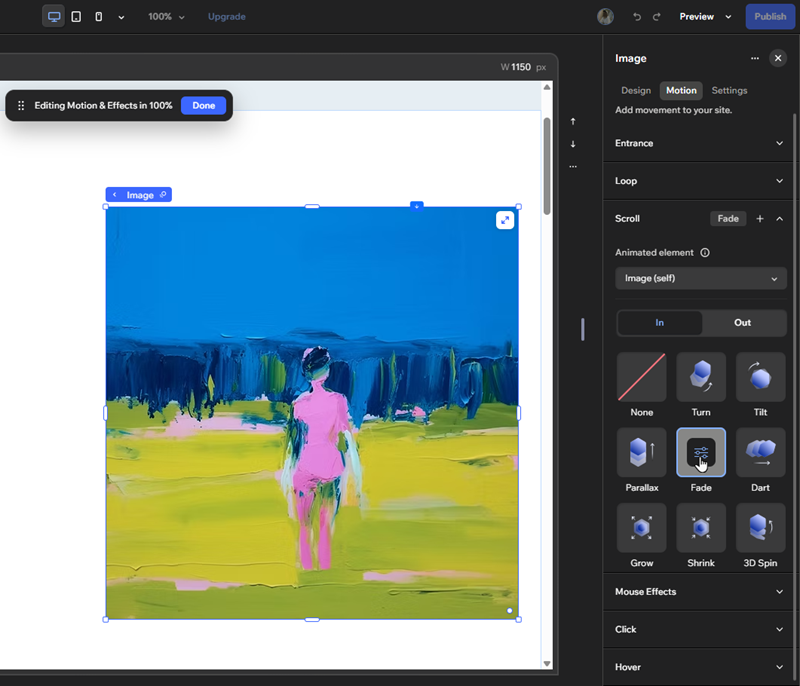
Scroll animations tie an element's movement directly to the visitor's scroll position, playing forward as they scroll down and reversing as they scroll back up. Use them to create movement that responds naturally as visitors move through the page.
Choose a preset scroll effect, then adjust its direction, range, and intensity to match how visitors move through the page.
You can also create interactions between elements, so scrolling past one element animates another.
Click and Hover interactions
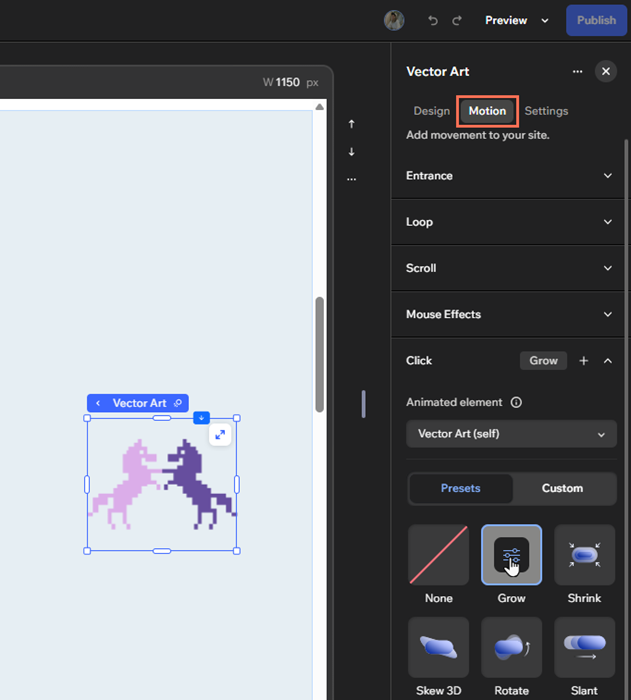
Click and Hover interactions create a unique effect on a site. The animation is triggered by visitors hovering on or clicking an element on the page, so you can use them to move, transform, and even reveal content.
Choose from a variety of customizable presets, or create custom interactions from scratch. Either way, you can set the timing and ease to ensure it meets your design specifications.
You can also choose whether the element triggers its own animation, or triggers a different element on the page. This creates eye-catching interactions across site content.
Mouse effects
Mouse effects add a whole other level of interactivity. When visitors browse through the site, their cursor's movement over the element triggers the effect.
Select from one of our eye-catching presets, and adjust settings such as the velocity and easing to make it look exactly how you want.
FAQs
Click a question below to learn more about animations.