Studio Two Editor: Adding and Customizing an Animation
This article refers to the new Studio Two Editor, released in November 2026. If you're unsure whether you’re using the Studio Editor or the Studio Two Editor, view more information here.
Use motion to turn a static element into something visitors notice as it fades in, loops, or moves with the scroll — no code required. Then, customize its duration, intensity and direction to match the site's design.

Adding an animation
Add animations to give visitors a reason to keep looking: draw attention to an element the moment it appears, add continuous movement, or tie movement to how far they've scrolled.
To add an animation:
Select the relevant element.
Click the Open Inspector icon at the top right of the editor.
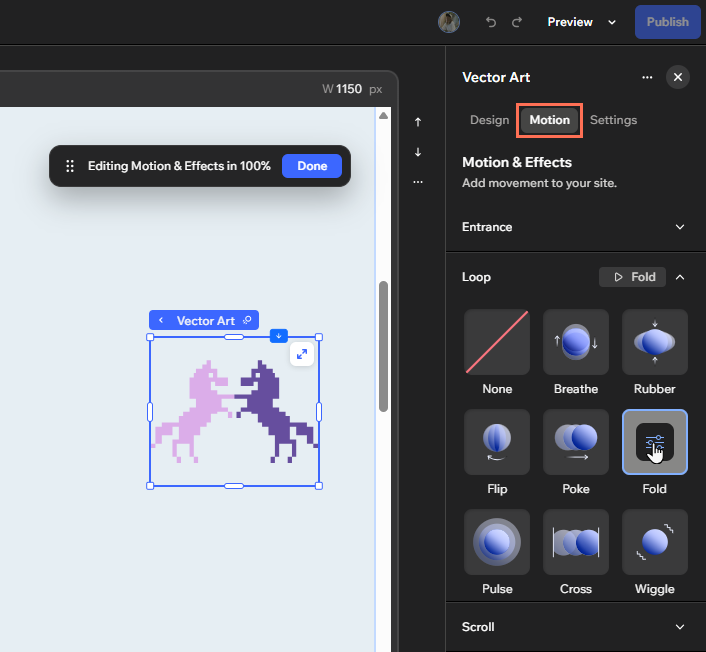
(If not already open) Click the Motion tab.
Click an animation type to view the options:
Entrance: The animation plays once, when the element first appears on the screen.
Loop: The animation plays continuously while the element is on the screen.
Scroll: The animation plays as visitors scroll past the element. You can add an In animation, an Out animation, or both.
Tip: Click Animated element under Scroll to choose whether the element triggers the animation on itself, or on another element.
Click the animation you want to add.
Tip: Hover over any animation in the list to preview it on the canvas.Click Done in the floating toolbar to save the animation.
 at the top right of the editor.
You can also access animations by clicking the Motion icon on the action bar.
 on the action bar.
Customizing the animation
After adding an animation, adjust its direction, timing, and intensity to get the effect you want. The available settings depend on the animation you choose.
To customize the animation:
Select the relevant element.
Click the Open Inspector icon at the top right of the editor.
(If not already open) Click the Motion tab.
Click the animation type dropdown (Entrance, Loop, or Scroll).
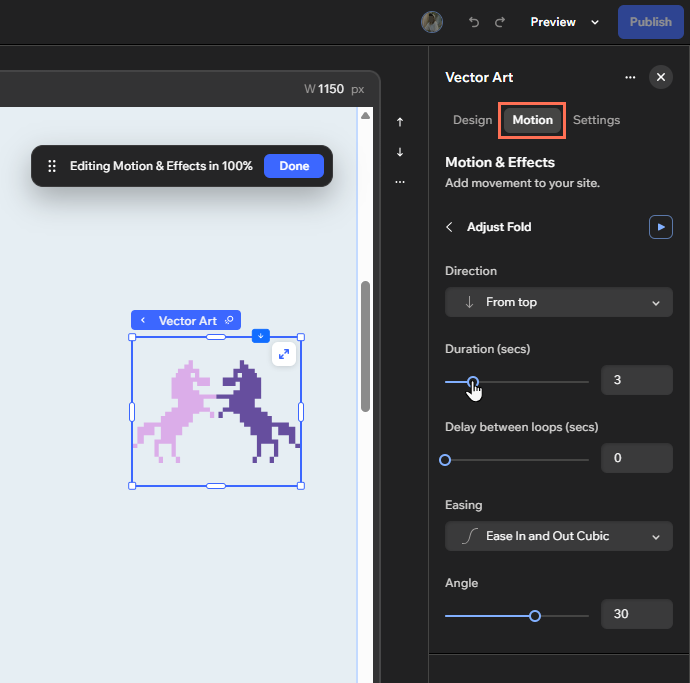
Click the Customize icon on the animation.
Adjust the settings using the options:
 on the animation.
FAQs
Click a question below to learn more about animations.
 at the top right of the editor.