Wix Bookings: Setting the Time Zone Display
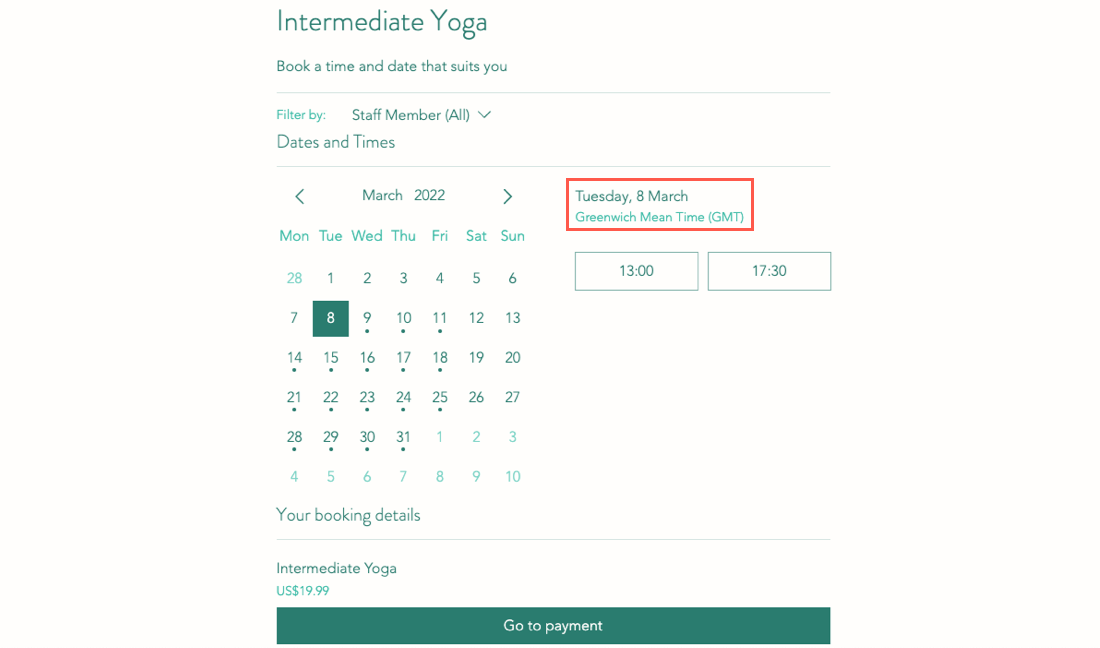
Ensure clear communication and avoid missed appointments by managing how time zones appear on your booking calendar. You can choose to display session times in your business's time zone, the client's local time zone, or let clients decide for themselves.
Notes:
- The first calendar day of the week is determined by the business location you enter in your regional settings. Learn how to change your regional settings.
- In the Wix member apps, clients see session times based on the time zone in your booking settings and cannot choose a different time zone.
Before you begin:
Make sure to
set your own time zone in the general section of your site's dashboard.
To set your time zone:
- Go to Booking Settings in your site's dashboard.
- Scroll down and click Client booking flow.
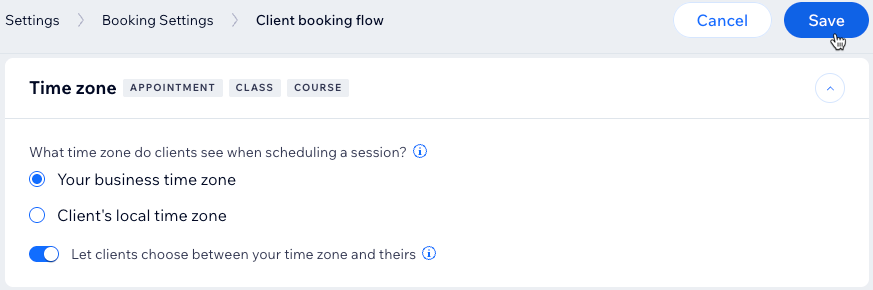
- Scroll down to Time zone and select the relevant options:
- Your business time zone: Clients see your business time zone when scheduling a session.
- Client’s local time zone: Clients see their local time zone when scheduling a session.
- Let clients choose between your time zone and theirs: Enable the toggle to let clients decide which time zone to use when booking.
Note: Clients cannot choose the time zone on the Spaces by Wix app.
- Click Save.