


CMS: Restoring Collections with Backups
In this article
- How backups work
- Manually backing up your collections
- Restoring a Backup
- FAQs
Safeguard your collections effortlessly with CMS (Content Management System) backups. Automatic backups store weekly archived copies of all your collections, while manual backups allow you to instantly save your collections. You can restore backups to undo collection changes made after the backup date.
How backups work
Whenever you edit a collection, an automatic backup stores an archived copy of all your collections on a weekly basis. You can also create manual backups whenever you want to instantly save a copy of all your collections. Each backup includes all your collections' content, structure fields, settings, and named views.
When you restore a backup, you choose whether to restore all your collections or specific ones. Restoring a collection permanently deletes any changes made to the collection after the backup was created. This includes site visitor submissions saved after the backup date.
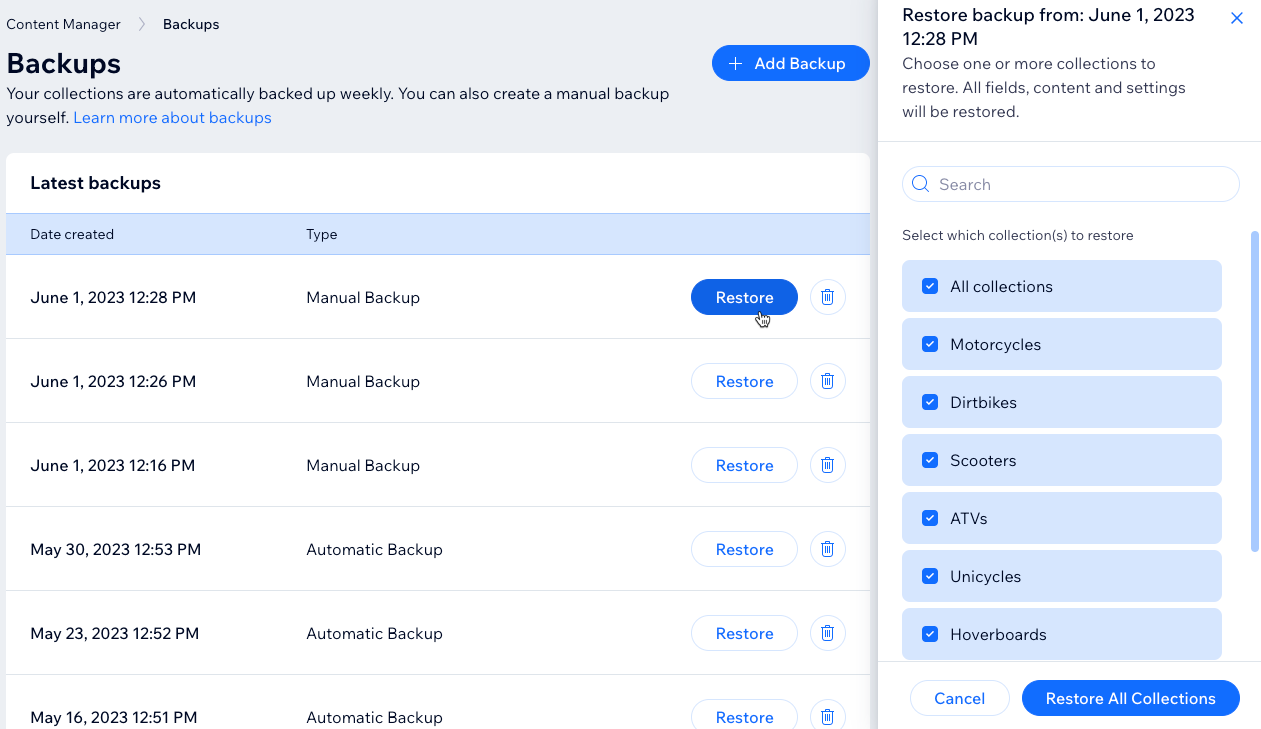
Manually backing up your collections
Create manual backups when you want to instantly create archived copies of all your collections. You can create up to 3 manual backups. If you already have 3 manual backups, you can still create another one that will override your oldest manual backup.
To create a manual backup:
- Go to CMS in your site's dashboard.
- Click More Actions at the top.
- Click Backups.
- Click + Add Backup.
- (If necessary) Click Add Backup again if you already have 3 manual backups. This replaces your oldest manual backup.
Restoring a Backup
You can restore both automatic and manual backups of all your collections. When restoring a backup, you can choose to restore all your collections saved in the backup or only specific collections. All the fields, content, structure, and settings of the selected collections are restored.
Restoring a backup saves over any changes made to the selected collections that occurred after the backup date. If you created new collections after a backup date, and you restore the backup, those new collections do not get removed.
Wix App collections are not affected by backups as they get their content from the relevant app (e.g. Wix Stores, Wix Bookings, Wix Events).
To restore a backup:
- Go to CMS in your site's dashboard.
- Click More Actions at the top.
- Click Backups.
- Click Restore next to the backup you want to restore.
- Click the checkbox next to each collection you want to restore.
- Click Restore [#] Collections.
- Click Yes, I am sure to confirm you want to permanently override changes made after the backup creation date.
- Click Restore.
FAQs
Click below for answers to our most frequently asked questions about backups.
How many backups can I save?
What happens when I import a CSV file to my collection?
What if I create a collection, then restore a backup created before the collection?
How do GDPR and other laws affect my data?
What happens if I restore a saved version from my site history?
