


Base44 Payments: Creating and Managing Subscriptions
4 min
In this article
- Creating a subscription
- Viewing your subscriptions
- Setting a grace period
- Cancelling a subscription
- Refunding a payment
Wix Payments is the payment provider that powers Base44 Payments. If you've connected Base44 Payments powered by Wix, any references to Wix Payments in this article apply to your payments account.
If you've connected Wix Payments in your Base44 app you can offer subscription payments to your customers. Selling a product as a subscription service helps you create a steady cash flow and loyal customer base. You can manage your subscription payments from the Wix Payments dashboard in your Base44 app.
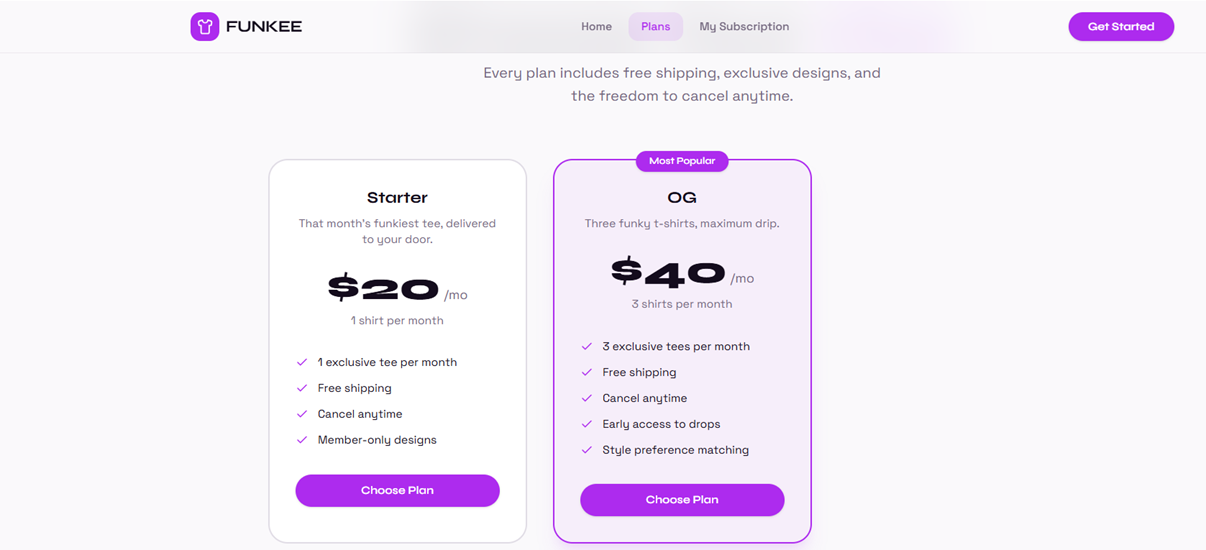
Creating a subscription
Before you begin:
Connect Wix Payments as your payment provider on your Base44 app to accept subscription payments.
- Log in to Base44.
- Go to your app editor.
- Ask the AI chat to set up subscription payments on your app. For example, you can ask: "Enable subscription payments."
Tip: Give the chat as much detail as possible about which products you'd like to set up as subscriptions. Include relevant information such as price and payment frequency.
Viewing your subscriptions
Any time a customer purchases a product subscription from your app, it appears in the Subscriptions page in your app's Payments dashboard.
- Log in to Base44.
- Go to your app editor.
- Click Dashboard.
- Click Overview.
- Click Manage next to Payments to open the Payments dashboard.
- Click Subscriptions.
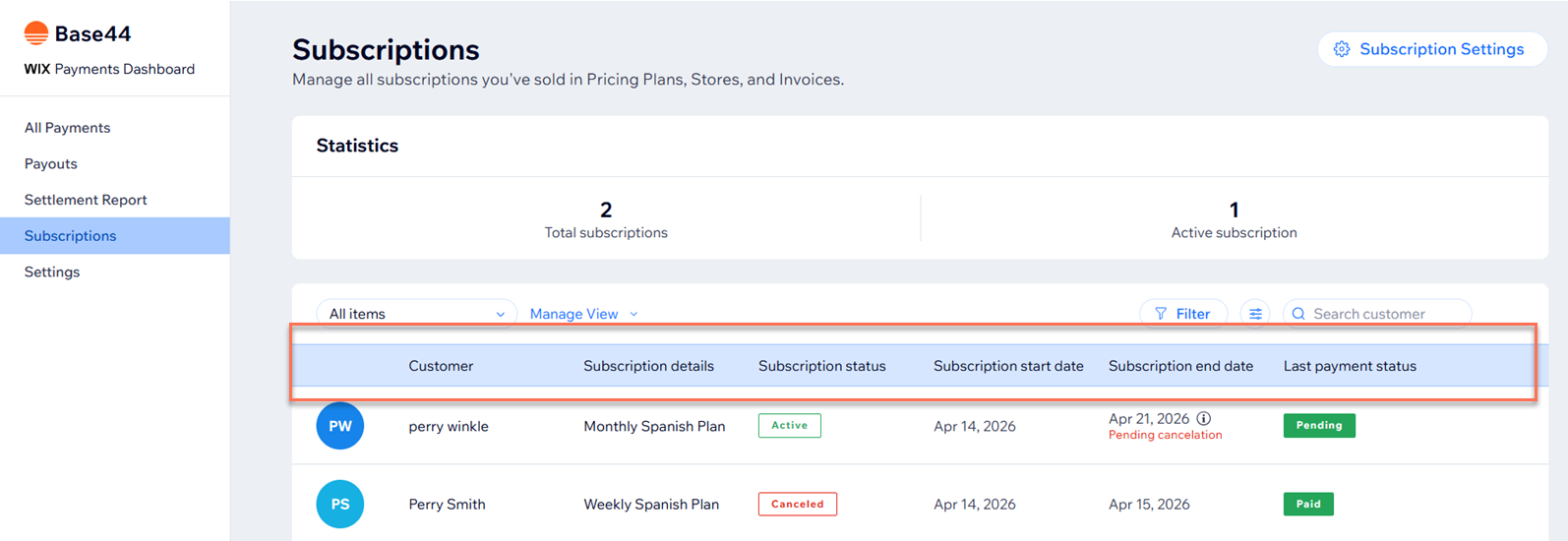
- Click on any subscription for more information such as customer info and a detailed subscription history.
Setting a grace period
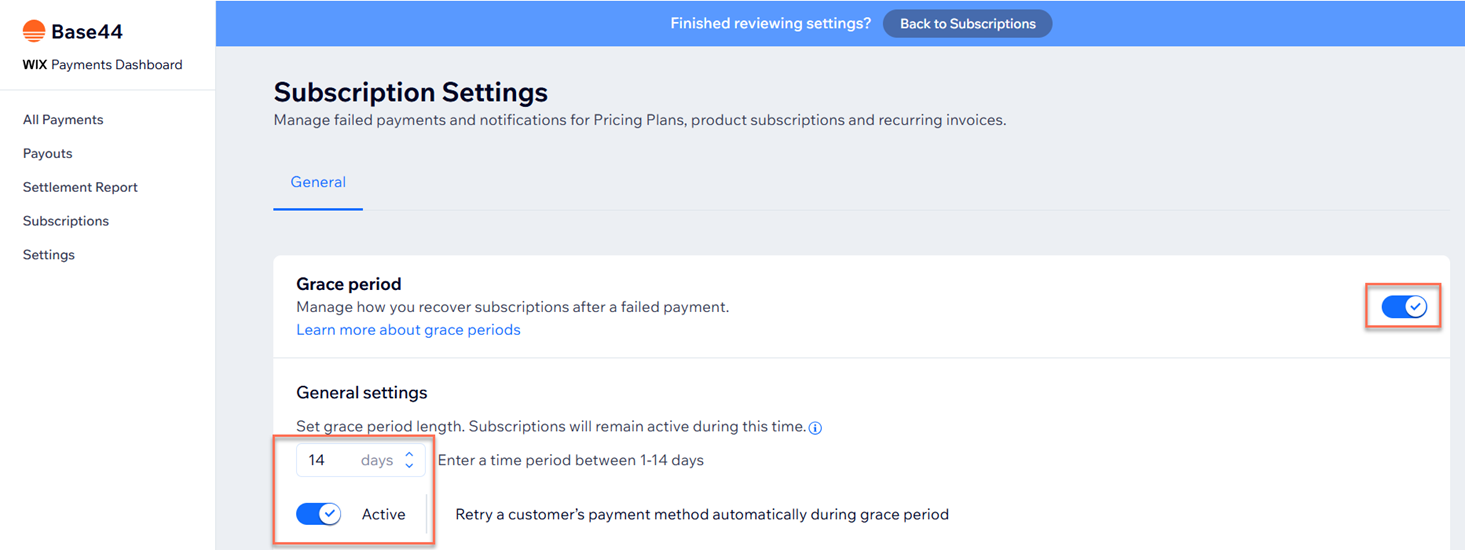
Set a grace period to allow clients more time if the recurring payment for their subscription fails. This is the time they have to resubmit payment before their subscription cancels automatically. While in a grace period, your client still has access to all benefits in their subscription.
This setting applies to all subscriptions. If a subscription’s billing cycle is shorter than your chosen time period, the grace period will be as long as the subscription’s billing cycle.
If you enable recurring retries, the system automatically attempts to collect payment from the customer's existing payment method every 24 hours for the duration of their grace period.
- Log in to Base44.
- Go to your app editor.
- Click Dashboard.
- Click Overview.
- Click Manage next to Payments to open the Payments dashboard.
- Click Subscriptions.
- Click Subscription Settings.
- Enable the toggle next to Grace Period.
- Enter the duration of the grace period you want to offer clients who miss their recurring payments.
- Click the toggle next to Retry a customer's payment method automatically during grace period to choose how you want to retry payments during the grace period:
- Enabled: The system automatically makes multiple attempts to collect payment from the customer's existing payment method.
- Disabled: The system does not make any additional attempt to collect payment from the customer's existing payment method.
Cancelling a subscription
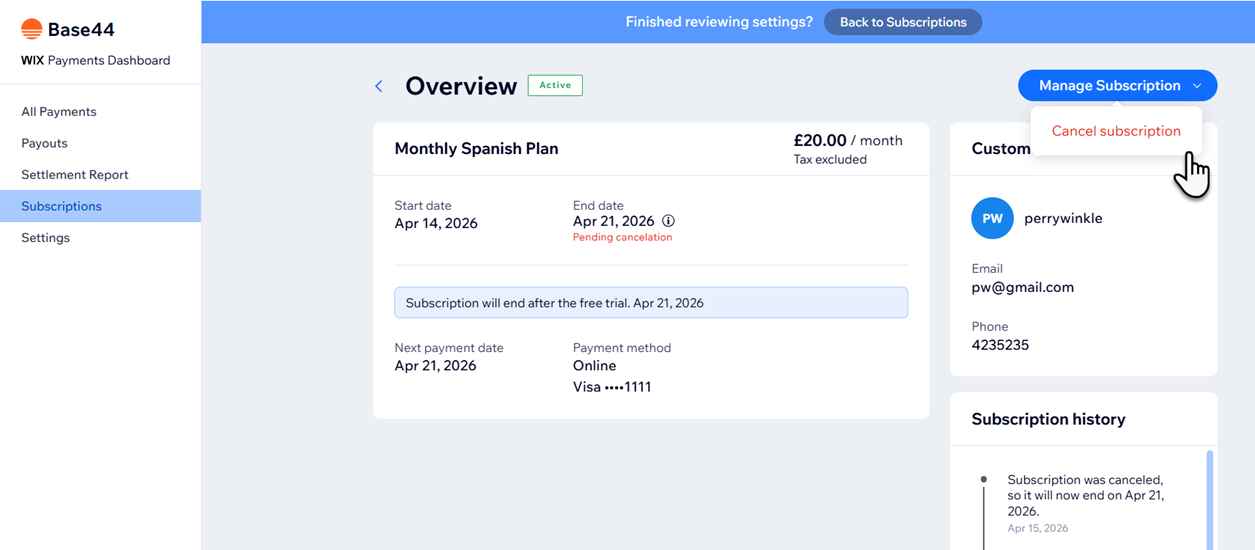
You can cancel a customer's subscription at any time. When you do, no new orders connected to this subscription are created.
- Log in to Base44.
- Go to your app editor.
- Click Dashboard.
- Click Overview.
- Click Manage next to Payments to open the Payments dashboard.
- Click Subscriptions.
- Click on the subscription you wish to cancel.
- Click Manage Subscriptions.
- Click Cancel subscription.
Refunding a payment
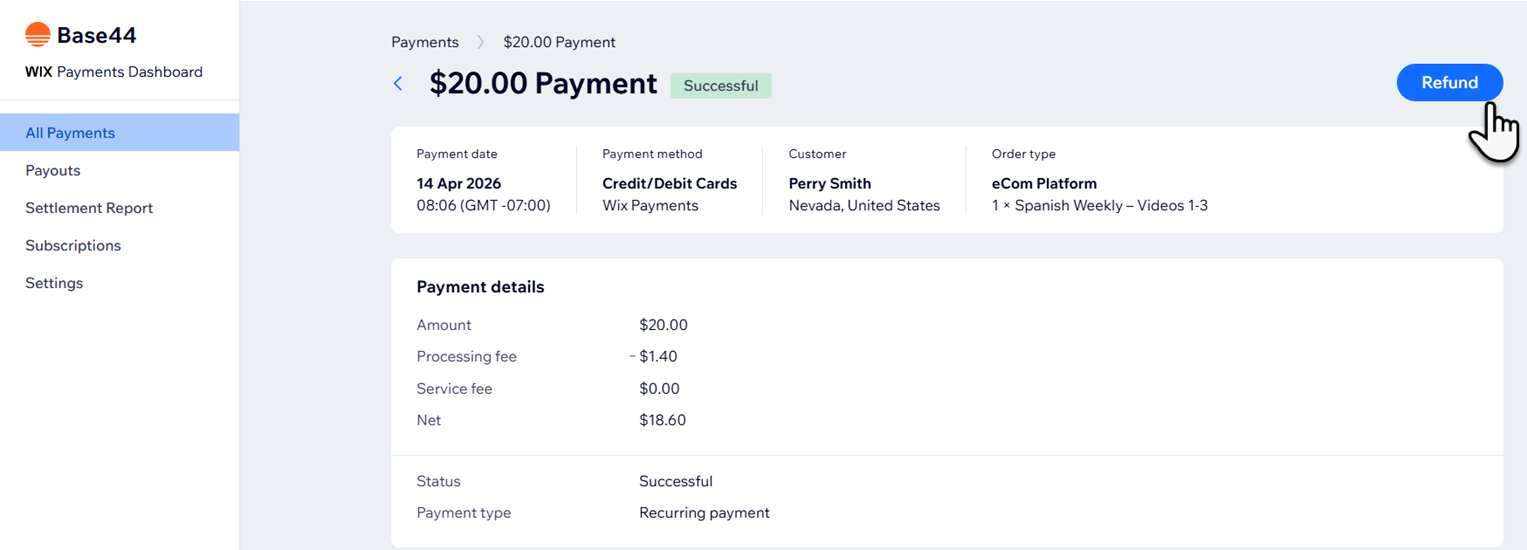
When necessary, you can refund a customer for all or part of a payment they've made through Wix Payments. Refunds can take up to 3-5 business days to reach your customer's credit card / bank account, depending on the financial institution.
- Log in to Base44.
- Go to your app editor.
- Click Dashboard.
- Click Overview.
- Click Manage next to Payments to open the Payments dashboard.
- Click on the payment you wish to refund.
- Click Refund and confirm the refund.
Where can I see subscription information for my customers?
What happens if the product is out of stock when it's time for the next cycle of a customer's subscription?
Can I create a grace period for failed payments?
