


Wix Stores: Selling Product Subscriptions
5 min
In this article
- Creating a product subscription
- Fulfilling product subscriptions
- FAQs
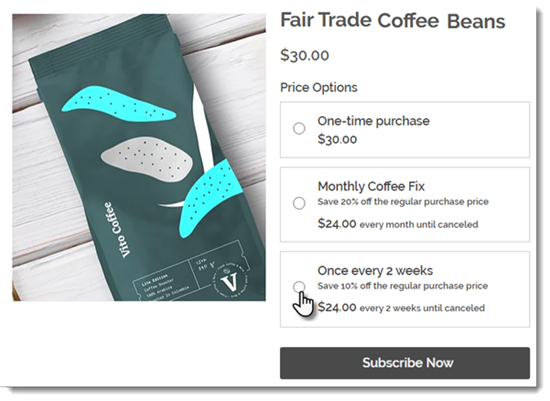
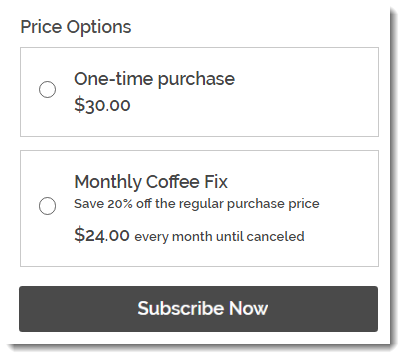
Selling product subscriptions online is the perfect way to create a steady income stream while making life easy for your customers. You can offer a product only as a subscription, or let your customers choose what's right for them: A one-time purchase or one of your subscription options.
Important:
To sell product subscriptions, you must connect a payment method that supports recurring payments.
Creating a product subscription
- Go to Products in your site's dashboard.
- Create a new physical product or edit an existing one.
- Scroll down and click Create a Subscription.
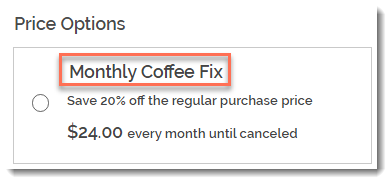
- Enter a name.
Tip: The name appears on the Product Page.
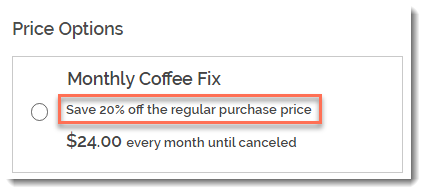
- (Optional) Enter a tagline.
Tip: The tagline appears on the product page.
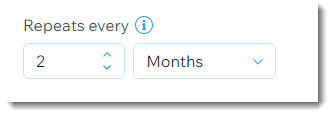
- Select how often a new order is created (e.g. once every 2 months):
- Use the up and down arrows to select a number.
- Select a time unit (day, month, or year).
- Click the Expires after drop-down and choose when the subscription ends:
- Preset option: Click to select one of the available options.
- Create a custom expiration time: Select Custom and enter the number of billing cycles before the subscription expires.
- (Optional) Offer a discount off the regular price:
- Select the discount type (price or percentage).
- Enter the discount amount.
Tip: The price per week / month / year adjusts accordingly. Alternatively, you can enter the price and the discount adjust accordingly.
- Click Apply.
- (Optional) Click +New Subscription to create an additional subscription option (max. 6 subscription options).
- (Optional) Click and drag the subscription options (if there are more than one) to reorder them.
- Select how you offer this product:
- By subscription only: Clients can't make a one-time purchase.
- By subscription and for one-time purchase: Clients can choose between a one-time purchase or a subscription.
- Click Save.
Fulfilling product subscriptions
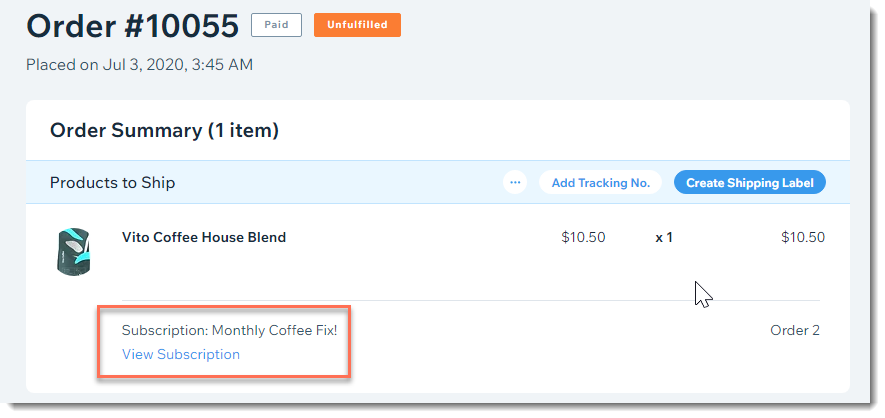
After a customer purchases a subscription, a new order appears in your Orders tab. Then, every subscription period, an additional order appears in the tab. For example, if your customer purchased a monthly subscription, an order appears every month for you to fulfill.
When you look at an individual order, you can see that it's part of a subscription. Click View Subscription to view and manage the entire subscription.
Learn more about managing product subscriptions.
FAQs
What products cannot be sold as product subscriptions?
How can I edit, hide, or delete a subscription option?
 next to the option and choose what you want to do.
How can I change payment providers if customers have already purchased plans?
What happens if I make changes to the details of a subscription?
What happens when customers checkout with 2 or more subscriptions?
How are shipping costs calculated if my customer purchases additional subscriptions or products?
Can I create a free subscription?
How can customers use coupons to buy a subscription?
What happens if the product is out of stock when it's time for the next cycle of a customer's subscription?
Is it possible to reactivate a product subscription after it was canceled?
