


Wix Editor: Customizing Your Site Footer
In this article
- Changing the design of the footer
- Resizing the footer
- Freezing the footer
- FAQs
The footer appears at the bottom of your site, and usually includes content like your contact and copyright information. Customize your footer to match your site's look and needs. You can adjust the footer's design, resize it to your liking, and add a freeze effect so it's always visible.
Changing the design of the footer
Customize the footer to match your site's palette and theme. There are many footer designs to choose from, which you can further personalize for your needs.
Note:
The available customization options depend on the footer design you choose.
To change the footer design:
- Go to your editor.
- Click the footer.
- Click Change Footer Design.
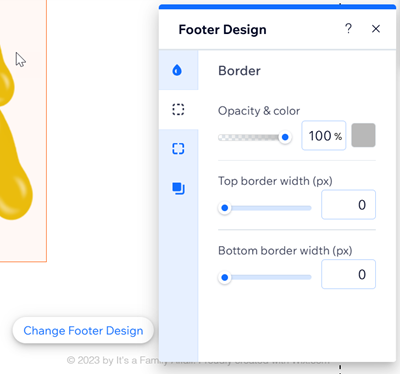
- Customize the design using the following options:
- Fill Color & Opacity: Choose a color for your footer, and adjust its intensity.
- Border: Adjust the borders around your footer by choosing the color, intensity, and width.
- Corners: Make the corners of your footer rounder, or more square.
- Shadow: Add and adjust a shadow for your footer. You can use the settings to make it more subtle, or to be more impactful.
Resizing the footer
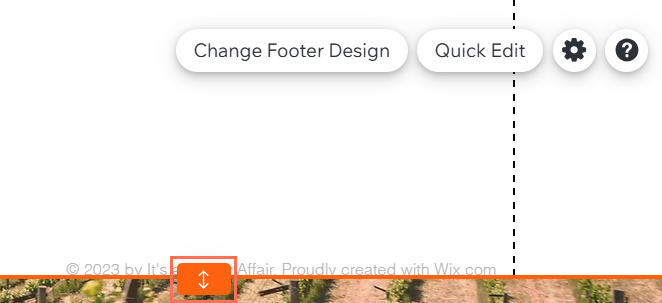
Use the stretch handle to make your footer as big or as small as you want.
Bigger footers are useful if you have extra content you don't want to manually add to every page, like social media links and contact details. If you have little or no elements, small footers are great for a minimalist look.
To resize your footer:
- Go to your editor.
- Click the footer.
- Click and drag the stretch handle at the bottom of the footer to your chosen size.
Note:
Make sure that there are no elements at the bottom of the footer which might get in the way of the stretch handle. If you can't see the element, it may be hidden.
Learn how to find hidden elements.
Freezing the footer
Freeze your footer so that it is always visible on your live site, no matter where visitors are on the page. This option is especially useful if your footer contains important information or content that you want your visitors to find easily.
To freeze your footer:
- Go to your editor.
- Click the footer.
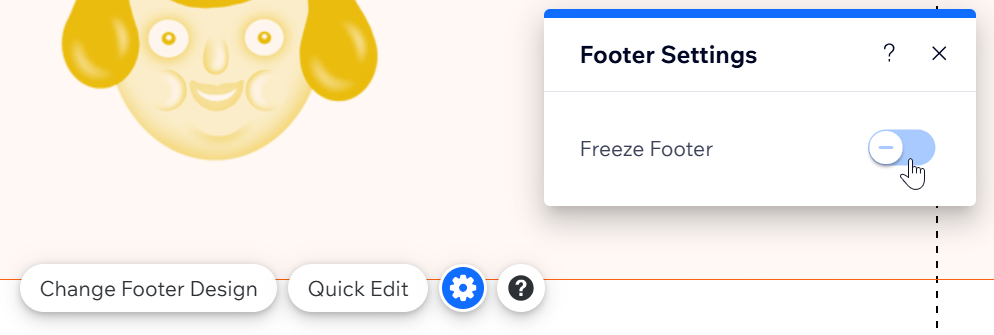
- Click the Settings icon
 .
. - Click the Freeze Footer toggle to enable or disable this option:
- Enabled: The footer is frozen, so it is always visible when visitors view and scroll through your site.
- Disabled: Your footer remains at the bottom of your site and it is not visible when your visitors scroll away from it.
FAQs
Click a question below to learn more about customizing your site footer:
Why can’t I enable the "Show On All Pages" toggle?
Why is there extra white space in my footer, and how can I remove it?
Why am I unable to select elements within my footer?
