


header-logo
Getting started with WixBuild your website and business with Wix. Try using our AI tools to create your website, customize templates, or hire professionals to build or enhance your online presence.
Creating a websiteRead how to use the Wix Editor and manage content on your site. Discover how to protect your visitors' privacy and make your site accessible.
Account & billingReview your account settings, manage your subscriptions and plans and understand your invoices.
Using the Wix mobile appsUse our mobile apps to run your business efficiently on the go and set up a dedicated app for your site members to stay in touch.
Connecting a domainFollow our step-by step guides to learn how to purchase, connect or transfer a domain for your site, and find out how to keep your site’s data secure.
Managing your businessGet tools to grow your business and web presence. Find the right tools for your specific needs, set up online payments and keep track of your site's analytics.
Promoting your siteLearn to make your site more visible promoting it on search engines, sending emails and running paid ads. Improve your online presence with practical tips.
Studio, Partners & EnterpriseGet the most out of your Studio or Enterprise account with advanced features that'll help you work more efficiently.
Need more help?Find solutions for site performance and technical issues, learn about issues we’re working to fix or contact us for help.
placeholder-preview-image
Wix LearnImprove your skills with our courses and tutorials.
Wix BlogGet tips for web design, marketing and more.
SEO Learning HubLearn to increase organic site traffic from search engines.
Website developmentBuild a custom site using our full-stack platform.
Hire a ProfessionalGet matched with a specialist to help you reach your goals.
placeholder-preview-image
In this article
  • Create color consistency
  • Optimize a site's typography
  • Define the site's width
  • Create engaging navigation

Studio Editor: About Site Styles

In this article
  • Create color consistency
  • Optimize a site's typography
  • Define the site's width
  • Create engaging navigation
The Site Styles panel is a one-stop shop to manage the site typography, colors, page transitions, and max width. Creating a theme for your client's site is a great, holistic way to save time and ensure the design is consistent. 

Create color consistency

Site colors are a creative way to reinforce and express your client's brand. Use the Colors tab to manage and customize shades, and create a cohesive theme across the site.
Finished customizing the site colors? You can quickly apply shades to elements from the Inspector. Learn more about working with site colors
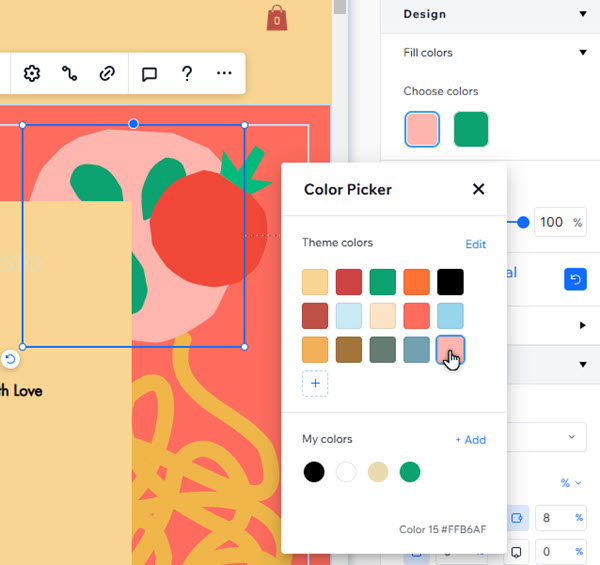
The inspector is open for a vector element. One of the color boxes is open, and a theme color has been applied.

Optimize a site's typography

Text is a crucial part of a site, and you can use the design to reiterate a brand's messaging and content.
The Typography tab is a great way to adjust every aspect of text. Update fonts to quickly apply site-wide changes, or customize individual text styles (e.g. Heading 4, Paragraph 1) for more detailed design. Learn more about working with typography
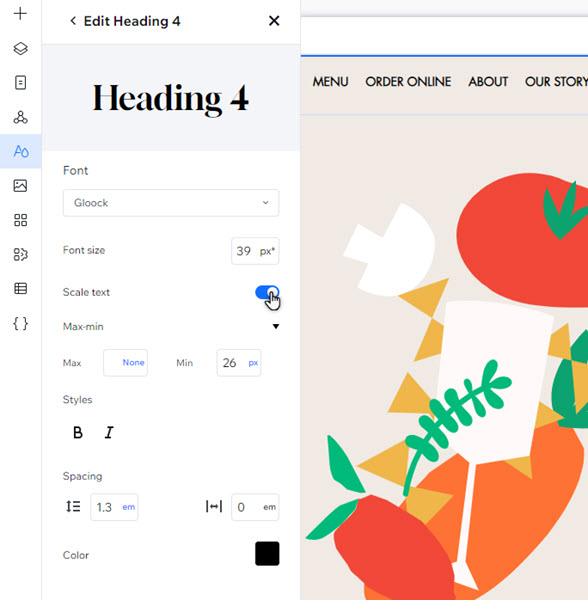
The Edit text options have been opened for heading 6 in the Site Styles panel. The cursor is enabling the Scale text toggle.

Define the site's width

Want to limit how much elements grow on different screen sizes? Use the Max width tab to set the maximum value
This prevents elements you've set to scale proportionally from scaling up past a certain width, so you don't need to worry about oversized components or blocked content. 
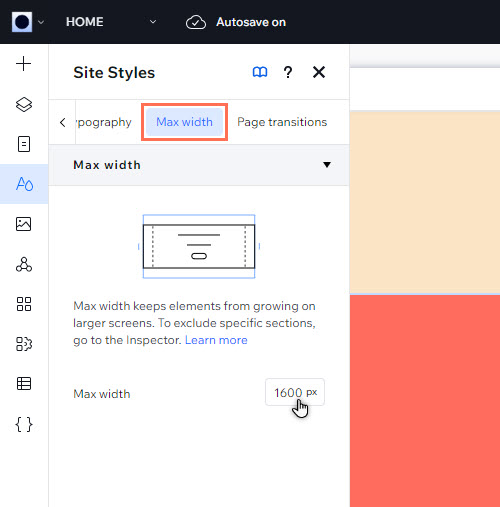
The max width tab is open in the site styles panel.

Create engaging navigation

Page transitions make the navigation experience more engaging for site visitors. Once you apply the effect, it appears on every page of your client's site. 
You can apply an Out-In effect from the Page transitions tab. Doesn't look how you want on the live site? You can remove it by clicking None.
Note:
You can only view page transitions on the published site. In preview mode, they won't appear. 
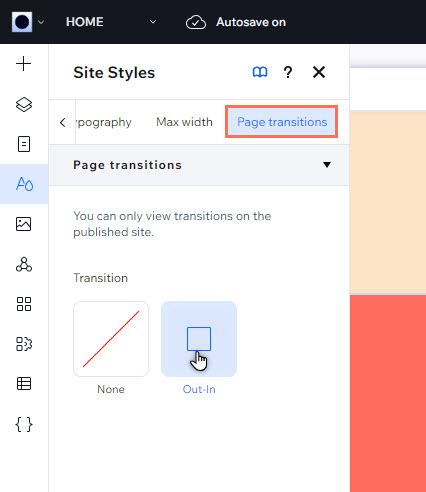
A screenshot of the Site Styles panel with the Page Transitions section open, selecting the Out-In transition

Helpmate

Hello

Need a bit more guidance?
Unlock personalized helpLog in to get the most out of Helpmate.
