header-logo
Getting started with WixLearn how to build your website and business using Wix.
Creating a websiteDesign and manage your site with smart functionalities.
Account & billingManage subscriptions, plans and invoices.
Using the Wix mobile appsRun your business and connect with members.
Connecting a domainLearn to purchase, connect or transfer a domain to your site.
Managing your businessGet tools to grow your business and web presence.
Promoting your siteBoost your visibility with SEO and marketing tools.
Studio, Partners & EnterpriseGet advanced features to help you work more efficiently.
Need more help?Find solutions, learn about known issues or contact us.
placeholder-preview-image
Wix LearnImprove your skills with our courses and tutorials.
Wix BlogGet tips for web design, marketing and more.
SEO Learning HubLearn to increase organic site traffic from search engines.
Website developmentBuild a custom site using our full-stack platform.
Hire a ProfessionalGet matched with a specialist to help you reach your goals.
placeholder-preview-image
In this article
  • Step 1 | Create your test site
  • Step 2 | Set the exposure for your test site

Test Sites: Creating a Test Site

2 min
In this article
  • Step 1 | Create your test site
  • Step 2 | Set the exposure for your test site
Publish a version of your site (a test site) to a percentage of your site visitors. This is a great way to test new features on your site or get feedback on changes you have made before publishing to 100% of visitors.

Step 1 | Create your test site

Go to your site's editor to create a test site based on your most recent edits.
Note:
You can only create a test site after your site has been published at least once.
  1. Go to your editor.
  2. Click Site on the top bar.
  3. Click Deploy Test Site.
    Note: Your test site opens in a new window.

Step 2 | Set the exposure for your test site

Choose what percentage of your site's audience should see the test site. 

To set the exposure:

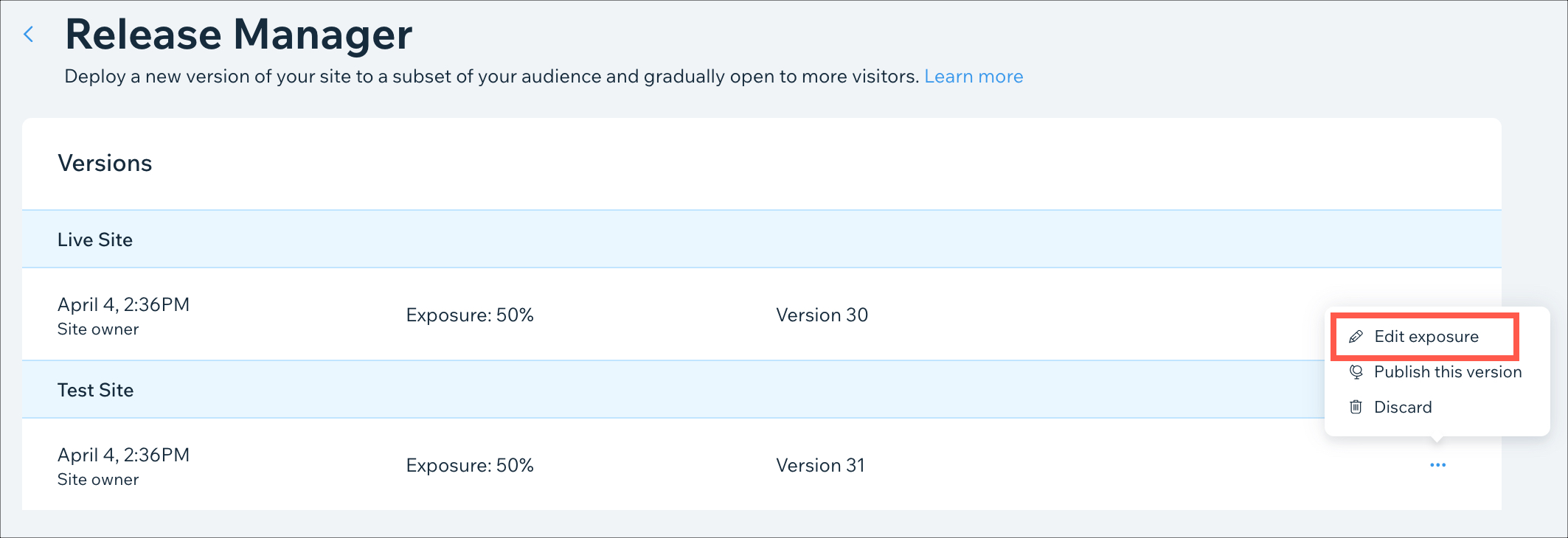
  1. Go to the Release Manager in your site's dashboard.
  2. Click the Show More icon next to your test site.
  3. Click Edit exposure.
  4. Enter the exposure percentage as a value between 0-100.
  5. Click Save.

Helpmate

Hello

Need a bit more guidance?
Summary of this article
Related articles
Editing the Exposure of a Test Site

About Test Sites

Discarding a Test Site

Test Sites: Accessing the Release Manager
Unlock personalized helpLog in to get the most out of Helpmate.