


CMS: Previewing Dynamic Pages
3 min
Preview dynamic pages in your editor to make sure all the content and elements display correctly. For dynamic item pages, use the Preview toolbar to switch between collection items and see how each page looks, or click Edit item to quickly edit the item you’re viewing. To test your page as visitors will see it, go to Preview mode.
To preview dynamic pages in your editor:
Wix Editor
Studio Editor
- Go to your editor.
- Click Pages & Menu
 on the left side of the editor.
 - Click Dynamic Pages.
- Click the relevant dynamic page.
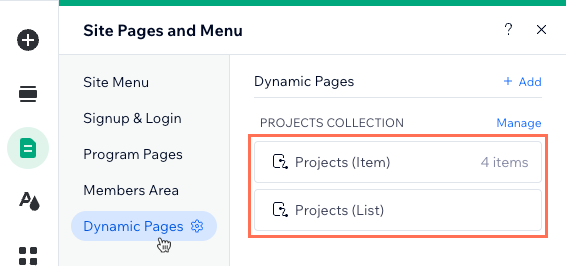
- (Dynamic item pages only) Use the Preview toolbar to switch to other collection items or edit the item you're viewing:
Tip: You can click and drag the Move icon to move the toolbar in your editor.
- Switch to other items: Click the drop-down on the toolbar and select the item you want to view.
- Edit item: Click Edit item on the toolbar to edit the collection item you're viewing.
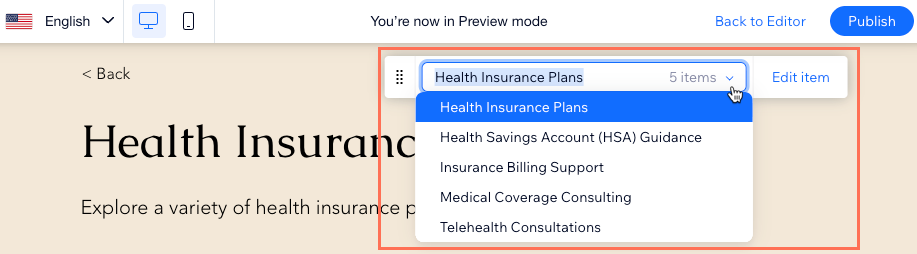
- Click Preview at the top right of your editor to test the page's functionality.
Tip: In Preview mode, you can also use the Preview toolbar (item pages only) to view other collection items. - Click Back to Editor to return to editing your site or click Publish if you are ready to make your changes go live.
Tip:
Learn how to ensure each collection item gets its own unique URL on your dynamic item page.
