


Wixel: Creating and Connecting Your First Brand
5 min
In this article
- Step 1 | Begin generating your brand
- Step 2 | Create your brand's look
- Step 3 | Adjust your brand
- Step 4 | Connect the brand to your project
Begin establishing your business aesthetic and streamlining project design by generating your first brand with Wixel.
A brand is a collection of styles and designs (tone of voice, themes, etc.) that reflect the vibe of your business. Once you've generated and adjusted a brand, connect it to a project to streamline the project's design.
What's included in a brand?
Important:
- Aria is powered by AI and as such may produce unexpected or inaccurate results. Always review Aria’s suggestions or changes before finalizing your design.
- Generating and editing branded assets with Aria uses AI credits.
Step 1 | Begin generating your brand
Get started by creating a new brand with Aria in the chat. Using the information you give her, Aria can create everything you need for cohesive, personalized branding across projects.
To generate your brand:
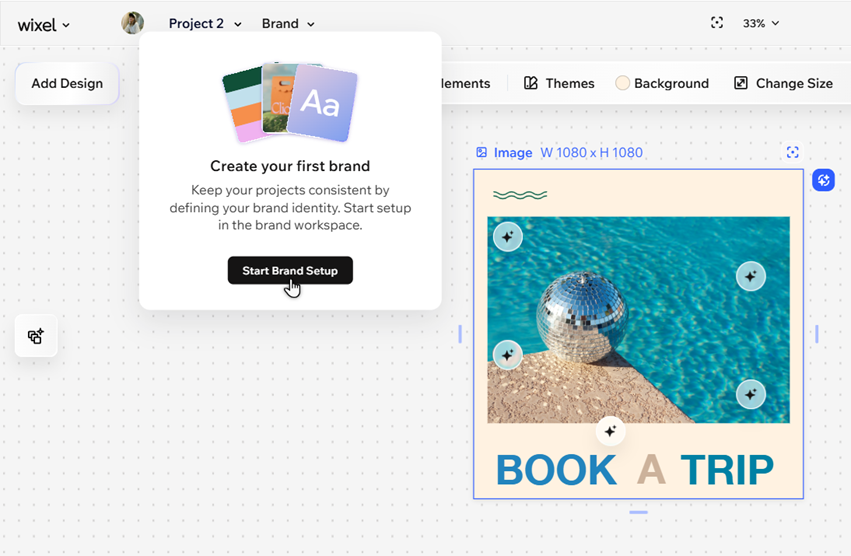
- Go to a project in Wixel.
- Open the Brand drop-down.
- Click Start Brand Setup to open the workspace.
- Click Create Brand in the Aria chat on the right of the screen.
- Provide Aria with the details of your brand in the chat (its name, what it's about, etc.).
Step 2 | Create your brand's look
Once Aria has all the essential business information she needs, stay in the chat to create the look of the brand.
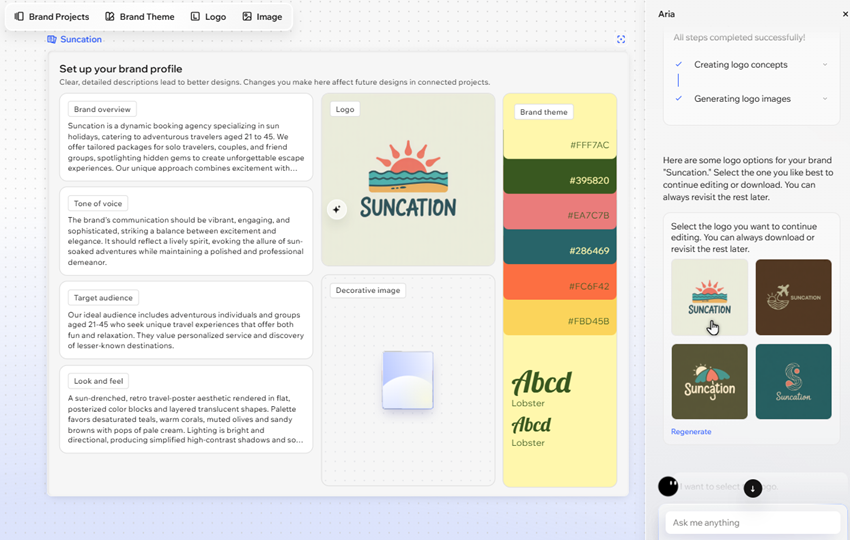
Upload visual references to create the look and feel and theme of the brand, then add a logo to really make it your own. You can upload a brand logo you already have, or ask Aria to create a new one.
To create your brand's look:
- Add visual reference images in the chat when Aria asks:
- Click the Add icon
 in the chat.
 - Choose whether you want to add images from your Media Manager, or upload new ones from your device.
- Click the Add icon
- Select whether you want to upload an existing logo, or create a new one with Aria:
- Upload:
- Click the Add icon in the chat.
- Choose whether you want to add a logo from your Media Manager, or upload a new one from your device.
- Click the Add icon
- Create: Tell Aria to create a new logo for you in the chat, and choose what you want to do with what she generates:
- Regenerate: Click this option if you want Aria to create a new batch of logos.
- Select a logo:
- Hover over the logo you want and click Choose Logo.
- (Optional) Generate previews of how your logo will look on branded items or projects with Aria, and add the one you want to your brand.
- (Optional) Use the options to customize your brand logo as needed:
- Edit: Click the logo in the brand, and update it how you want. You can use our AI suggestions (e.g., Change background
 , Change layout ) to make quick changes, or select specific elements in the logo and customize them manually.
 - Add elements: Click Elements on the action bar to add new elements to the logo.
- Edit: Click the logo in the brand, and update it how you want. You can use our AI suggestions (e.g., Change background
- Click the logo in the brand.
- Ask Aria to add the logo to your brand profile in the chat.
- Upload:
Step 3 | Adjust your brand
Once you've generated a brand, it's displayed as a brand profile in the workspace. You can personalize the profile to suit you and your design needs—upload your own visual reference image, customize the business information, and more.
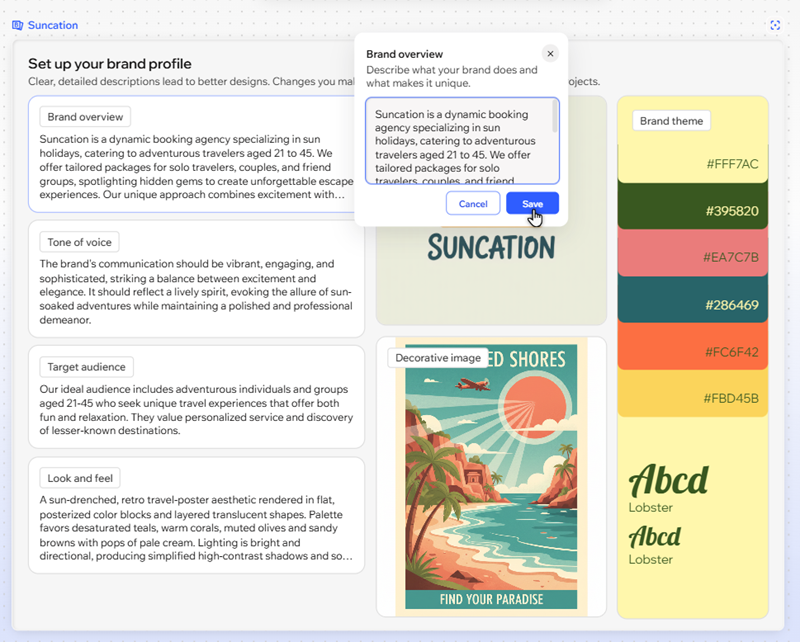
To customize your brand:
- Select the brand profile in the workspace.
- Hover over the relevant option to edit it:
- Text fields: Click the Edit icon
 to customize them:
- Brand overview: Customize your business information in the text box to add or change details as needed.
- Tone of voice: Adjust tone of voice that's used in all AI-generated branded text (friendly, professional, etc.).
- Target audience: Change the target audience of your branded text—your customers, subscribers, etc. This is also taken into account when you generate branded text with AI.
- Look and feel: Update the style of your brand's generated images and videos (e.g. mood and lighting).
- Logo: Select whether to remove your current logo, or upload a new one. If there's no logo in the field, you can generate one with Aria.
- Decorative image: Add a decorative image to the brand. You can ask Aria to generate one for you, or upload your own.
- Brand theme: Hover over the panel and click Edit Theme to adjust the fonts and colors used in your brand.
- Text fields: Click the Edit icon
Step 4 | Connect the brand to your project
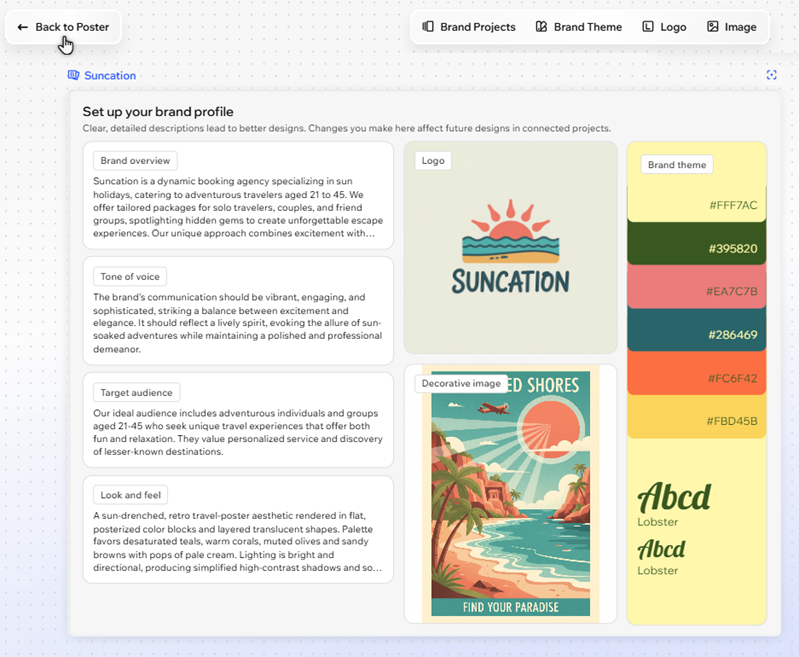
Happy with how your brand looks? Apply it to your project. Once you've connected them, any new project assets you create are automatically branded.
To connect the brand to your project, simply click Back to [your project's name] in the top bar.
Want to apply the brand to existing assets?
Apply the brand's theme to your project, or ask Aria to regenerate existing assets with your connected brand.
