
Wix Stores: Adding and Setting Up the Studio Two Category Page
To ensure the best experience, we're slowly releasing features in the Studio Two Editor. As a result, some Wix Stores widgets do not yet have the full Studio Two capabilities.
Group your products into categories and let customers browse them on a dedicated category page in your Studio Two site. The page includes a category menu, filters, sorting and a product grid, all connected to your data sources. This means when you style the page once, your design updates automatically for every category in your store.
Step 1 | Add a category page
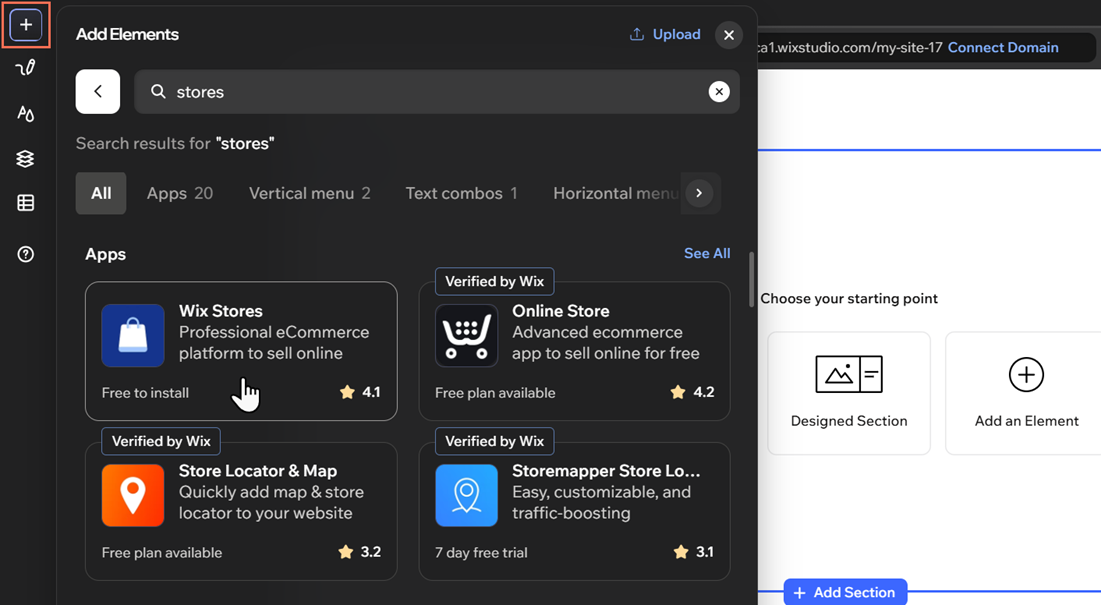
Add Wix Stores to your site to get a category page. The editor adds the page for you, along with your other store pages, and connects it to your product data.
To add Wix Stores:
Click the Add Elements icon .
Search for stores using the search bar.
Click Wix Stores.
Click Add to Site.
 .
Step 2 | Set up your store
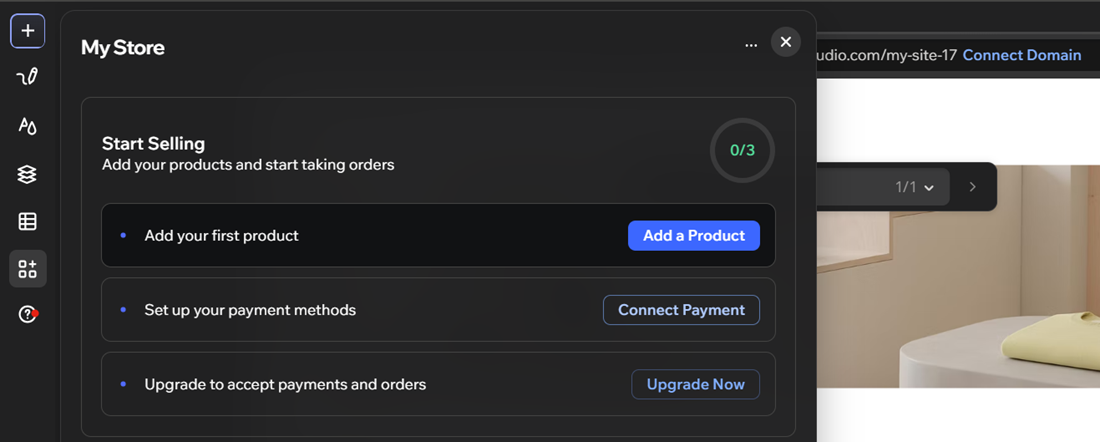
Use the My Store panel to add your first product, set up payment methods and upgrade your site to accept orders.
To set up your store:
Click the My Store icon
 on the left side of the editor.
Complete the setup steps in the My Store panel:
Click Add a Product to start adding products to your store.
Click Connect Payment to set up your store's payment methods.
Click Upgrade Now to upgrade your site and start accepting orders and payments.
Step 3 | Create your categories
Create categories to organize your products. Each category appears as a tab in the category menu on your category page.
To create a category:
Click the Site Structure icon .
Click the Pages tab.
Click Category Page under Store Pages.
Click Manage Data on the action bar.
Click Categories under Store Products in the dashboard.
Click New Category.
Enter a name for the category in the Category name field.
Click Add Products and select the products to include.
Click Save.
 .
Preview your categories on the page, then style the category menu, filters and product grid.
FAQs
Click a question below to learn more about adding and setting up the Studio Two category page.
 on the action bar and adjust the Products per page slider.