


Wix Rentals: An Overview
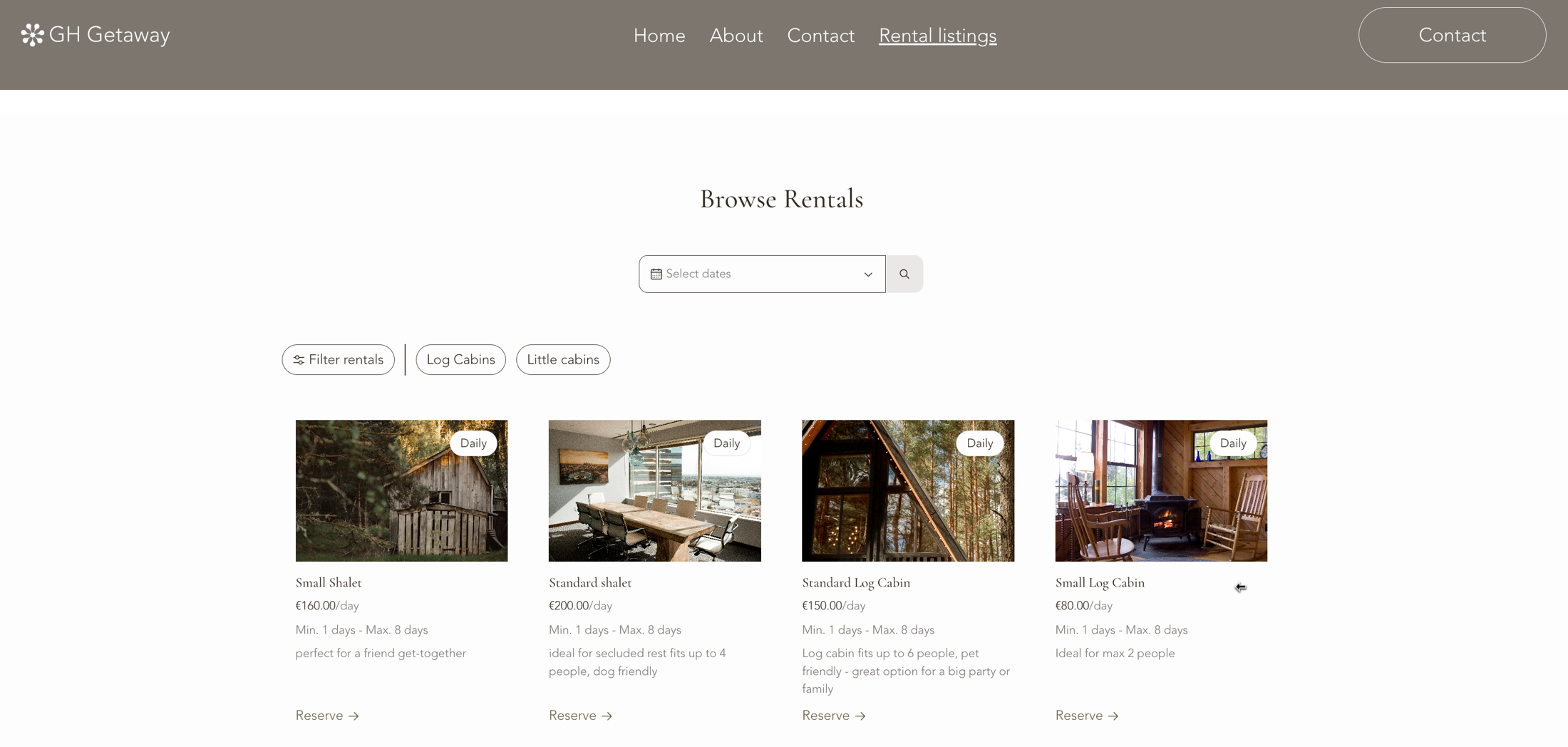
Wix Rentals lets you rent out resources such as equipment, studios, sports courts, or workspaces directly from your site. Create a rental listing for each resource, choose when it is available, and let clients reserve and pay online. You can also create reservations for clients directly from your dashboard.
Note:Wix Rentals is available only on Wix Harmony.
Important:
You can create up to three manual reservations for free in Wix Rentals. To take online reservations, you need a
Business Premium plan.
How Wix Rentals works
Before you set up your rentals, it helps to understand a few key terms:
- Resource: A physical asset you rent out, for example a tennis court, a camera, or an office.
- Resource category: A group that organizes similar resources together, for example "Rooms" or "Road bikes."
- Attribute: A detail that describes a resource, for example capacity, parking, or air conditioning. You can add attributes and assign values to each resource individually.
- Rental listing: What clients see and reserve on your site, including availability, duration, and price. Each listing is linked to one resource. A client can reserve one listing per transaction, but you can create multiple listings for the same resource, for example daily and hourly listings.
- Reservation: What's created when a client reserves a listing. It appears in your calendar and holds the resource for that time.
Example: Helen runs a fitness studio and rents out rooms to yoga and Pilates instructors. She creates two rental listings: a Pilates room for 10 people and a yoga room for 6 people. Both resources belong to the resource category "Rooms." Helen also has 10 yoga mats. She sets up each mat as a separate resource with its own rental listing.
Note:
Wix Rentals uses
the same resources as Wix Bookings. If you already use Wix Bookings, your resources are automatically available in Wix Rentals too.
Rent out resources on your terms
You control when each resource is available and how long clients can rent it for. Set a resource to be available full day or limit it to your working hours, then choose whether clients rent by the hour or by the day.
For example, if Helen's yoga room is set to working hours, clients can reserve it for a full business day or by the hour within a single business day. If she sets it to full day, they can reserve it for a full calendar day or by the hour on any date.
| Resource availability | Rental duration | What clients can reserve |
|---|---|---|
Working hours
|
Daily
|
Full business days within your open hours.
|
Working hours
|
Hourly
|
A start and end time within a single business day.
|
Full day
|
Daily
|
Full days midnight to midnight on any date even outside of the business hours.
|
Full day
|
Hourly
|
A start and end time on any date within the same calendar day.
|
New resources are set to full day by default. If a resource can only be rented during your working hours,
update its default hours.
Set your prices and get paid
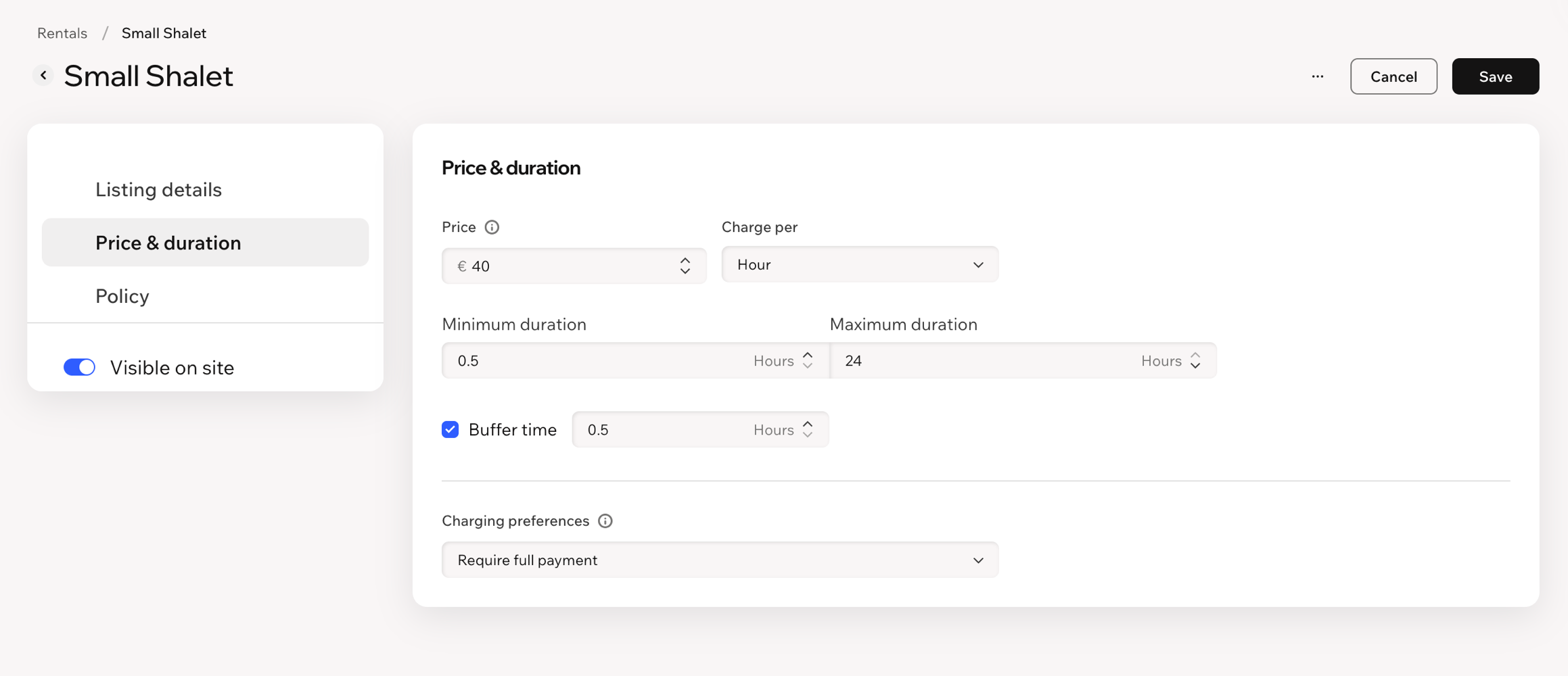
Set a price for each rental listing and choose a time unit: hourly or daily. For hourly rentals, you can also add buffer time between reservations to give yourself time to prepare the resource for the next client.
For manual reservations, you can
collect payment from your dashboard by cash, card, or another payment method.
Help clients find the right rental
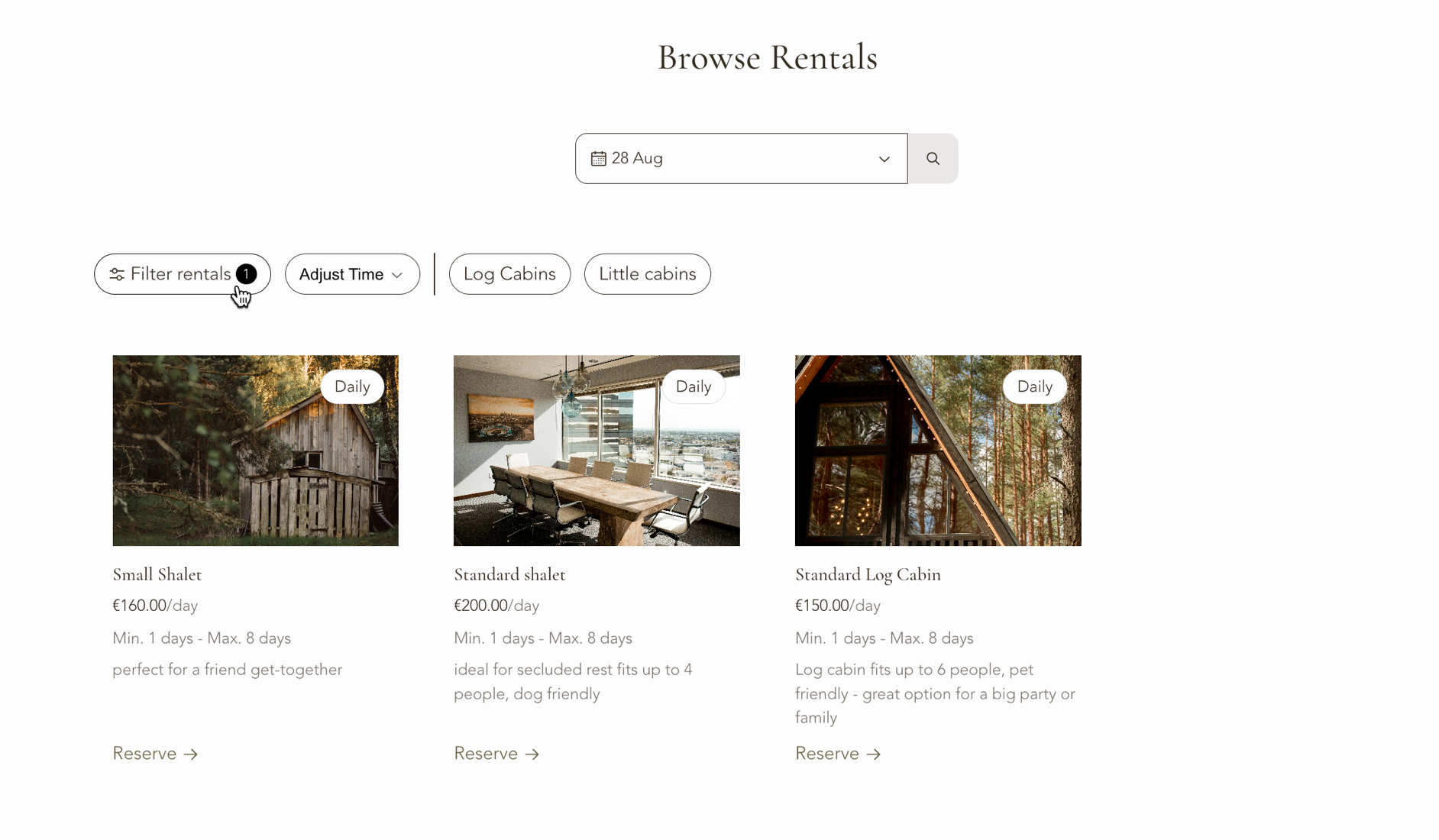
On your live site, clients can browse rental listings and filter them to find what they need. Depending on how you set up your resources, they can filter by location, date and time, resource category, and attributes.
You can customize which attributes appear as filters, set their display order, and choose whether to show resources that are only partially available.
Tip:
Decide on your attributes before you publish. They control what filters appear on your site.
Create reservations for your clients
You can also create reservations for clients directly from your dashboard, for example, when a client contacts you by phone, email, or in person.
Without a Business Premium plan, you can create up to 3 free sessions. Each day in a multi-day reservation counts as a separate session, so a 4-day daily reservation uses 4 sessions. After the free sessions are used, you need a Business Premium plan to continue creating reservations manually.
Note:The 3-session limit applies to manually created reservations only. Online reservations from your live site always require a Business Premium plan.
