


Wix POS: The Difference Between the New Wix POS and POS Register
- The main screen
- Setting up favorites
- Taking payment
- Finding a past sale and managing customers
- The customer-facing display
- Menu, settings and hardware
- FAQs
The New Wix POS is a redesigned point of sale app for brick-and-mortar businesses. Compare the versions below and find out which one you're using.
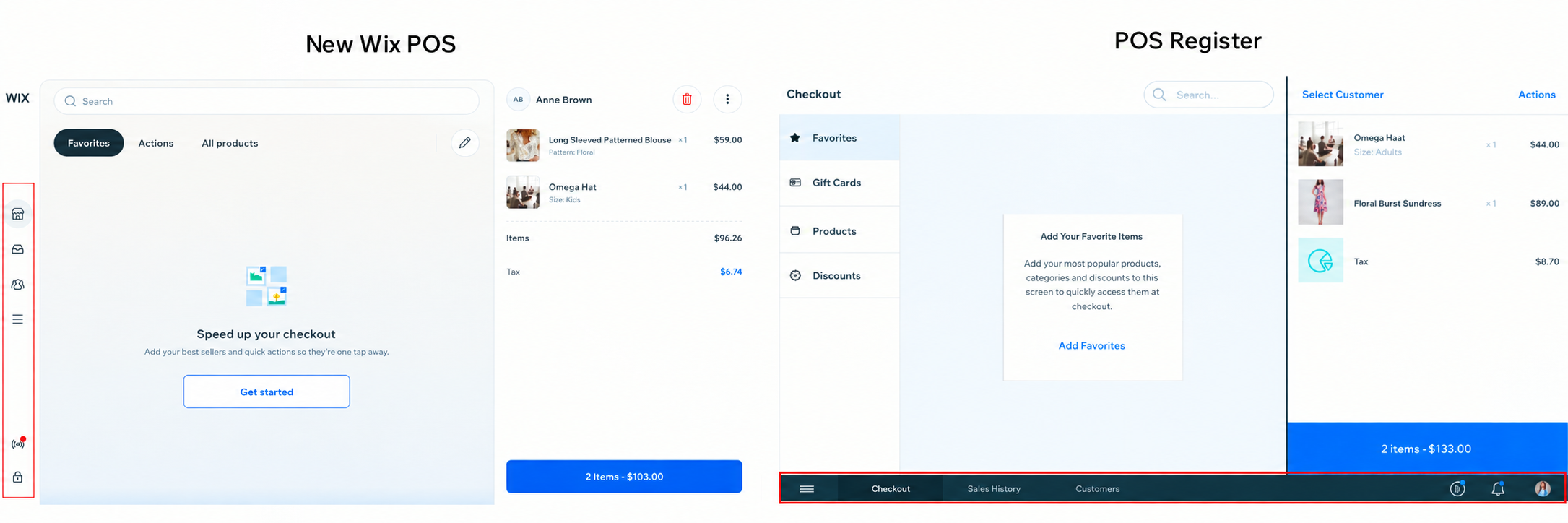
Look at the bottom of the screen. A dark bar with Checkout, Sales History and Customers means you're using POS Register. No bar, and a WIX logo in the top-left corner, means you're using the New Wix POS.
The main screen
The 2 versions navigate checkout differently, so where you tap to find products, categories and actions changes depending on which one you're using.
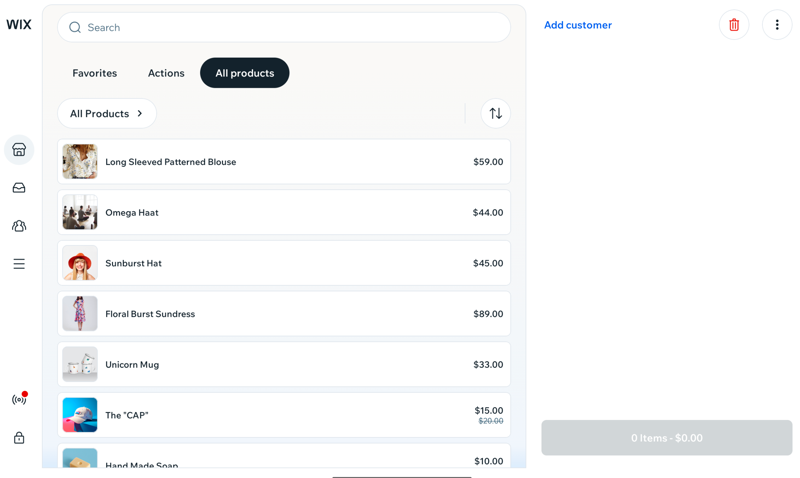
In New Wix POS, you navigate using tabs above the product list: Favorites, Actions and All products.
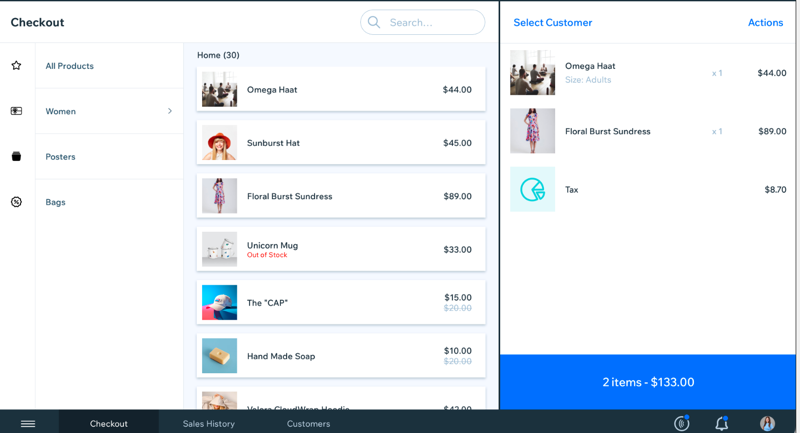
In POS Register, you navigate using a labeled menu on the left, with entries for Favorites, Gift Cards, Schedule, Products, Services and Discounts.
Setting up favorites
The way you set up favorites differs between versions, which affects how you organize your most-used products, discounts and actions.
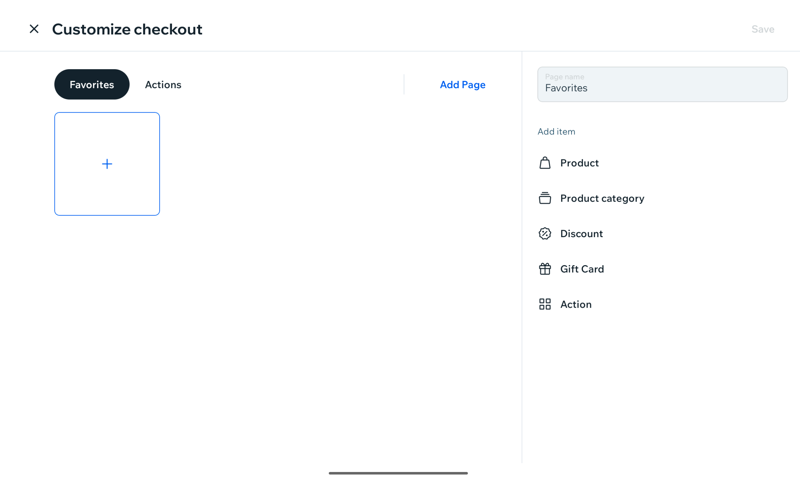
In New Wix POS, you can create multiple Favorites pages, for example one per counter or shift. Each page can hold products, categories, discounts, gift cards and quick actions.
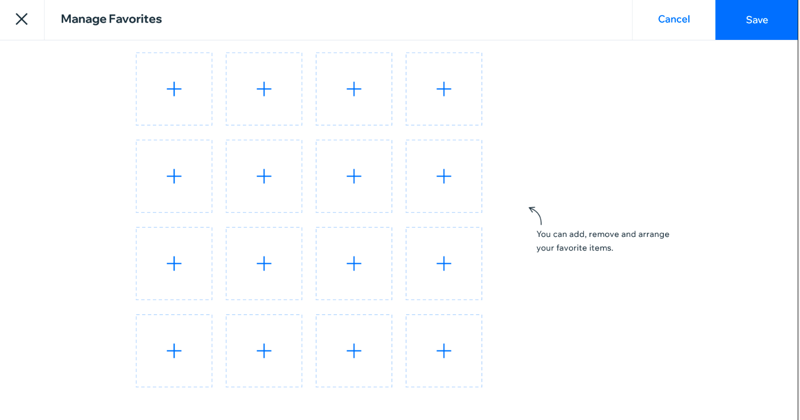
In POS Register, you use the single, fixed grid of 16 slots for favorite items, and you can't group them.
Taking payment
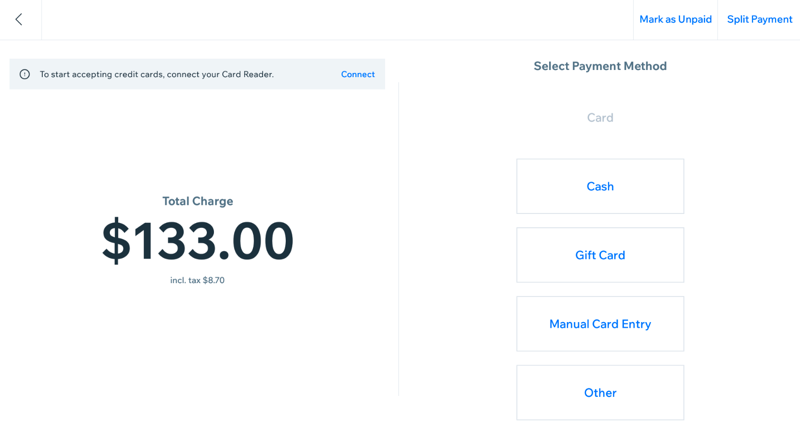
You can accept Card, Cash, Gift Card and Manual Card Entry payments in both versions, though the supported card readers and a couple of checkout options differ.
In New Wix POS, only the following Stripe card readers are supported: Stripe M2, BBPOS WisePad 3, BBPOS WisePOS E and Stripe S700/S710.
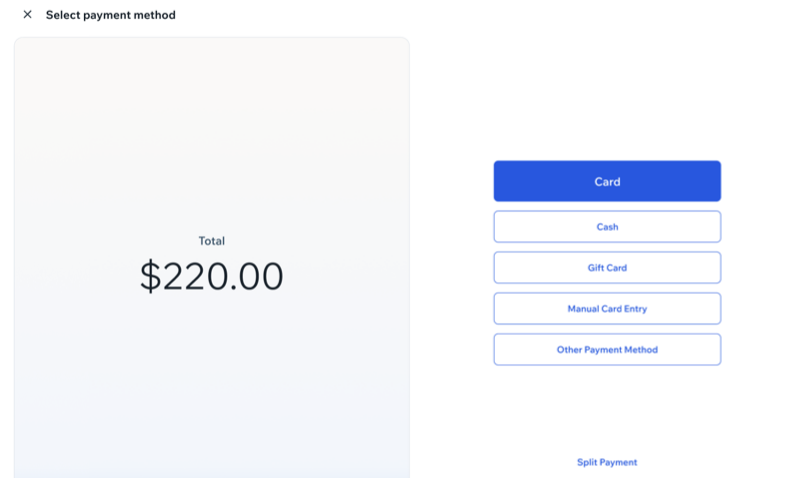
In POS Register, you can also Send Pay Link and Mark as Unpaid. These aren't available in the New Wix POS yet.
Finding a past sale and managing customers
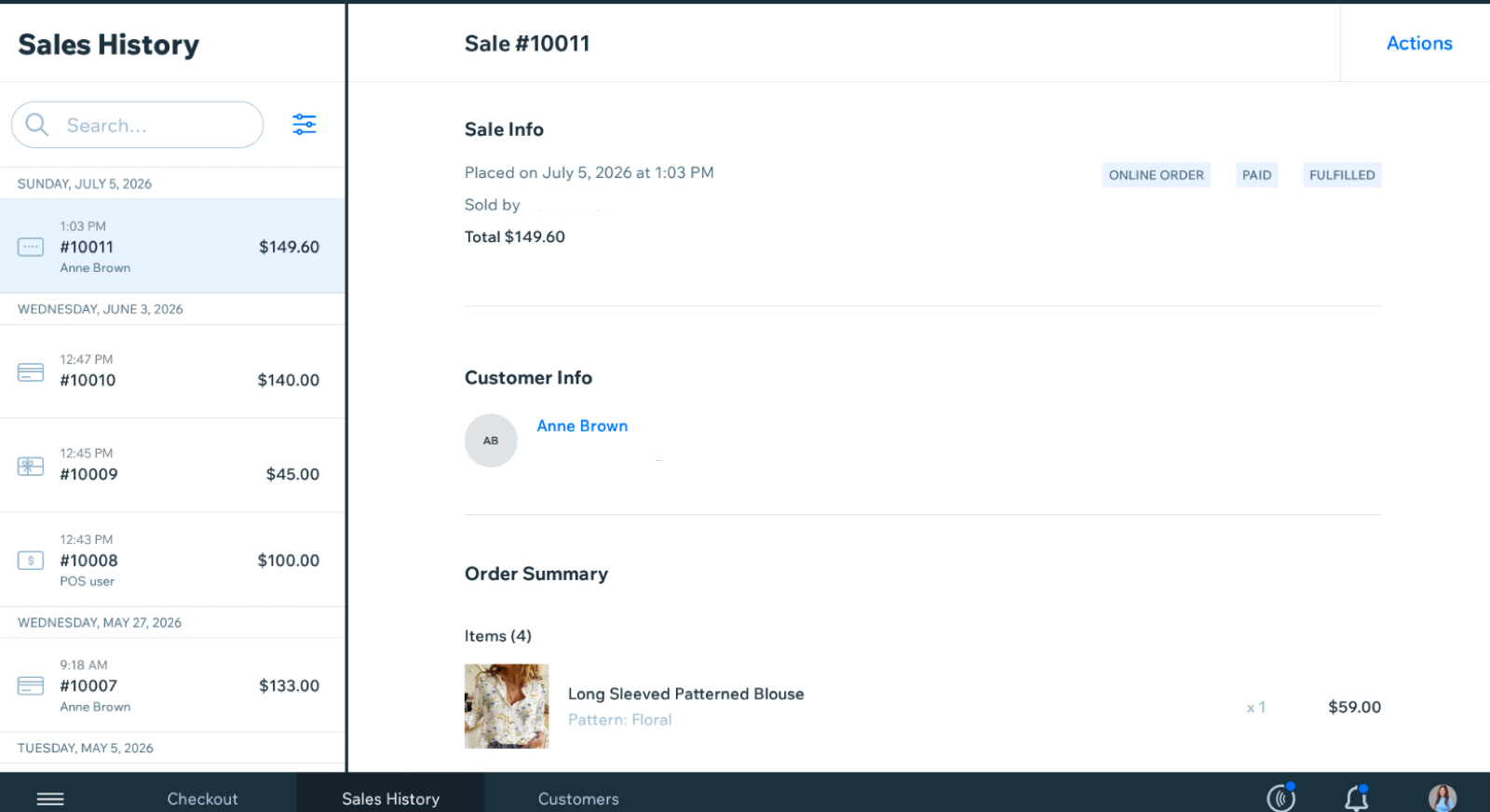
Customer profiles are organized differently in each version, which changes how you browse a customer's sales history and other details.
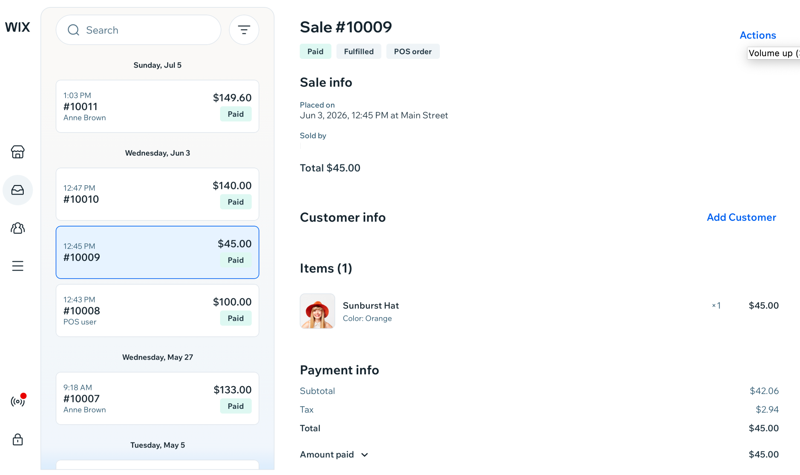
In New Wix POS, sales history and customer profiles show as single scrolling pages.
In POS Register, customer profiles are split into tabs: Overview, Bookings, Sales History, Loyalty and Tax exemptions. The Bookings tab isn't available in the New Wix POS, since Wix Bookings isn't supported there yet.
The customer-facing display
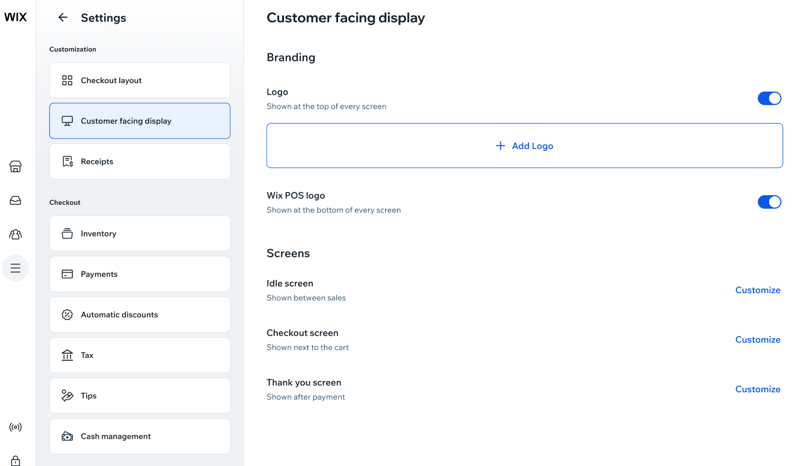
You can customize what customers see on the display facing them at checkout, though how many screens you get and what you can customize on them differs between versions.
In New Wix POS, you can customize the display with your own logo, or turn off the Wix logo, add a background, and generate a QR code to show on the display. Set up to 4 different Idle screens, plus dedicated Checkout and Thank you screens, each with its own images and colors.
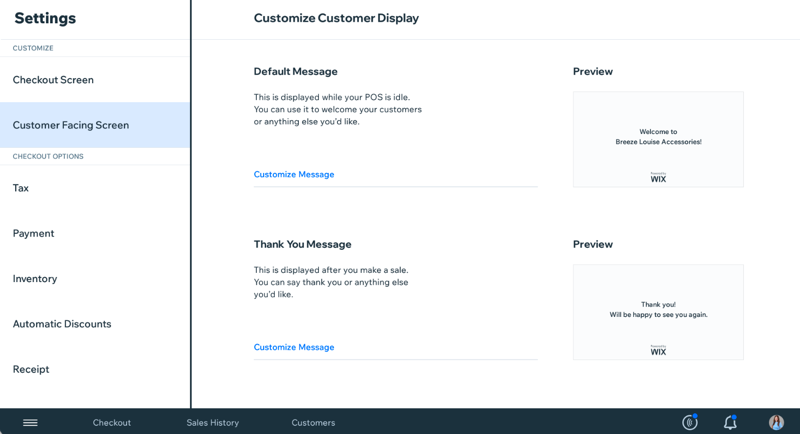
In POS Register, you can customize 2 text messages: one shown while the register is idle, and one shown after a sale.
Menu, settings and hardware
Settings and hardware are organized differently in each version, which changes where you go to manage your devices and site preferences.
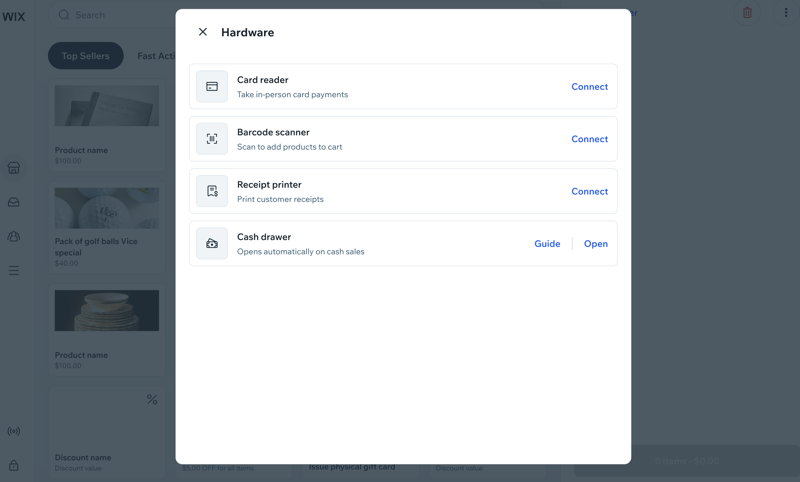
In New Wix POS, all settings are in one scrolling list, and all hardware — card reader, barcode scanner, receipt printer and cash drawer — is managed from a single Hardware screen, with connection status shown on each row.
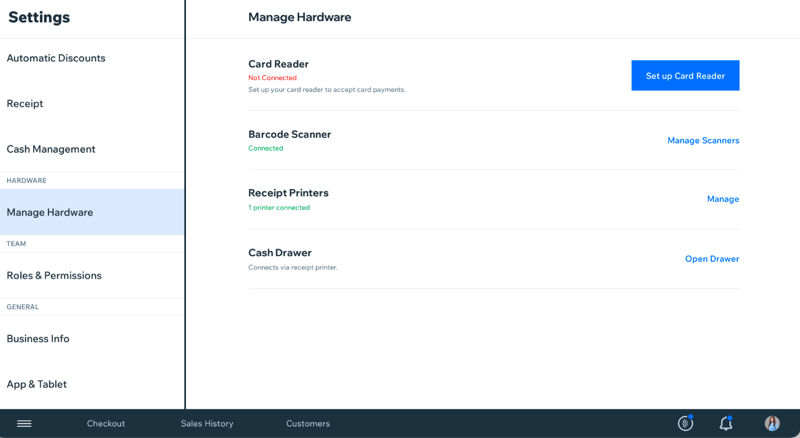
In POS Register, you manage settings and hardware on separate screens. Each device has its own setup button.
FAQs
Click a question below to learn more about the differences between the New Wix POS and Wix POS Register.