


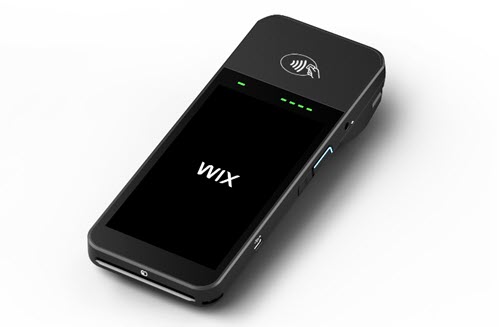
Wix POS Register: Using the BBPOS WisePOS E Card Reader
- Charging the reader
- Connecting the reader to the tablet
- Updating the card reader software
- Troubleshooting your card reader
The BBPOS WisePOS E is available for purchase only for merchants based in the US or Canada.
Your card reader allows you to accept payment from customers by credit card, debit card, and phone app. This card reader connects to your tablet through WiFi.
Charging the reader
Make sure the device is fully charged before you use it, so it's ready whenever you want to process a sale. The reader automatically disconnects if the battery dips below a 25% charge.
When charging, always plug the reader into a wall outlet, not directly into the tablet.
Connecting the reader to the tablet
To set up the card reader, you need to connect it to your tablet via WiFi. If you ever replace your reader, you can use the instructions below to disconnect the old one and connect a new one.
To connect or disconnect the reader:
Open the POS tablet.
Tap the Connect icon .
Choose what you want to do:
Connect your card reader:
Tap Connect next to Card reader.
Tap Connect New.
Tap the relevant reader.
Tap It's Powered On.
Tap It's Connected.
(Optional) Enter a name for the card reader and tap Continue.
Enter the code shown on your card reader and tap Pair Reader.
Tap Done.
Disconnect your card reader:
Tap Unpair at the top right.
Tap Unpair to confirm.
 .
.Updating the card reader software
Check for updates to the card reader software from time to time and update the software when available.
To update the card reader software:
Open the POS tablet.
Tap the Connect icon .
Tap Card reader.
Tap Check for Updates.
If an update is available, tap Update Now and follow the instructions.
Troubleshooting your card reader
If you have any problems operating the card reader, check out these troubleshooting steps.