


Wix POS Register: Setting Up the Elavon Terminal Card Reader
In this article
- Step 1 | Unbox and charge your card reader
- Step 2 | Pair the card reader with your POS tablet
Important:
- This article is about the Wix POS Register for brick & mortar businesses.
- To make sales on a mobile device, learn more about Wix Mobile POS.
Learn how to connect the Elavon Moby 5500 card reader so you can start to collect payment from customers by credit card, debit card, or phone app.
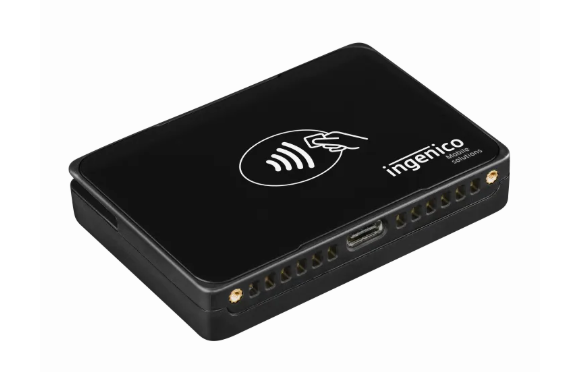
The Elavon Moby 5500 card reader supports magstripe and EMV payments. You can also use it to accept digital payment methods such as Apple Pay, Android Pay, Samsung Pay, Visa payWave, MasterCard PayPass, AMEX ExpressPay, and Discover D-PAS.
Step 1 | Unbox and charge your card reader
After receiving your card reader from Elavon, unbox it and charge it so it is ready to set up.
To prepare your reader:
- Unbox your card reader.
- Press the power button on the right side to turn the reader on.
- Charge the reader.
Step 2 | Pair the card reader with your POS tablet
Now you can pair your card reader with your POS Register tablet and start accepting payments.
To pair the reader and tablet:
- Turn on the card reader.
- Connect the reader using one of these options:
- Connect the card reader to WiFi.
Tip: Connect to WiFi just like you would connect a smartphone. - Connect it to the POS Register tablet via a USB cable.
- Connect the card reader to WiFi.
- Open the POS tablet.
- Tap the Menu icon
 at the bottom left.
 - Tap Manage Hardware.
- Select Set up Card Reader.
- Tap Connect next to the relevant card reader.
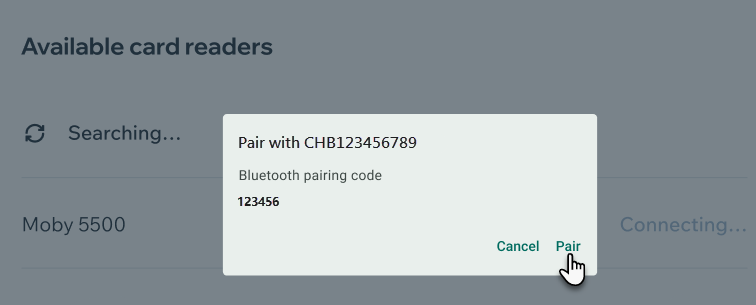
- Tap Pair.
Tip: You do not need the Bluetooth pairing code.
- Compare the 4 lights displayed on the POS tablet screen with the lights on the card reader.
- Select an option:
- Colors match: Tap Confirm Match.
Note: This means that both show the same colors in the same order. - Colors do not match: Tap Replay Lights and then Tap Confirm Match if they match.
- Colors match: Tap Confirm Match.