


Wix POS Register: Selling Moneris Physical Gift Cards
4 min
In this article
- Step 1 | Order Moneris physical gift cards
- Step 2 | Enable gift cards in your Moneris dashboard
- Step 3 | Sell Moneris physical gift cards
- Sell a fixed amount Moneris physical gift card
- Sell a variable amount Moneris physical gift card
- Step 4 | Accept Moneris physical gift card payments
- FAQs
Important:
- This article is about using the Wix POS Register solution with Moneris for brick-and-mortar businesses. If you are not using Moneris as your payment provider, follow the instructions for selling physical gift cards with Wix Payments.
- Moneris is available only in Canada.
You can sell Moneris physical gift cards in your store and let customers use them to complete purchases. These gift cards have a magnetic stripe and a CVC, and you can sell them by swiping them through your Moneris card reader or by entering the card number manually on your POS tablet during payment.
Before you begin:
Make sure to connect Moneris as a payment provider on your site's dashboard before selling or accepting payment with Moneris physical gift cards.
Step 1 | Order Moneris physical gift cards
You can order physical gift cards by calling Moneris on 1-844-645-GIFT (4438), or directly from your Moneris dashboard. When ordering, you can choose between two types of gift cards:
- Fixed amount gift cards: Cards with a pre-assigned value that cannot be changed.
- Variable amount gift cards: Cards that let you assign any value to the card during the sale process.
Step 2 | Enable gift cards in your Moneris dashboard
Enable gift cards for your business in your Moneris dashboard. For help, call 1-844-645-GIFT (4438) to speak to a Moneris specialist.
Step 3 | Sell Moneris physical gift cards
Note:
Each Moneris physical gift card can only be sold and activated once. If you attempt to sell a previously activated card, you’ll see an error message.
You can sell fixed or variable amount physical gift cards in person with your POS tablet.
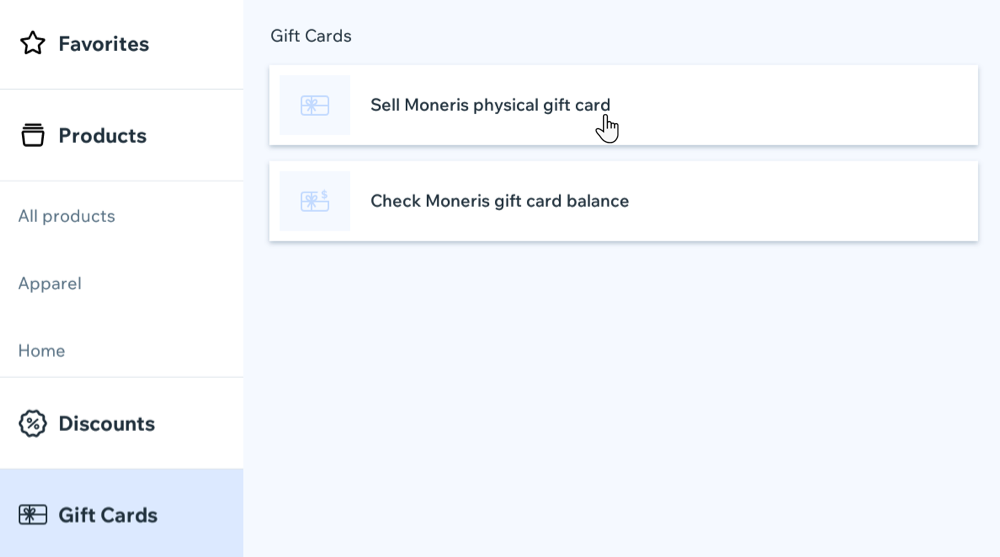
Sell a fixed amount Moneris physical gift card
- (On your POS tablet) Tap Checkout on the bottom menu.
- Tap Gift Cards.
- Tap Sell Moneris Gift Card.
- Take a fixed amount Moneris physical gift card from your supply.
- Choose how to enter the gift card details:
- Swipe the card through your Moneris card reader.
- Enter the card number manually.
- (In the cart) Complete checkout as you would for any other product.
Tip: The gift card number and fixed amount will be displayed in the cart. - Give the physical gift card to your customer.
Sell a variable amount Moneris physical gift card
- (On your POS tablet) Tap Checkout on the bottom menu.
- Tap Gift Cards.
- Tap Sell Moneris Gift Card.
- Take a variable amount Moneris physical gift card from your supply.
- Choose how to enter the gift card details:
- Swipe the card through your Moneris card reader.
- Enter the card number manually.
- Enter the desired gift card value.
- Tap Add to Cart.
- (In the cart) Complete checkout as you would for any other product.
Tip: The gift card number and the amount you assigned will be displayed in the cart. - Give the physical gift card to your customer.
Tip:
To remove the gift card from the cart, swipe it from right to left on your Moneris card reader.
Step 4 | Accept Moneris physical gift card payments
Customers can pay for their purchases in store using a Moneris physical gift card.
To accept payment with a Moneris physical gift card:
- (On your POS tablet) Process the sale as usual and proceed to your cart.
- Select Gift Card as the payment method.
- Choose how to enter the gift card details:
- Swipe the Moneris gift card through your Moneris card reader.
- Tap Enter Gift Card Number, enter the number manually, and tap Continue.
- Enter the CVC printed on the gift card.
- Tap Continue to finalize the payment.
Tip:
If the gift card balance does not cover the full amount, select Add Payment and choose an additional payment method.
FAQs
Click a question below to learn more about Moneris physical gift cards.
Can I use regular Wix gift cards with Moneris POS?
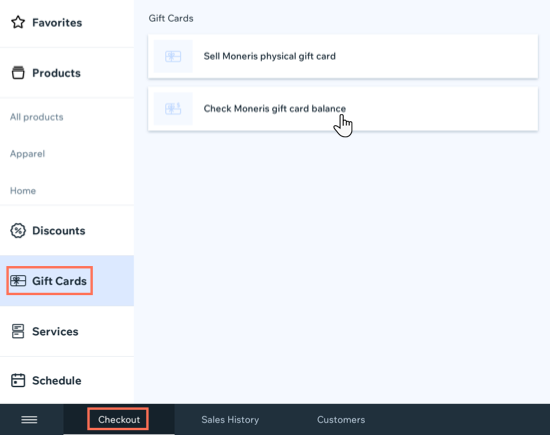
How do I check a Moneris physical gift card balance?
Can customers use Moneris physical gift cards online?
I have an issue with my Moneris physical gift cards. What can I do?
