


header-logo
Getting started with WixLearn how to build your website and business using Wix.
Creating a websiteDesign and manage your site with smart functionalities.
Account & billingManage subscriptions, plans and invoices.
Using the Wix mobile appsRun your business and connect with members.
Connecting a domainLearn to purchase, connect or transfer a domain to your site.
Managing your businessGet tools to grow your business and web presence.
Promoting your siteBoost your visibility with SEO and marketing tools.
Studio, Partners & EnterpriseGet advanced features to help you work more efficiently.
Need more help?Find solutions, learn about known issues or contact us.
placeholder-preview-image
Wix LearnImprove your skills with our courses and tutorials.
Wix BlogGet tips for web design, marketing and more.
SEO Learning HubLearn to increase organic site traffic from search engines.
Website developmentBuild a custom site using our full-stack platform.
Hire a ProfessionalGet matched with a specialist to help you reach your goals.
placeholder-preview-image
In this article
  • Adding items to your Favorites
  • FAQs

Wix POS Register: Organizing Your Favorites Screen

2 min
In this article
  • Adding items to your Favorites
  • FAQs
Important:
  • This article is about the Wix POS Register for brick & mortar businesses. 
  • For info on using POS on a mobile device, click here.
Make sure your most popular products, discounts, and more are easily accessible by adding them to your Favorites. Your Favorites screen can include:
  • Products
  • Product categories
  • Discounts
  • Gift cards
When you're processing a sale, you can tap the Favorites tab and then add one of these items to the sale.
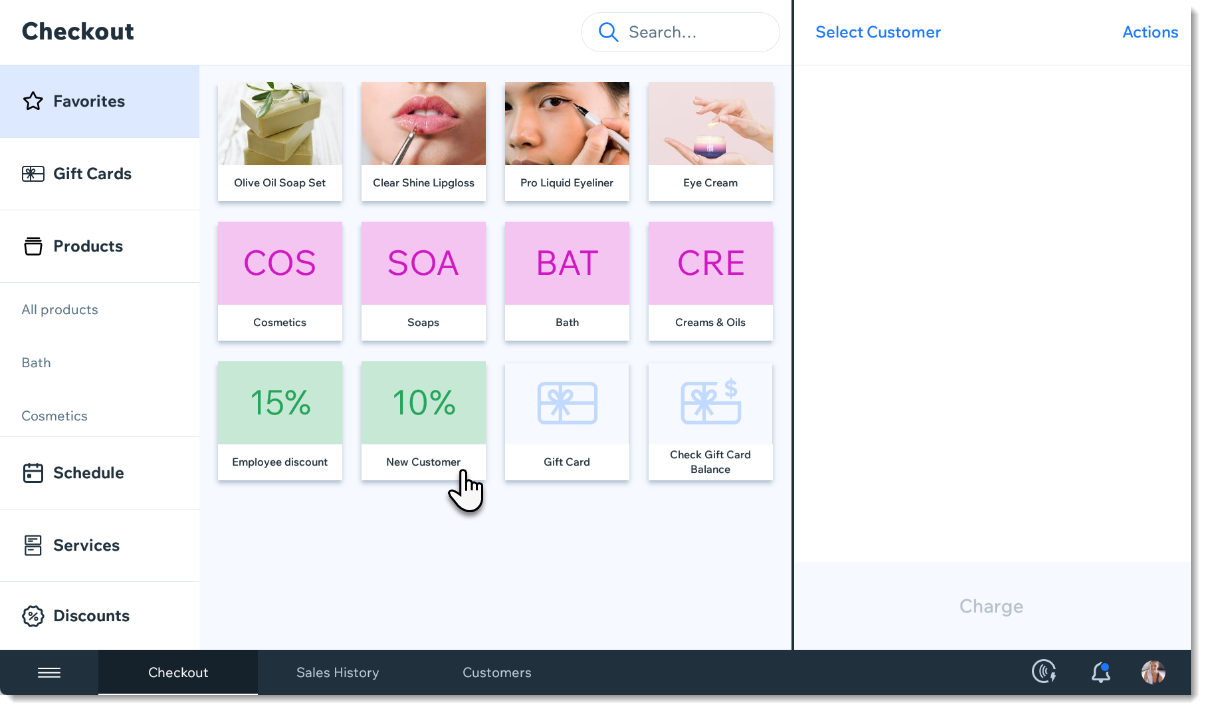
Screenshot of the Favorites tab in the checkout screen in the Wix Retail POS tablet

Adding items to your Favorites

  1. Open the POS tablet. 
  2. Tap the Menu icon at the bottom left. 
  3. Tap Settings
  4. Tap Manage next to Favorites.
  5. Add an item to your Favorites.
    1. Tap the Add icon .
    2. Select Products, Categories, Discounts, or Gift Cards.
    3. Tap the item you want to add to your Favorites.
  6. (Optional) Drag items to reorder them.
  7. Tap Save

FAQs

Click a question to learn more.

Helpmate

Hello

Need a bit more guidance?
Summary of this article
Unlock personalized helpLog in to get the most out of Helpmate.
