Wix Legends is an AI-powered platform that lets you create your own Legend: a digital presence built to represent you and engage with visitors in real time. With Wix Legends, you can extend your reach, deepen relationships, and open new ways to interact with clients, your community, or fans.
Learn how to set up your Legend to reflect you, your business or brand.
Step 1 | Create a Wix Legends account
Begin by signing up to Wix Legends. Once you create an account, you can get started with setting up your Legend.
To create an account:
- Go to Wix Legends.
- Click Create Your Legend.
- Sign up with an email address and password, or use your Google, Facebook, or Apple account.
Step 2 | Meet Atlas
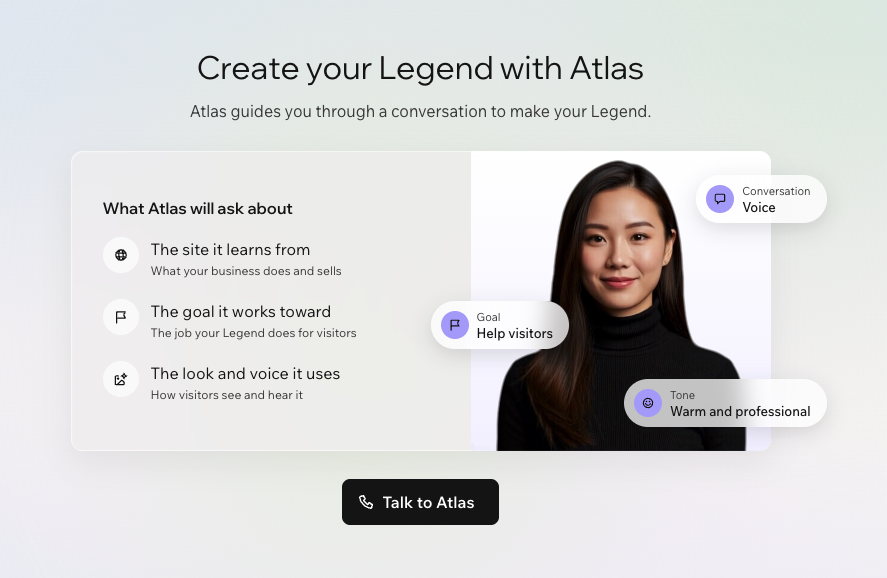
Atlas is your AI assistant who guides you through building your Legend. She'll start the conversation, introduce herself, and walk you through each step as you set up your Legend. Click or tap Talk to Atlas to continue.
Step 3 | Connect a site
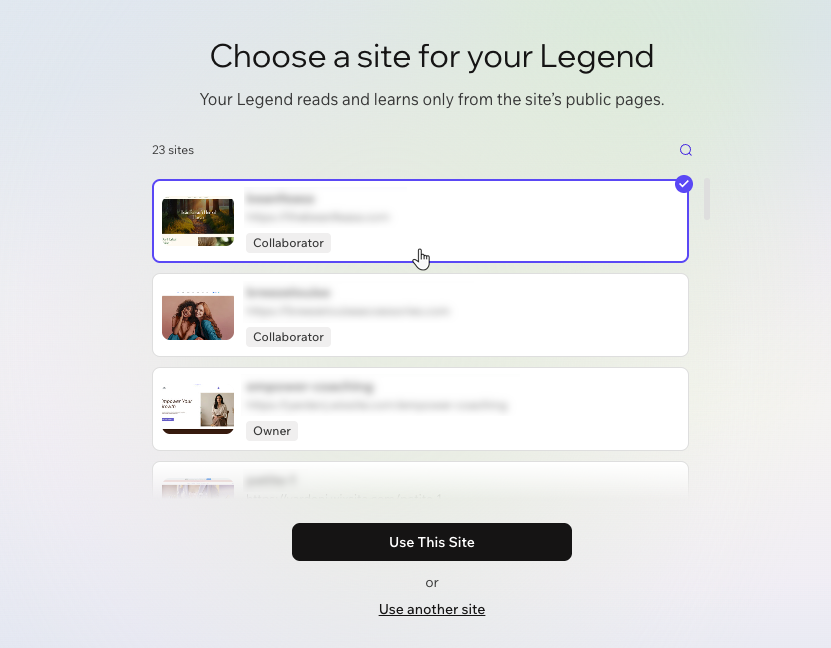
Choose a site for your Legend to learn from. Your Legend reads the site's public content, so it can respond to visitors with details specific to your business.
To connect a site:
Choose which site to connect:
Connect a Wix site: Select a site from the list. For each site, you can see the site name, the URL, and whether you're a site owner or collaborator.
Connect a non-Wix site: Click or tap Use another site at the bottom and enter the site URL.
Click or tap Use this site.
Step 4 | Choose what your Legend should help with
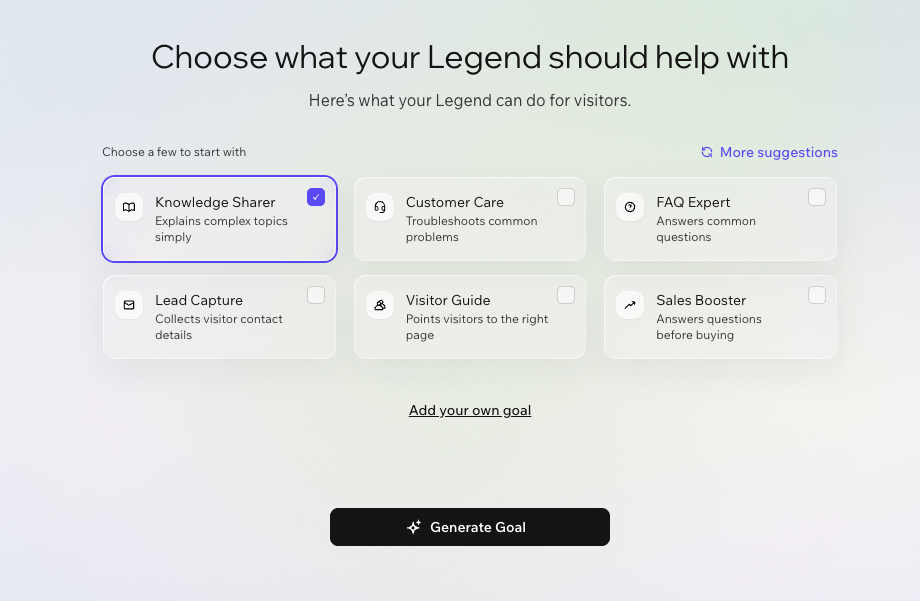
Decide what you want your Legend to do for visitors. You'll get suggestions for goals based on your site’s content, and what you choose here helps fill in information for your Legend’s profile and behavior later on.
To choose what your Legend should help with:
Select a few suggestions.
Click or tap Generate Goal.
(Optional) Edit the Legend's title to rename it.
Click or tap Continue.
Step 5 | Create your Legend's appearance
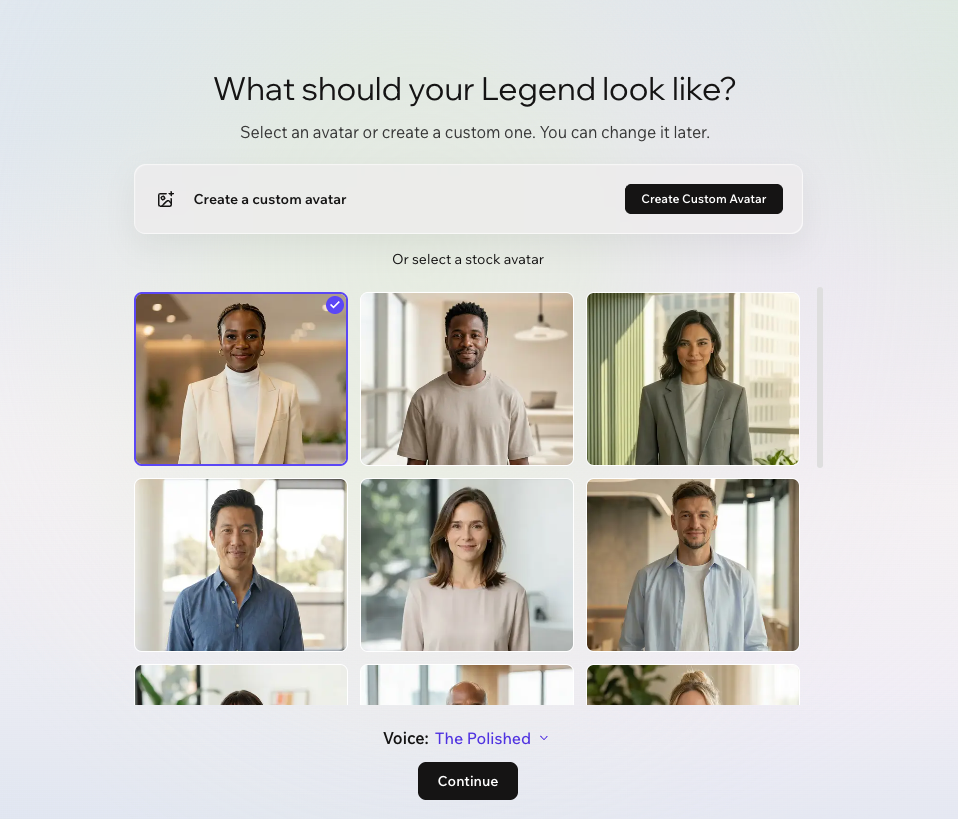
Create your Legend's appearance for live calls by choosing an avatar. You can create a custom avatar based on your own photo and voice, or choose a stock avatar from the gallery.
Stock avatars are ready to use right away, so your Legend can have video calls with visitors immediately. A custom avatar can take up to 4 hours to process - it will continue generating in the background as you move onto the next steps.
To create your Legend's appearance:
Choose the type of avatar you want to use:
Generate a custom avatar using your own photo and voice.
Click Create Custom Avatar.
Choose how to add a photo:
Upload Photo: Choose an existing photo from your device.
Take Photo: Open your camera and take a new picture.
Tip: Make sure you are centered in the frame, facing the camera, in good lighting.
Choose your Legend's style. You can select your original photo, choose one of the suggested styles, or click Create custom look to generate a new look.
Choose how to upload a voice sample:
When you're happy with the recording, click the checkbox next to I confirm that I have the right to use this voice and agree to let Wix use it to create a Legend.
Click Use Recording.
Provide your Legend's name.
Click Generate Preview.
Tip: A preview of your Legend's video will generate, giving you a sneak peak into what it'll look and sound like once fully generated.
Review the generated avatar. If you're happy with it, click Create Legend or go back to make changes.
Stock avatars come ready with their own image and default voice. You can keep both as-is, or change the voice to a different stock voice or your own voice sample.
Select the avatar you want to use.
Tip: Hover over a character to see a short preview of the avatar in action. You can enlarge the preview to full screen and listen to their default voice.
(Optional) Click the Voice dropdown to select a different stock voice or create a custom voice.
Provide your Legend's name.
Click Create Legend.
Step 5 | Enter your workspace
After completing these steps, you're taken to the Wix Legends workspace where you can continue building and refining your Legend, and preview how it will interact with your visitors.
Atlas remains available in your workspace, so you can keep talking to her to add knowledge, clarify details, or update information as things change.
To continue building out your Legend, you can:
FAQs
Click a question below to learn more.
Which avatar type should I choose?
- Choose a custom avatar if you want your Legend to look and sound like you, making live calls feel more personal.
- Choose a stock avatar if you want to get started quickly, prefer not to use your own appearance, or want a different character to represent your business or brand.
Can I change my Legend's appearance after setup?
How do I update my account information?
When you create a Wix Legends account, your account is managed by Wix. Your Wix account details include information such as your username, account name, login info, and your recovery phone number.
Click your account avatar at the bottom left of the workspace.
Click Settings.
Click Go to Account Settings.
Learn more about changing account details.
I want to delete my Legend and start over. Can I do that?
Yes, you can remove your Legend, however doing this permanently deletes all your data including knowledge, conversations, and voice or video assets.
If you only want to change how your Legend looks, you don't need to remove it. You can switch to a different stock avatar or generate custom avatar. Learn more about your Legend's appearance.
To remove your legend:
Click your account avatar at the bottom left of the workspace.
Click Settings.
Click Remove Legend.
(Optional) Select a reason from the dropdown for why you're removing the Legend.
Click Remove Legend.