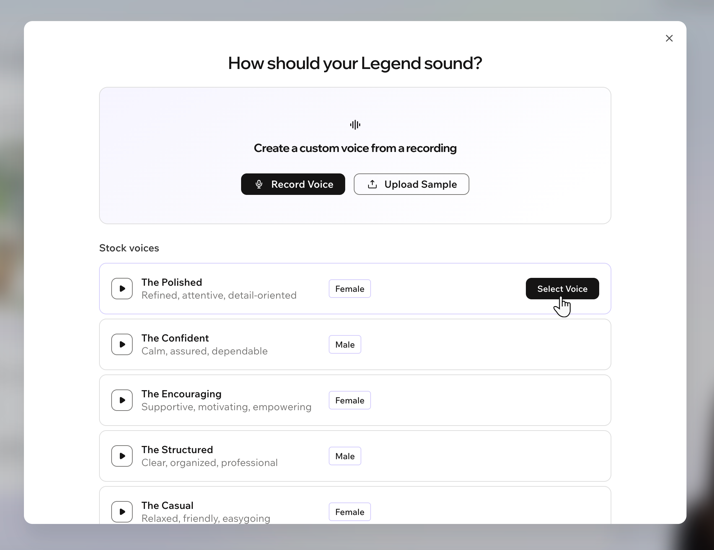
Manage how your Legend appears when visitors interact with them. Switch between a custom avatar and a ready-made character, decide whether visitors can talk to your Legend by video, voice, or only through chat, and add voice recordings to make your Legend sound more like you.
Changing your Legend's avatar
Switch your Legend's visual presence between a custom avatar created from your photo and a ready-made stock avatar from the gallery.
To change your Legend's avatar:
- Go to Wix Legends.
- Click Appearance on the left.
- Hover over your Legend's video and click Change Look.
- Choose how you want your Legend to look:
Generate a custom avatar using your own photo and voice. This can take up to 4 hours to generate.
Click Create Custom Avatar.
Choose how to add a photo:
Upload Photo: Choose an existing photo from your device.
Take Photo: Open your camera and take a new picture.
Tip: Make sure you are centered in the frame, facing the camera, in good lighting.
Choose your Legend's style. You can select your original photo, choose one of the suggested styles, or click Create custom look to generate a new look.
Choose how to upload a voice sample:
When you're happy with the recording, click the checkbox next to I confirm that I have the right to use this voice and agree to let Wix use it to create a Legend.
Click Use Recording.
Provide your Legend's name.
Click Generate Preview.
Tip: A preview of your Legend's video will generate, giving you a sneak peak into what it'll look and sound like once fully generated.
Review the generated avatar. If you're happy with it, click Create Legend or go back to make changes.
What's next?
While you're waiting for the avatar to generate, you can preview the video or explore the gallery.
Use a ready-made avatar from the gallery. These are ready to use right away, and you can switch between them as many times as you want.
Select the avatar you want to use.
Tip: Hover over a character to see a short preview of the avatar in action. You can enlarge the preview to full screen and listen to their default voice.
(Optional) Tap the Voice dropdown to select a different stock voice or create a custom voice.
Provide your Legend's name.
Tap Create Legend.
5. Click
Publish at the top right to apply these changes.
Customizing your Legend's voice
Customize your Legend's voice by creating an original voice using your own voice sample, or selecting a stock voice from the offered list.
To record and manage your Legend's voice:
Go to Wix Legends.
Click Appearance on the left.
Click Change Voice.
Choose how to change the voice:
Click the checkbox next to I confirm that I have the right to use this voice and agree to let Wix use it to create a Legend.
Click Use Recording when ready.
Best practices for recording your voice
Follow these tips to help your Legend capture your natural tone and get a great voice match.
Choose a quiet space: Record in a room with minimal background noise and echo. Turn off fans, and silence your phone and other devices that could affect the audio quality or cause interruptions.
Speak at a natural pace: Talk as you normally would. Imagine you’re having a friendly conversation, don’t rush or slow down too much.
Add variety to your voice while reading the script: As you record your voice, add expression and authenticity to help your Legend reflect your personality.
FAQs
Click a question below to learn more about your Legend's appearance.
What’s the difference between a custom avatar and a stock avatar?
A custom avatar creates a Legend based on your own photo and voice, so it looks and sounds more like you. A stock avatar lets you choose a ready-made character from a gallery instead of creating a digital version of yourself.
Stock avatars are a good option if you prefer not to use your own appearance, want a different character to represent your business or brand, or want a faster setup.
A stock avatar is ready to use right away, while a custom avatar can take up to 4 hours to generate.
Do I need professional equipment to record my voice?
Not at all. Clear, natural speech recorded on your device’s built-in microphone is usually enough. Try to avoid loud background noise for best results.
Do my Legend's voice calls with users get saved?
No, voice calls with your Legend are not saved or stored. However, each call is transcribed so users can review their conversation and continue chatting with your Legend through messages after the call.



 next to a voice to hear a sample.