
Wix Headless: Moving Your Site to a Custom Frontend
This feature is currently available for accounts in English only.
Create a new site for your business by replacing the frontend built in the Wix Editor with a custom frontend built using an AI coding tool, like Claude Code, Cursor, or Codex.
Any connected business tools (e.g. Wix Stores, Wix Bookings) and data (e.g. SEO, analytics) keep running without interruption. If you already have an existing custom frontend, you can use your AI coding tool to make it your Wix Headless frontend.
Who is this for?
You can migrate to a Headless site if you already have a live Wix site with a custom domain and want to replace only the frontend (the part visitors see) with something built using an AI coding tool.
Migrating to Wix Headless could be right for you if:
You have a live Wix site with business tools connected (e.g. Wix Stores, Wix Bookings, Contacts, Members) and you want a new frontend without rebuilding any of it.
You (or the developer or agency working on the site) want full design freedom by coding the frontend directly, rather than building in the Wix Editor.
You want a new frontend but don't want to lose any of your site data including analytics and SEO.
You want to try building with an AI coding tool without risking your live site.
Don't migrate to Wix Headless if you like building visually in the Wix Editor or Studio Editor, or if you don't have a developer or AI coding workflow. Wix Headless assumes you bring your own frontend code.
Things to know before you start
Your site needs a custom domain. Migrating to Wix Headless is only available for sites with a custom domain.
You can only have one frontend live at a time. Switching to your new frontend replaces your current one for visitors — both aren't live at once.
Your SEO moves with your new frontend. Once you migrate, your SEO and analytics follow your new frontend automatically. Keep in mind that making significant changes to your pages, content, or site structure can naturally affect SEO.
Check which apps are supported. Most connected apps continue working after you switch, but some aren't currently supported in the new frontend. You can still manage them from the site's dashboard. See a full list of supported and unsupported apps.
Requirements for migrating your site
Your site must meet all of the following requirements before you can start a migration:
You're the site owner: Only the site owner can start a migration. If you're a collaborator, ask the site owner to start it.
Your site has a custom domain: Connect a domain to your site before you start.
Your store uses the new Wix Stores catalog: If your site uses Wix Stores, it needs to have the new product catalog.
Your site doesn't use custom components from an app project: If your current site includes custom components that were built as part of an app project, it can't migrate yet. To go headless, create a new Headless site instead.
How does the migration process work?
Here's a step-by-step breakdown to how the migration process works. To start migrating, follow the steps in the next section.
Start the migration. You start the migration from Headless Settings in your site's dashboard. Headless gives you a prompt with the details of your specific site.
Build your new frontend with your AI coding tool. Paste the prompt into your AI coding tool, then build everything visitors see: pages, sections, and elements. Start from scratch, or copy your current design as a base. You can build your frontend as you go through the migration or before you start.
Preview and test your new frontend. Your new frontend appears as a separate view alongside your current site. Visitors only see your live site, so you can keep iterating until everything looks and works the way you want. Your products, services, bookings, and other data stay in place, ready to connect to your new frontend.
Switch to your new frontend. When you're ready, make the new frontend your live site. Your custom domain and data tracking move over, and your old site is unpublished. Only the pages you added with your AI coding tool appear on your new site. You can switch back at any time.
Moving your site to a custom frontend
Move to Wix Headless, build your new frontend with an AI coding tool, and publish it once you're ready.
Make sure your site meets all the requirements above.
To move your site to a custom frontend:
Go to Headless Settings in your site's dashboard.
Scroll down and click Start Migration under Headless Migration.
Click Start now to set up your business with your new frontend.
Review which apps will migrate and which won't be supported, then click Continue.
Click Copy prompt and paste it into your AI coding agent. This gives it information about your specific site using the Headless skill.
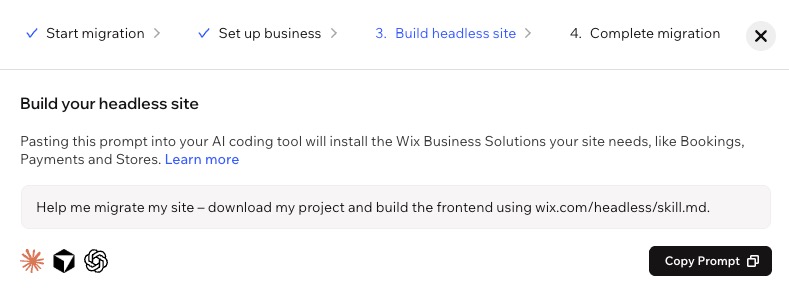
Build and iterate your frontend with your AI coding agent.
(Optional) Click View in Headless Settings to preview your Headless site.
Click Complete Migration.
Copy and paste the prompt into your AI coding agent to replace and publish the new frontend.
After you switch, review what needs to be rebuilt, like forms, redirects, SEO, and analytics. See the post-migration checklist and share it with your AI coding tool.
FAQs
Click a question below to learn more about migrating to Wix Headless.